User Manual IMPORT / EXPORT February 16, 2010
Xynergi Media Production Centre Page 295
Import / Export
Introduction
Constellation-XT has a number of features to allow the import and export of audio clips and Projects.
Importing Files
DREAM II can import the following file types:
Video Files – these can be displayed on the Pyxis track
Pyxis Projects – these are projects created using the program “Pyxis”
OMF Files – these are files from other manufacturers
ML Files – these are files from older Fairlight products.
AES-31 Files – these are files from other manufacturers
AAF Files – these are files from other manufacturers
MXF Files – these are files from other manufacturers
Importing Video Files
See Pyxis Track on page 256.
Importing an OMF
Step 1 Click on File, then choose import, OMF
Step 2 Browse to the location of the omf and select it. Press OK
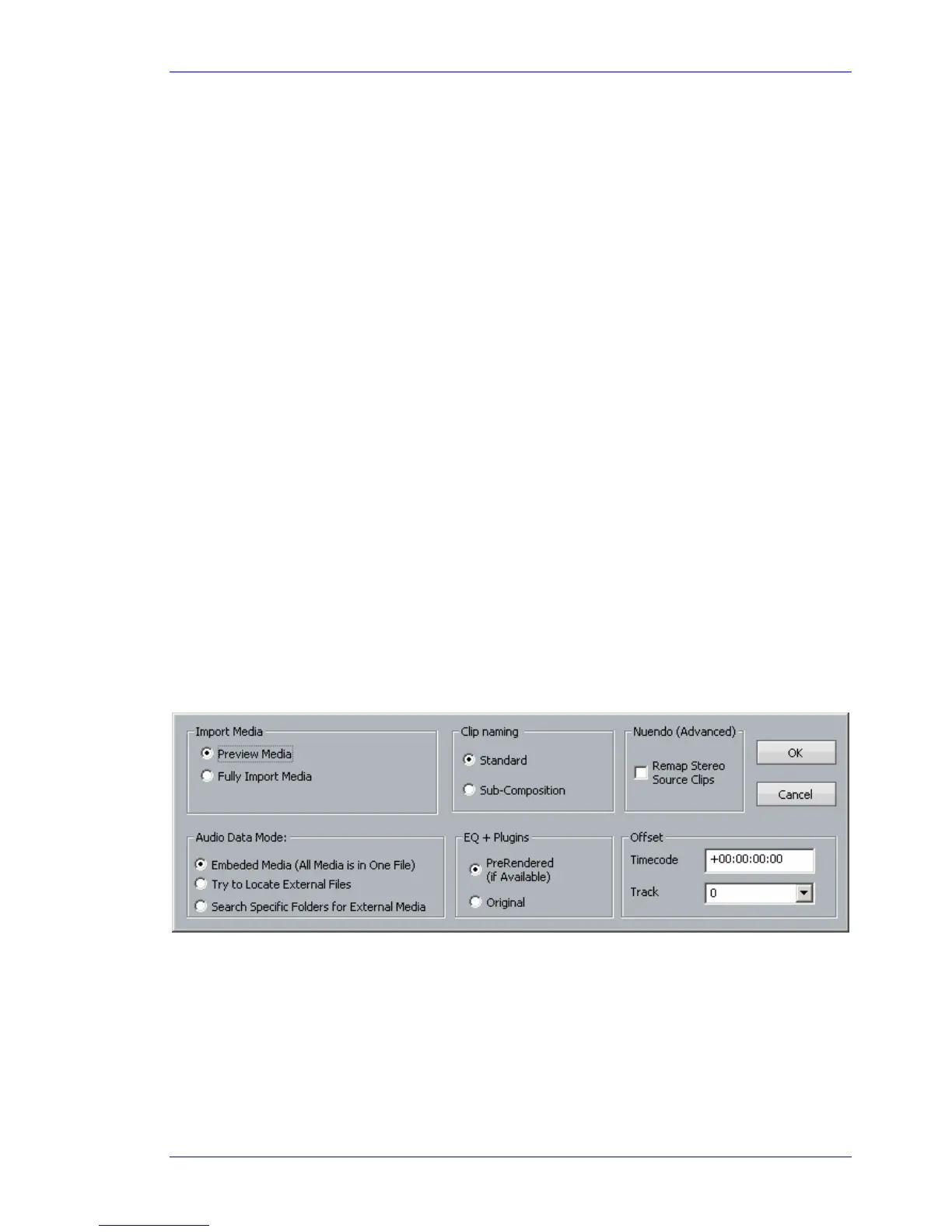
Step 3 The following dialog box is displayed
Import Media
“Preview Media” references the audio files from the omf – this may cause slowdowns on large projects
Note If the project is an *.MT project, stuffing the fuffs will render all audio to the current project
If the project is a *.DR2 project, using the “Localise” command will place all the audio in a folder inside
the project folder.
“Fully Import Media” automatically places the audio from the omf in either your FUF or Media folder
inside the folder of the current project



 To Next Page