User Manual TIME DOMAIN PROCESSING February 16, 2010
Xynergi Media Production Centre Page 164
Tempo changes speed without changing pitch. Use the tempo slider to set the desired
tempo
or
press the fit range soft key to capture the current range length
or
press the
edit soft key to edit the output duration or type a value in the “Output” box.
Pitch changes pitch without changing tempo. Use the pitch slider to set the desired pitch.
Press the
process soft key or “Process” button to render your changes back to the
timeline. A new clip will be created, and the original clip will be muted and preserved in
the layer underneath.
Using VocAlign Processing
** Note: Vocalign Project can be purchased at http://www.synchroarts.co.uk/. Dream II systems
will recognize Vocalign Project after it has been installed and run at least once.
Step 1 To enter the Wave Menu, press the
WAVE key.
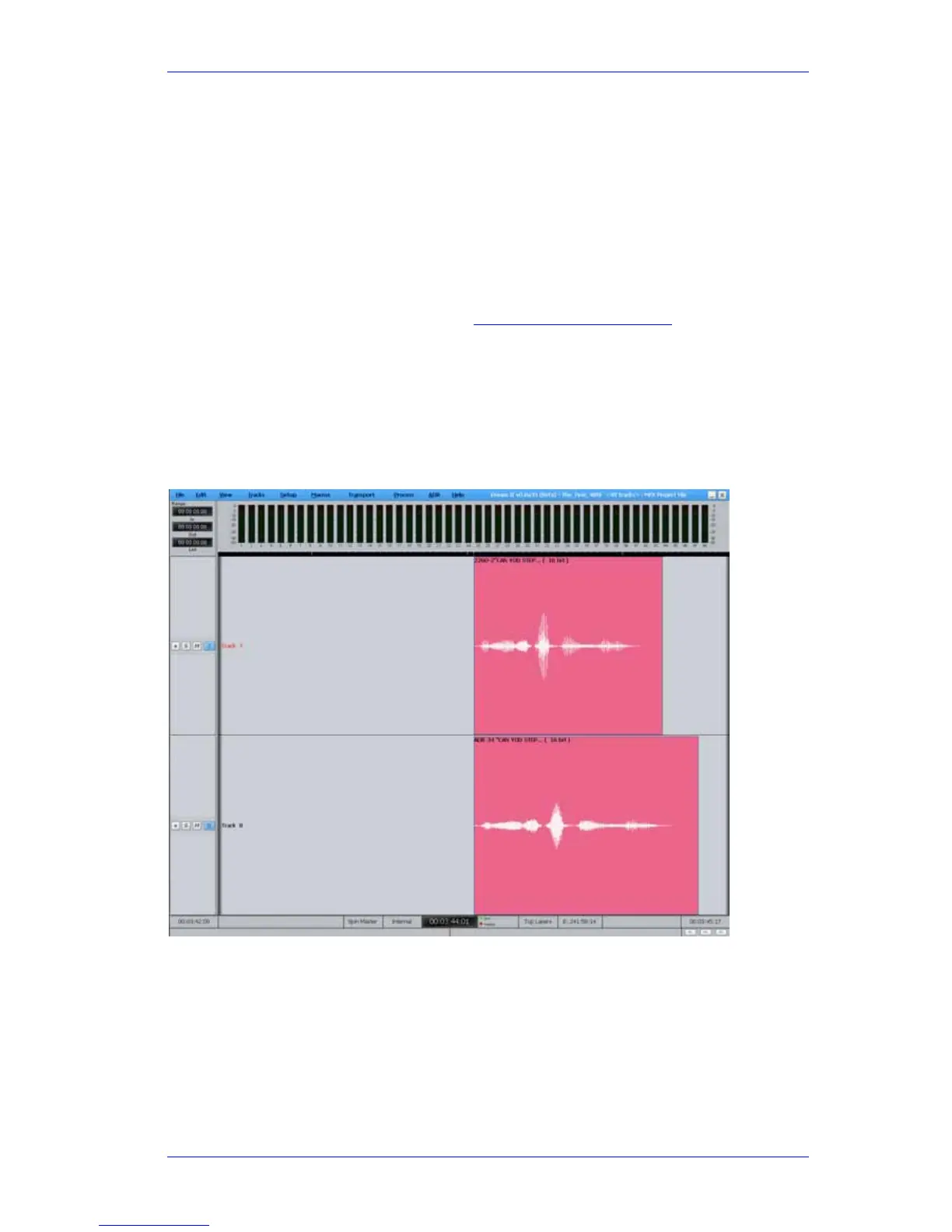
Step 2 Select two tracks for VocAlign Processing. The first selected track serves as the guide
track. VocAlign will attempt to match the second track to the guide track. Note that
VocAlign cannot process clips longer than 120 seconds
Step 3 Press the
{VocAlign} soft key. The VocAlign popup will appear.



 To Next Page