User Manual TIME DOMAIN PROCESSING February 16, 2010
Xynergi Media Production Centre Page 165
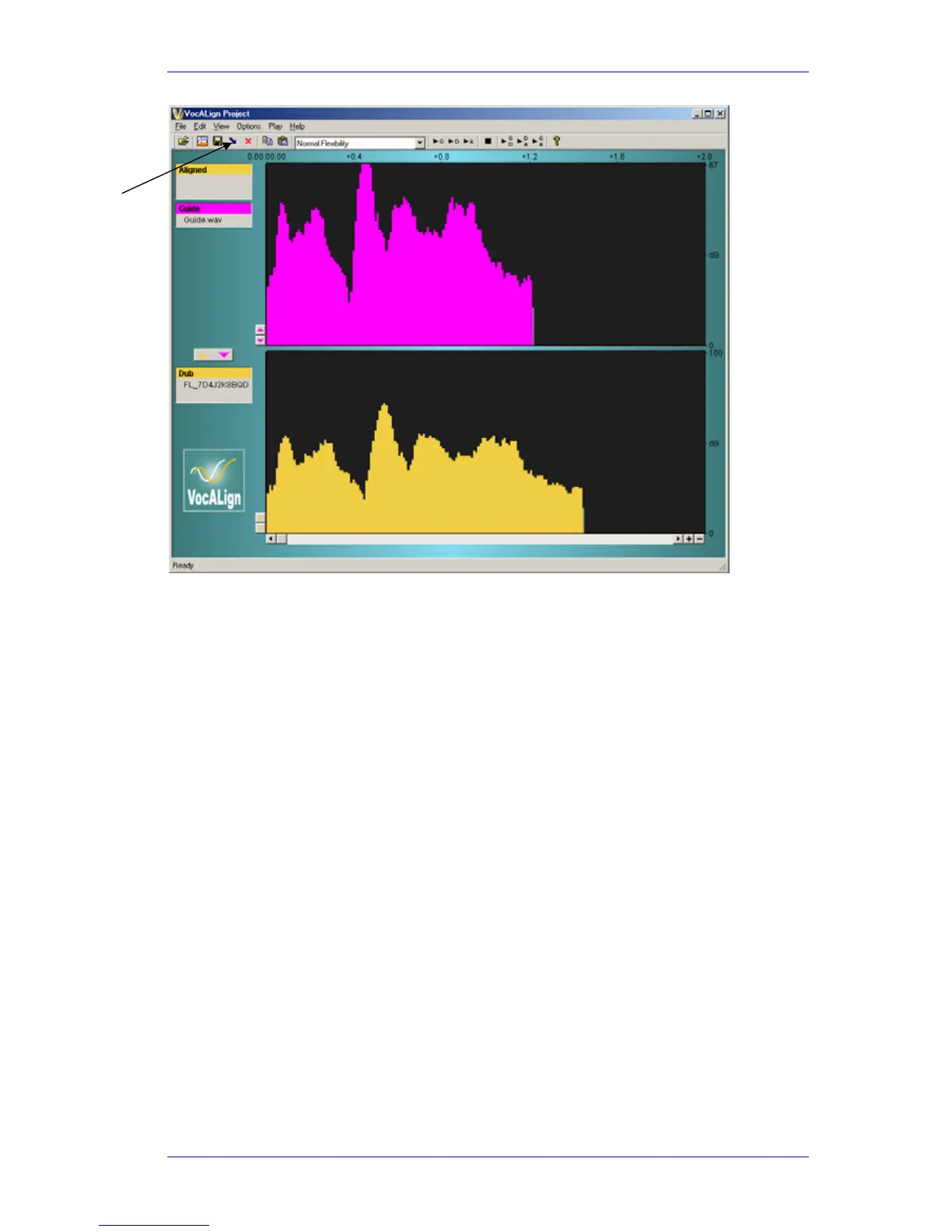
Step 4 Adjust VocAlign parameters or use defaults (see the VocAlign manual for details). When
you are ready, press the “Align” button or the
align soft key. A new clip will be created
on the Dream II timeline, and the original clip will be muted and preserved in the layer
underneath
Removing Clicks
Clicks in audio media can be removed by rewriting waveform data using a simple linear smoothing
algorithm.
Step 1 To enter the Wave Menu, press the
WAVE key.
Step 2 Select the track where the click is found.
Step 3 Identify the click by zooming in very close, and position the click exactly under the cursor.
Step 4 Press the
Remove Click soft key.
Step 5 The
Width soft key becomes active. This should be set to match the number of samples
occupied by the click. To do this, turn the
Jog Wheel until the red range on the screen
matches the width of the click.
Step 6 When the width is correctly set, press the
Enter key to execute the command.
Note that the click must not be in the fade-in or fade-out area of a clip, and that the command
does not work on linked clips (i.e. Multi-Channel clips).
Undo is available after using the Remove Click command.
Render



 To Next Page