User Manual EDITING February 16, 2010
Xynergi Media Production Centre Page 122
Head
Can be used one-handed or two-handed.
The result (when Enter is pressed or the Head key released) is that the Head of the clip is slipped to
the cursor position, while the Tail position is preserved. The clip gets shorter or longer, and the sync
moves by the difference in position between the Head before and after the edit.
Cursor
Before
After
Tail
Same as slip head, but the tail is slipped to the cursor position.
Range
Ranges cannot be used with slip.
Multiple Tracks
Works as expected. All the red clips will be slipped by the same amount.
Soft Keys in Slip Mode
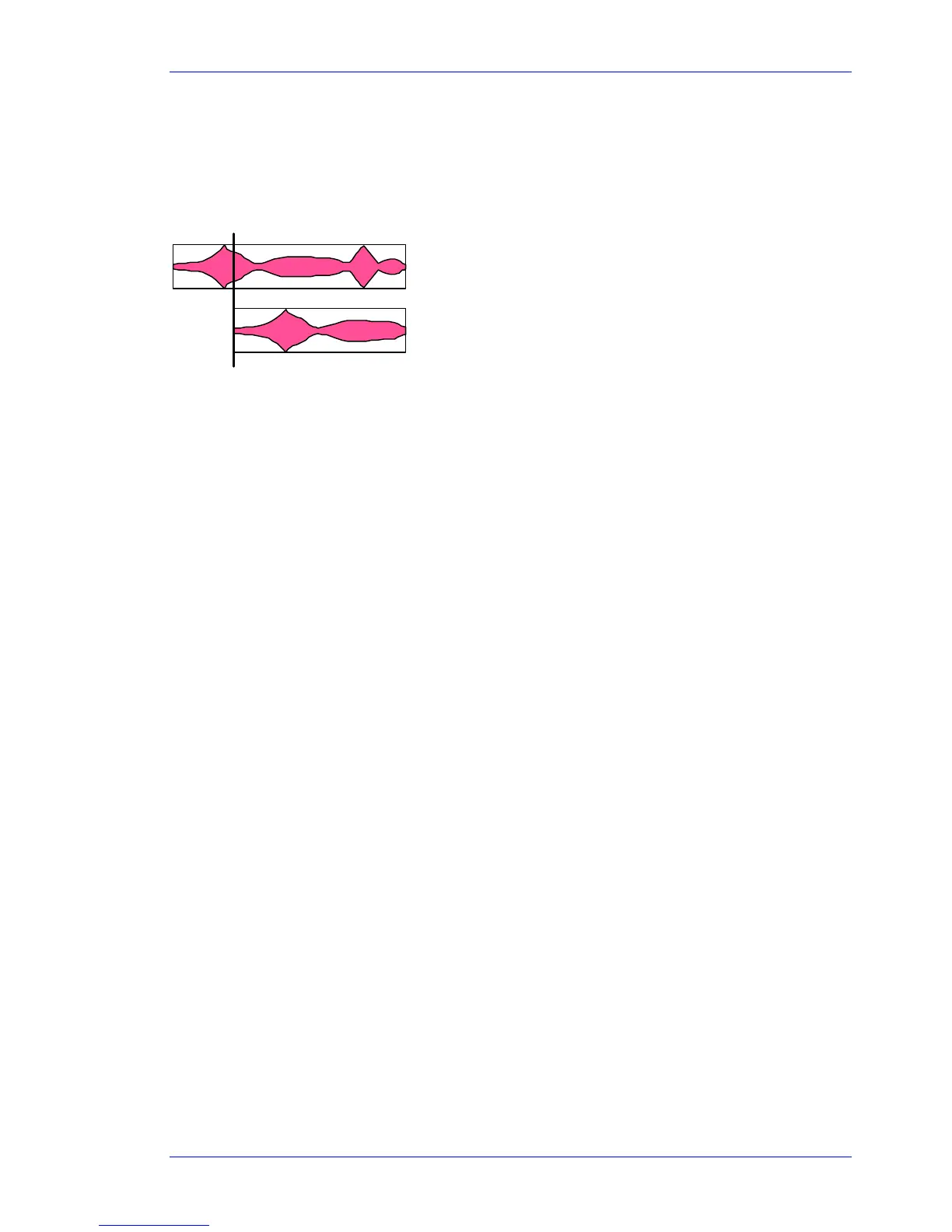
sync point
Pressing the Slip Sync soft key allows the audio within the clip to be
slipped, without changing the positions of the head and tail.
To do this, press the Slip Sync soft key, move the transport, and press
ENTER. The audio within the clip will move by the amount you just moved
the transport.
There are limits to slipping sync. Eventually the end of the recorded audio
reaches the end of the clip, and after that it can go no further.
Slip Edit Options
Trim is usually applied to a single clip or selections across tracks therefore, no options are available.
range is not supported in Slip Mode.
all layers is not supported in Slip Mode.
razor is not supported in Slip Mode.
Nudge
The nudge function is closely related to slip. The nudge function slips clips by a predetermined amount
of time.
nudge can operate on one or many tracks affecting clips that lie under the cursor, or within a
Range.
nudge can operate in fixed steps of plus or minus one frame, or in Variable steps from 1 to 99
sub-frames (a sub-frame is 1/80th of a frame).



 To Next Page