User Manual EDITING February 16, 2010
Xynergi Media Production Centre Page 139
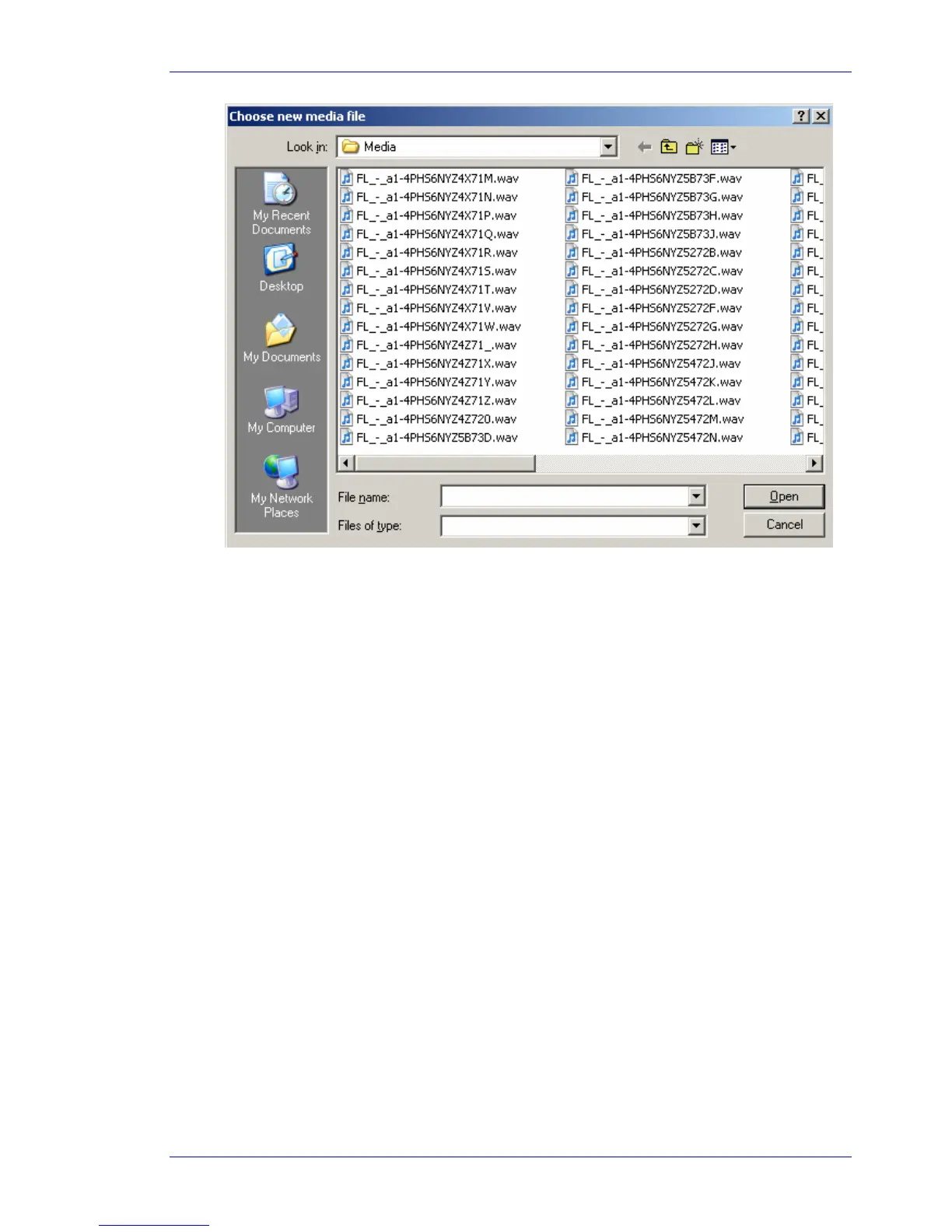
Step 3 Browse to find the media you want, and click the Open button. The system replaces the media
in the selected clips.
To replace the media of clips using that media file, do the same as above, but use the command
Process Change Media – All Related Clips
Undo and Redo
If en edit function has been performed that you are not happy with, pressing undo on your console or
Undo in the Edit Menu will revert the project to its state before the undesired edit. Similarly,
Redo will
reinstate the edit.
Undo List
In the Edit Menu, there is an undo list showing all undoable functions which you have performed in your
current session. You can choose one of these operations to undo, but be warned it will also undo all
operations you have performed
since
the operation you chose to undo to.
Undo Follow
By default, when you undo an edit, the system returns to the position and view from which the edit was
performed. This can make it easier for you to correct that particular edit. If you don’t want the system
to follow, you can turn it off as follows:
Step 1 Click the Setup menu item at the top of the Edit Screen
Step 2 Select General Preferences
Step 3 Click the Project tab
Step 4 At the bottom of the dialog, check the Playhead Follows Undo and/or Zoom follows Undo
controls



 To Next Page