User Manual EDITING February 16, 2010
Xynergi Media Production Centre Page 135
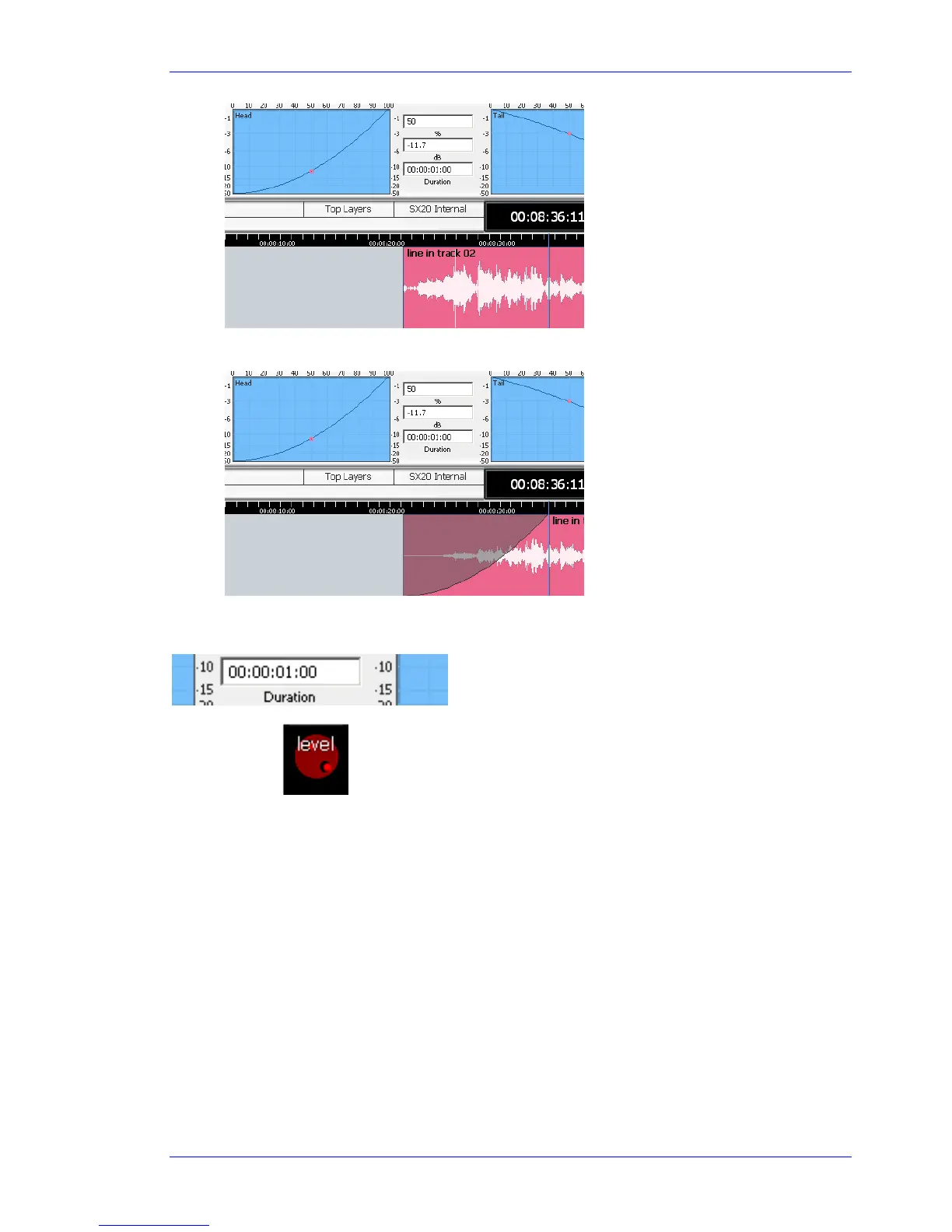
Step 4 When ready, release the
Fade Head+Curve button to apply the fade.
Note: Clips on multiple tracks can be faded at the same time. If a range is present, all clips wholly
inside the range will be affected, using the number in the Duration field as the length of their fade-in.
Level Adjust
This key combines the Jog Wheel and the Level Trim function. To use Level Adjust:
Step 1 Start with the cursor touching a clip whose level you wish to trim.
Step 2 Press and hold the
Jog Level button.
Step 3 Turn the
Jog Wheel to adjust the level trim displayed in the dialog box.
At the same time, the clip waveform will change amplitude.
Step 4 When ready, release the
Jog Level button to apply the level change.
Note: Clips on multiple tracks can be level-adjusted at the same time. If a range is present, all clips
wholly inside the range will be affected.
Importing Clips from Other Projects
The Import Menu allows you to copy clips from other projects, into the current one.



 To Next Page