User Manual SCREEN MIX CONTROLS February 16, 2010
Xynergi Media Production Centre Page 187
Double-clicking on any fader or aux send knob sets its value to 0 dB.
Mouse Wheel Control
The mouse wheel can be used to control knob and fader settings. This behaviour must be enabled
first.
Step 1 Access the System Variables display by holding down
Shift and Ctrl then typing U.
Step 2 In the Mouse Control group (right side of dialog box) enable Use Mouse Wheel.
The Mixer Screen must be in focus – if the Editor Screen is in focus, the mouse wheel causes
zooming of the tracks. To get the Mixer Screen in focus, simply click anywhere on the screen.
For mouse wheel control of any fader or rotary knob, in any of the Mixer Screen displays, hover
the mouse pointer over the control and turn the wheel.
For fine control, hold down the SHIFT button while turning the mouse wheel.
Fat Channel
The Fat Channel provides a detailed display of the signal processing and routing for the called
channel. Its only control function is the fader, while the other graphics are for display only.
Right clicking in the EQ, DYN or PAN sections causes display of the Zoom panels. See below.
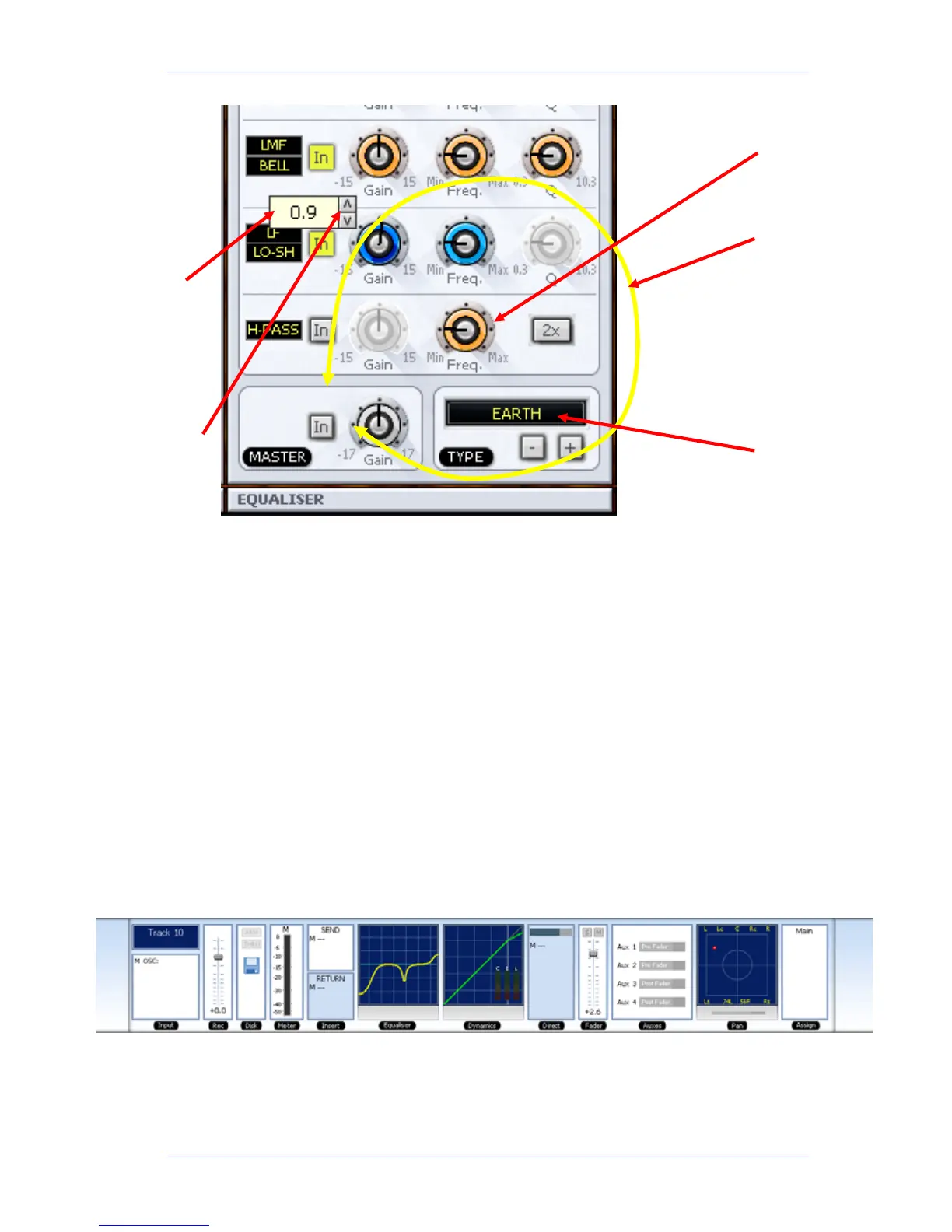
Click here.
Then drag the
mouse around the
knob.
Tooltip shows
the current
value.
Click the
up/down buttons
for fine changes.
Hover over any
yellow text or
numbers and use
the mouse wheel
to change its
setting.



 To Next Page