User Manual CLIP EQUALISATION February 16, 2010
Xynergi Media Production Centre Page 182
Choosing a Parameter
There are two ways to choose a parameter in the grid:
Click with the mouse in the cell you would like to change
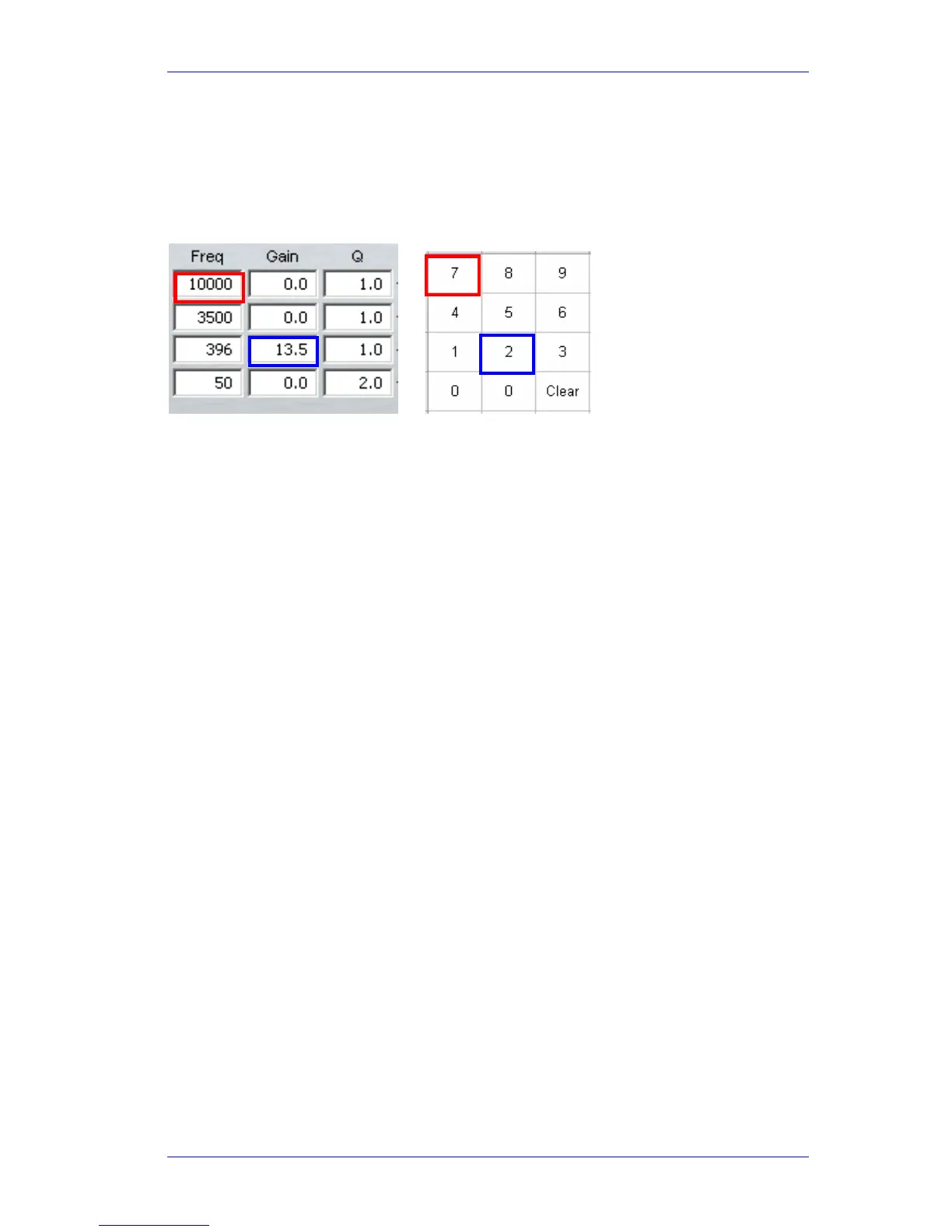
Use the Numeric Keypad on your console – the rectangle formed by the 7,8,9 keys at the top
and the 0,00,Clear keys at the bottom corresponds with the cells in the Value Grid.
In addition, the Frequency and Gain values can directly be chosen and changed using the mouse
on the graph area.
Changing a Parameter Value
There are several ways to change the value of a parameter once chosen:
Use the Jogger Wheel – make sure the transport is not in Jog mode at that time.
Use the + and – buttons in the Numeric Keypad
Press the NUMBER soft key and use the numeric keypad – not recommended.
With the mouse, by dragging the red squares in the EQ graph.
Applying the Changes
To apply your changes, click the Apply button or press the apply soft key. Only the bands whose
Enable checkboxes are selected will be applied.
To escape without applying your changes, click the
Esc button or press the edit soft key to
deselect it.
New or Old
Whilst adjusting an EQ parameter it is possible to toggle between the new and old settings using
the
NEW / OLD soft key, or clicking the New / Old radio buttons, until you apply the changes.
In or Out
Toggle the EQ on and off with the IN / OUT soft key, or the In / Out radio buttons.
Copying an EQ
The EQ parameters of a clip can be copied to another clip or Range of clips.
Step 1 Press the
clip EQ button.
Step 2 Locate the cursor over the source clip.
Step 3 Press the
copy soft key or click the Copy button on the screen.
Step 4: The enable checkboxes allow you to choose which of the bands are pasted into your



 To Next Page