User Manual XYNERGI TACTILE CONTROLLER February 16, 2010
Xynergi Media Production Centre Page 23
Modes
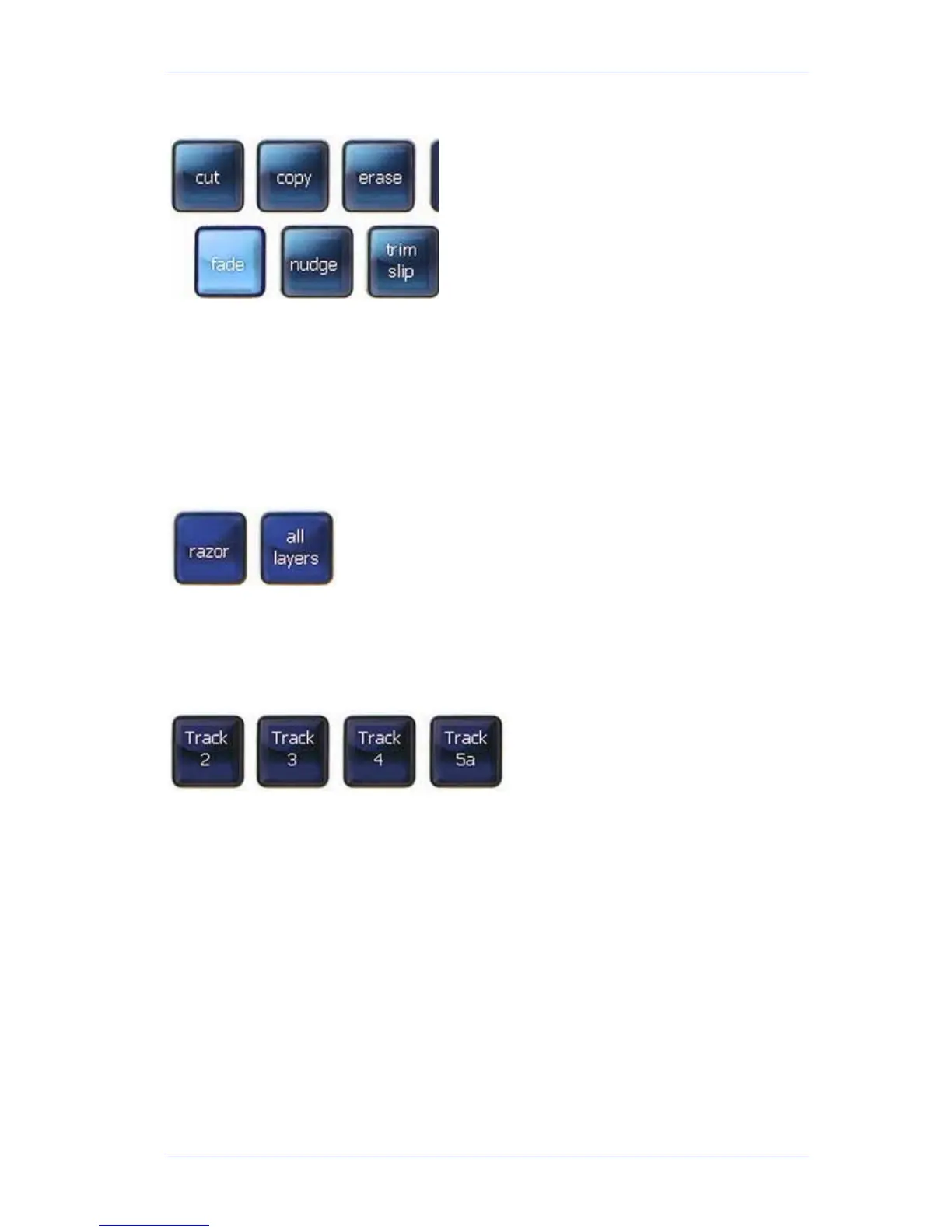
Mode keys are always teal in colour.
A mode is a specific group of functions. Each mode has a “soft menu” of commands that are
displayed on the Soft Keys. Other Picture keys may change when a mode is selected. For
example, the
cut mode causes display of the cut clip, cut head and cut tail keys at the left of
the Jog Wheel. Modes are also known as menus because of their soft keys e.g. cut menu or mix
menu.
To find out what a mode does, hold down the
Xplain button while pressing the mode button.
Toggles
A toggle chooses between a pair of options, usually On or Off. Some toggles are actually triggles
i.e. they choose amongst three options.
Toggles are always blue in colour.
Path Keys
Path keys are used to select or deselect signal paths. Their colour changes depending on the
mode being displayed, and the status of the path. For example, they show dark or light brown in
Mute mode, dark or light green in Solo mode, and red or dark blue in Arm mode.
Paths include Tracks, Lives and Buses (Main, Sub, Aux and MT).
Naming Paths
Path keys show the name of the path (note Track 5a in the illustration). You can set your own
name for paths using the Name Path function (see page 41).
By default, the path keys will show the names you have given, but you can also choose to show
the system name (Track 1, Live 1 etc), or a combination of system and user name. This is done in
the Setup Megamode, using the
style button (a triggle that cycles through the three naming
styles).



 To Next Page