User Manual ADR February 16, 2010
Xynergi Media Production Centre Page 235
Step 2 Enter the text and click OK
Step 3 If necessary set the In Point of the cue: locate the transport to that point and click From. Your
current position will be shown in a dialog. You may accept this by clicking OK.
OR
Click From, type the timecode you want, and click OK.
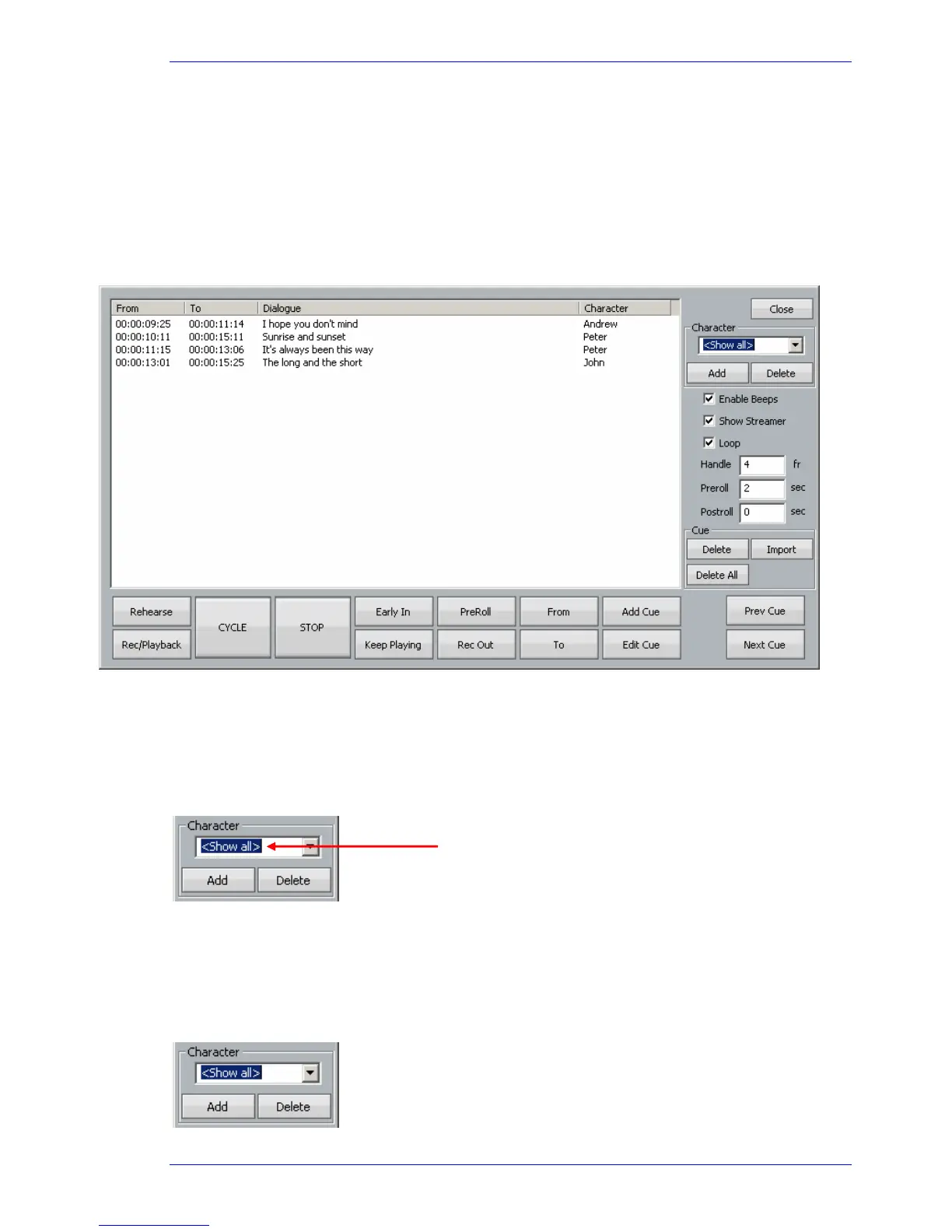
Step 4 If necessary set the Out Point of the ADR cue in the same way. The cue is shown as below.
ADR Characters
Your project may contain a list of characters, and the cues assigned to different ones.
Creating characters
Step 1 Click in the Character box (which normally shows <Show all>)
Step 2 Type the name of a new character
Step 3 Click the Add button
Filter by character
To show only one character’s lines, use the Character drop down menu to select one character.



 To Next Page