User Manual PLUG-INS AND REWIRE February 16, 2010
Xynergi Media Production Centre Page 286
Step 2 Run the software at least once in standalone mode.
Step 3 The software should now appear in the list of available ReWire devices.
Launching a Rewire Application
In order to patch a Rewire device, a Rewire application must be installed first (e.g. Reason,
Ableton Live).
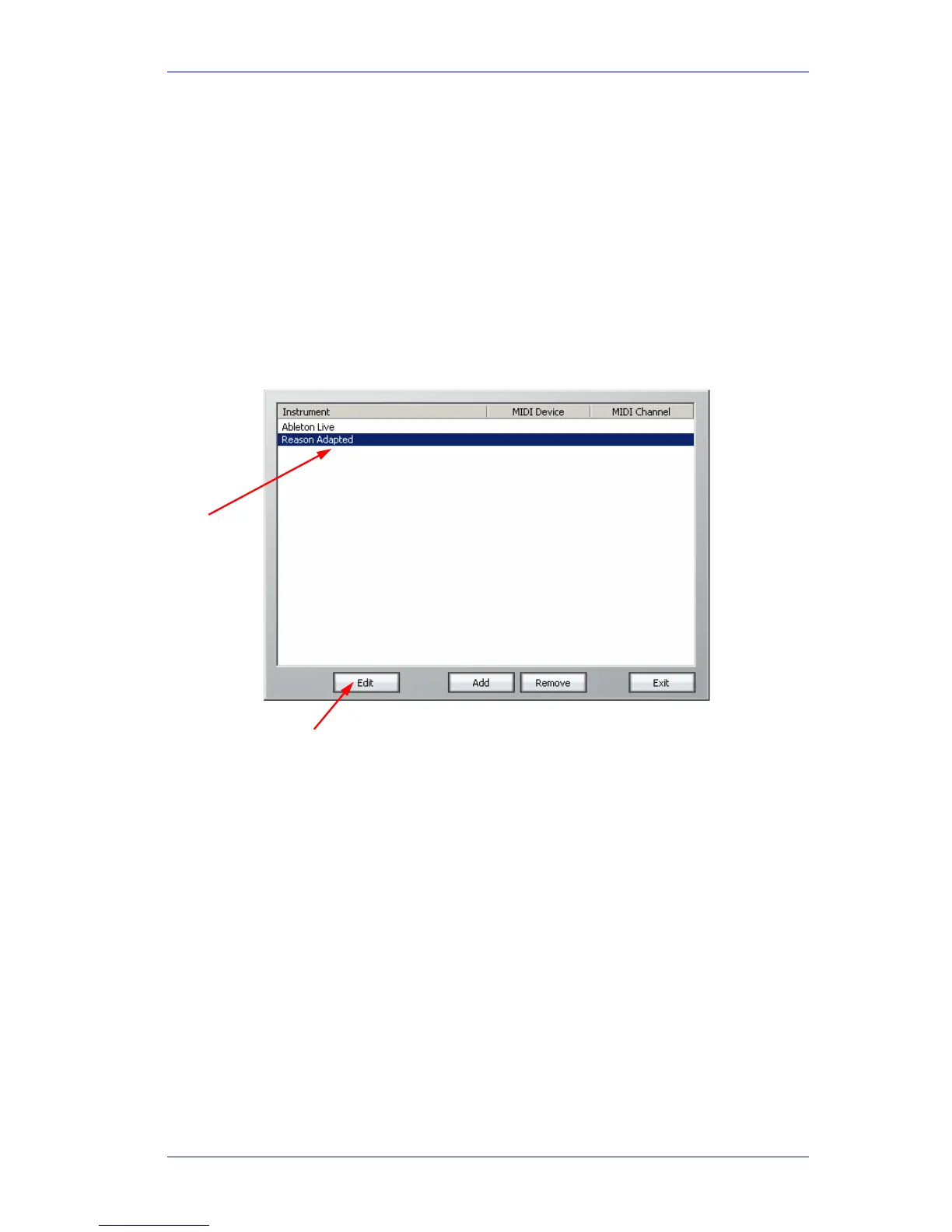
Step 1 Click on ‘Setup’ in the Dream II toolbar.
Step 2 Select ‘Setup Instruments’ to launch the dialogue box. Your Rewire application should
appear in this list.
Step 3 Click on the name of the desired Rewire application so it is highlighted.
Step 4 Click on ‘Edit’ at the bottom of the dialogue box. Note: Some programs (eg – Reason)
will launch automatically. Others (eg - Ableton Live) need to be launched manually.
Step 5 Open or create a project within your Rewire application (demo projects that accompany
the application are a good starting point).
Patching a Rewire Application
Once your Rewire Application is launched, it’s time to patch Rewire inputs to track or live feeds.
Step 1 Open the Patch I/O page by pressing the Patch I/O key on the channel panel.
Step 2 Click on Instrument Inputs located on the left hand side of the Patch I/O page. You see
inputs labeled according to the Rewire applications you have installed. If you have
installed more than one application, click ‘Page Down’ on the patch I/O page until you find
the input for your Rewire application.
Step 3 Select the desired instrument input (e.g. If using Reason, select the inputs labeled Mix L
Click on edit to
launch
Highlight rewire
application



 To Next Page