User Manual HUI SLAVE MODE February 16, 2010
Xynergi Media Production Centre Page 290
Step 1 Click on the Mixer screen to give it focus
Step 2 Type
ctrl+Shift+Q
Step 3 Type
y to confirm closure of FMC
Start MSAT using:
Start All Programs Fairlight FMC FMC Utils MSAT
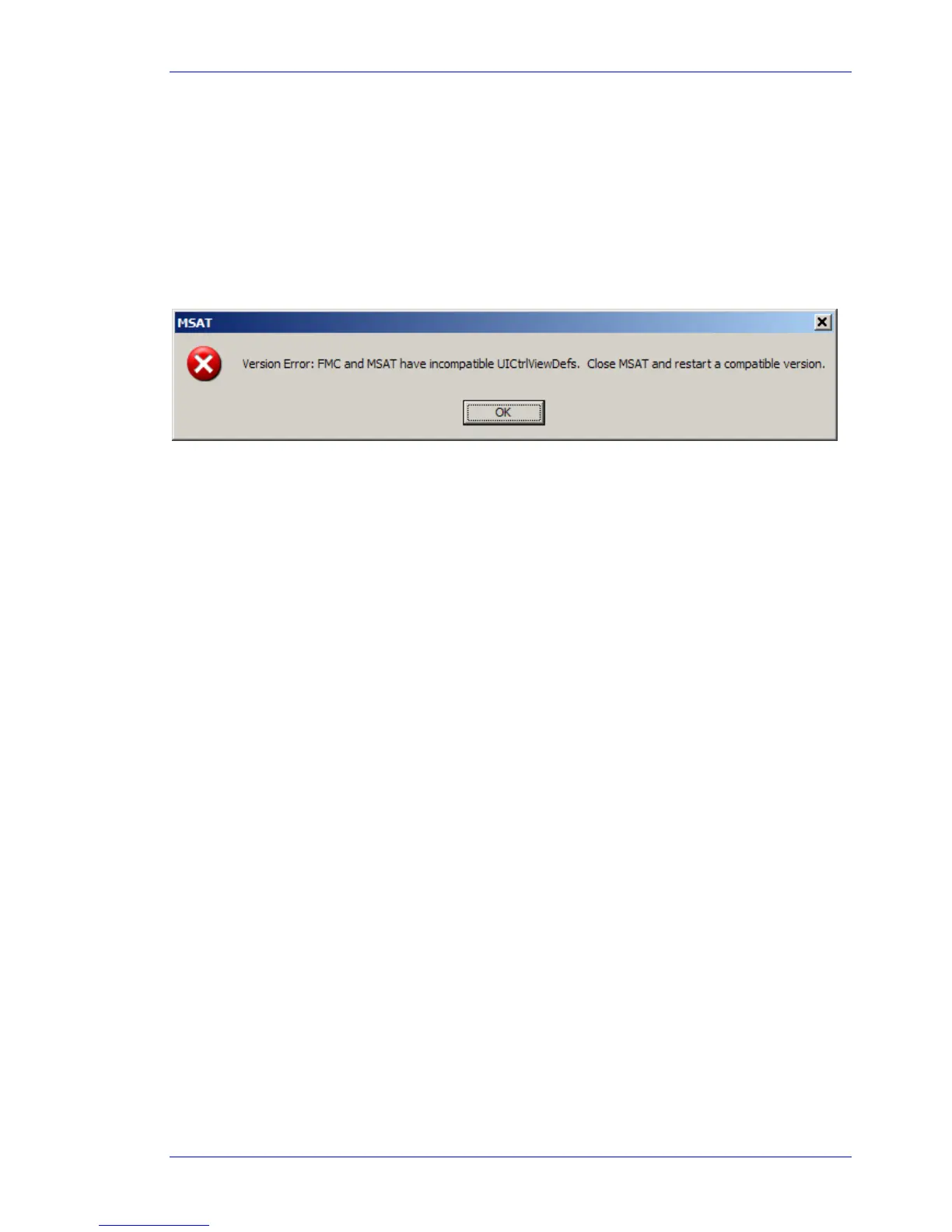
Shortly after starting it, if FMC is running, you’ll see an error message about incompatible file versions,
which can be ignored.
Now start FMC using:
Start All Programs Fairlight FMC FMC
Early in the boot process, FMC will report on the MIDI devices. When you see it, click the red Stop
button in the upper left of the MSAT screen to freeze the display. It will look something like this:
Comms is ONLINE
GDB - 09:42:59 > Physical Memory Available: 705492K
GDB - 09:42:59 > Mix Memory allocated: 39062K
GDB - 09:42:59 > FMC is ONLINE
GDB - 09:42:59 > FMC re-sync
GDB - 09:43:00 > Disabling UI Completed
GDB - 09:43:00 > FaderCount: 8
GDB - 09:43:00 > Midi IN 0 of 4 name: USB Audio Device
GDB - 09:43:00 > MIDI-in device:0
GDB - 09:43:00 > manufacturer:65535
GDB - 09:43:00 > product:65535
GDB - 09:43:00 > version:1.1
GDB - 09:43:00 > name:USB Audio Device
GDB - 09:43:00 > Midi IN 1 of 4 name: USB Audio Device [2]
GDB - 09:43:00 > MIDI-in device:1
GDB - 09:43:00 > manufacturer:65535
GDB - 09:43:00 > product:65535
GDB - 09:43:00 > version:1.1
GDB - 09:43:00 > name:USB Audio Device [2]
GDB - 09:43:00 > Midi IN 2 of 4 name: USB Audio Device [3]
GDB - 09:43:00 > MIDI-in device:2
GDB - 09:43:00 > manufacturer:65535
GDB - 09:43:00 > product:65535
GDB - 09:43:00 > version:1.1
GDB - 09:43:00 > name:USB Audio Device [3]
GDB - 09:43:00 > Midi IN 3 of 4 name: USB Audio Device [4]
GDB - 09:43:00 > MIDI-in device:3
GDB - 09:43:00 > manufacturer:65535
GDB - 09:43:00 > product:65535
GDB - 09:43:00 > version:1.1
GDB - 09:43:00 > name:USB Audio Device [4]



 To Next Page