User Manual HOW TO … February 16, 2010
Xynergi Media Production Centre Page 44
In New Mode, each time a track enters record, a new clip is created on that track. If there is
already a clip present, the new one goes “on top” of the previous one. The upper clip is always
heard on playback.
In Tape Mode, existing audio can be destructively replaced. See the section on Tape Mode below.
To record on a track, it must be armed.
Before being armed, a track must have a source, or patched input.
Get Ready
Once you have a project open, select the Record Megamode by pressing the green Record
button.
Patching Inputs
Before you can record on a track, it needs an audio source, called an Input. The system has many
physical inputs, and you can patch any input to any track. The next section “Patch Inputs to
Tracks” explains patching in detail. Here we will just get something patched and move on to
recording.
Press the
Patch button. The Mixer Screen shows a Patching dialog.
We are going to patch (connect) a physical input to the track where it will be recorded.
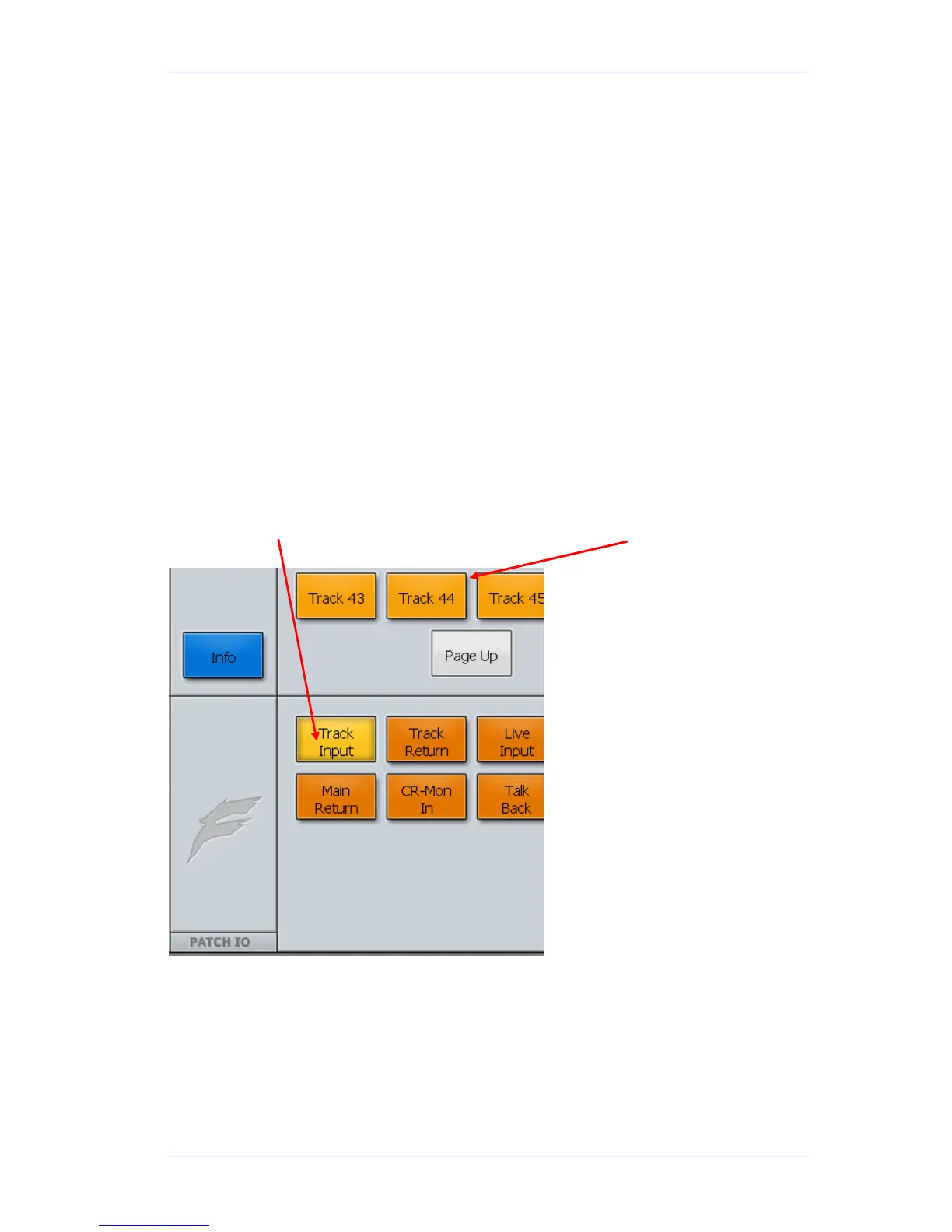
Ensure
Track Input is selected at the lower right, then select a track number to be recorded,
in the upper right.
Click
Analog Inputs or Digital Inputs at the lower left of the screen.
Select any
Input in the upper left of the screen.
Click
Patch to connect the physical input to the track.
Press the
Patch button to exit Patch and return to the Arm menu.
Note: Patching is used for all system connections between paths. Please see Patching Signal
Paths on page 51 for more details.



 To Next Page