User Manual HOW TO … February 16, 2010
Xynergi Media Production Centre Page 46
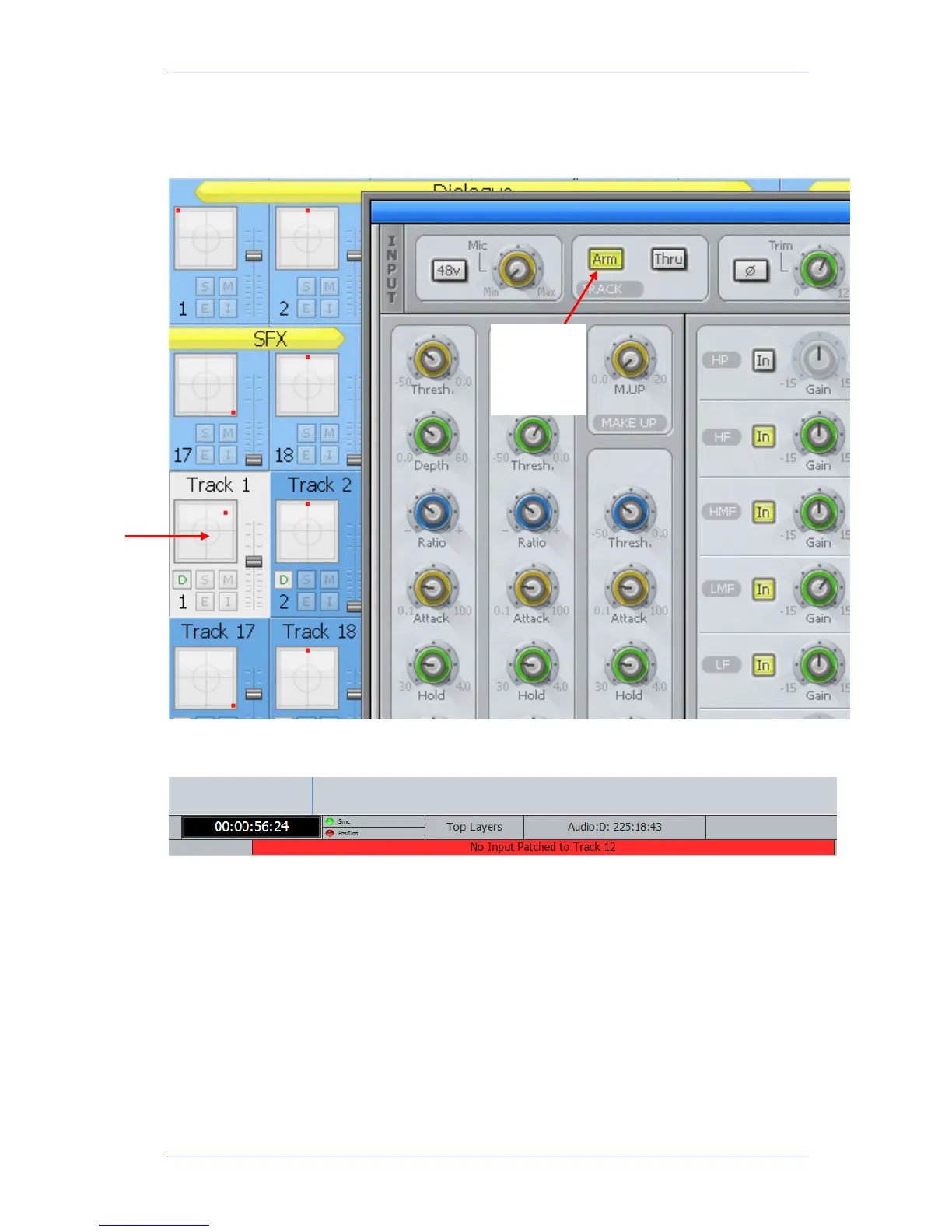
Right-click a track on the Mixer screen to show the Virtual Channel. It has a number of
controls for the selected channel, including an Arm button. This should turn yellow when
armed.
If you try to arm a track and its buttons do not respond by changing colour, the track probably
has no audio source. A message will also appear at the bottom of the Edit Screen.
To fix this, go to the Patch page, as described above in “Patching Inputs” and give it a source.
Once a track is armed, use the Play and Record keys to punch into record – Play, Stop, REW, FF
or Jog to punch out.
Record Monitoring
Overview
When a track is armed, you can choose whether to listen to its input signal, its playback signal
(REPRO), a switched combination, or nothing.
The
Monitor soft key switches this function.
This guide shows you how to set the Monitor setting, and tells you what the different settings do.
Click here
to Arm
Track 1
Right-Click
here to see
the Virtual
Channel
for Track 1



 To Next Page