User Manual HOW TO … February 16, 2010
Xynergi Media Production Centre Page 62
Pull Up/Down used to compensate for differences between 29.97 and 30 frames per second.
Det’ Sample Rate detected sample rate. This will vary according to pull up or down, and
external frame rate.
Sample Rate
Overview
Sample rate is set when you create a project. It cannot be changed afterwards.
See How to Files New Project
Sync Source
Overview
The sync source driving your system is normally a clock connected to your SX-20.
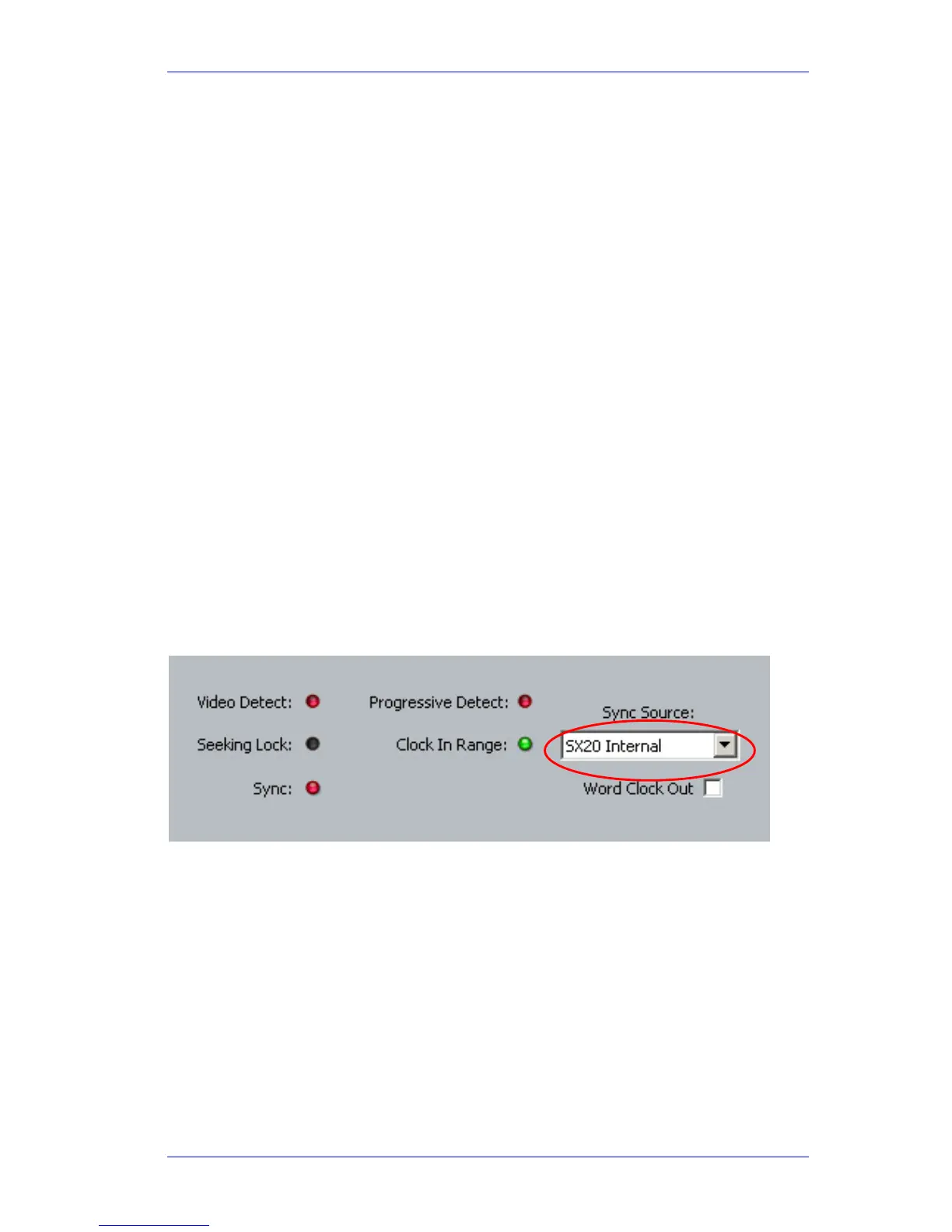
This guide shows you how to select sync source.
Get Ready
Press the green Setup button.
Press the
sync key. This displays the Sync Smart Panel above the Edit Screen.
Note: you can also select the Sync Smart Panel at any time using the mouse with the View menu
above the Edit Screen, as follows:
View
Smart Pane Sync Setup
Details
Use the pull-down menu to choose sync source. Choices are:
SX-20 Internal runs from a crystal inside the SX-20
SX-20 Video synchronises to the video signal connected to the rear of the SX-20.
SX-20 WCLCK synchronises to the word clock signal connected to the rear of the SX-20.
SX-20 S/P-DIF 1/2 synchronises to the S/P-DIF signal connected to inputs 1 and 2 at the rear
of the SX-20.
SX-20 S/P-DIF 3/4 synchronises to the S/P-DIF signal connected to inputs 3 and 4 at the rear
of the SX-20



 To Next Page