User Manual HOW TO … February 16, 2010
Xynergi Media Production Centre Page 92
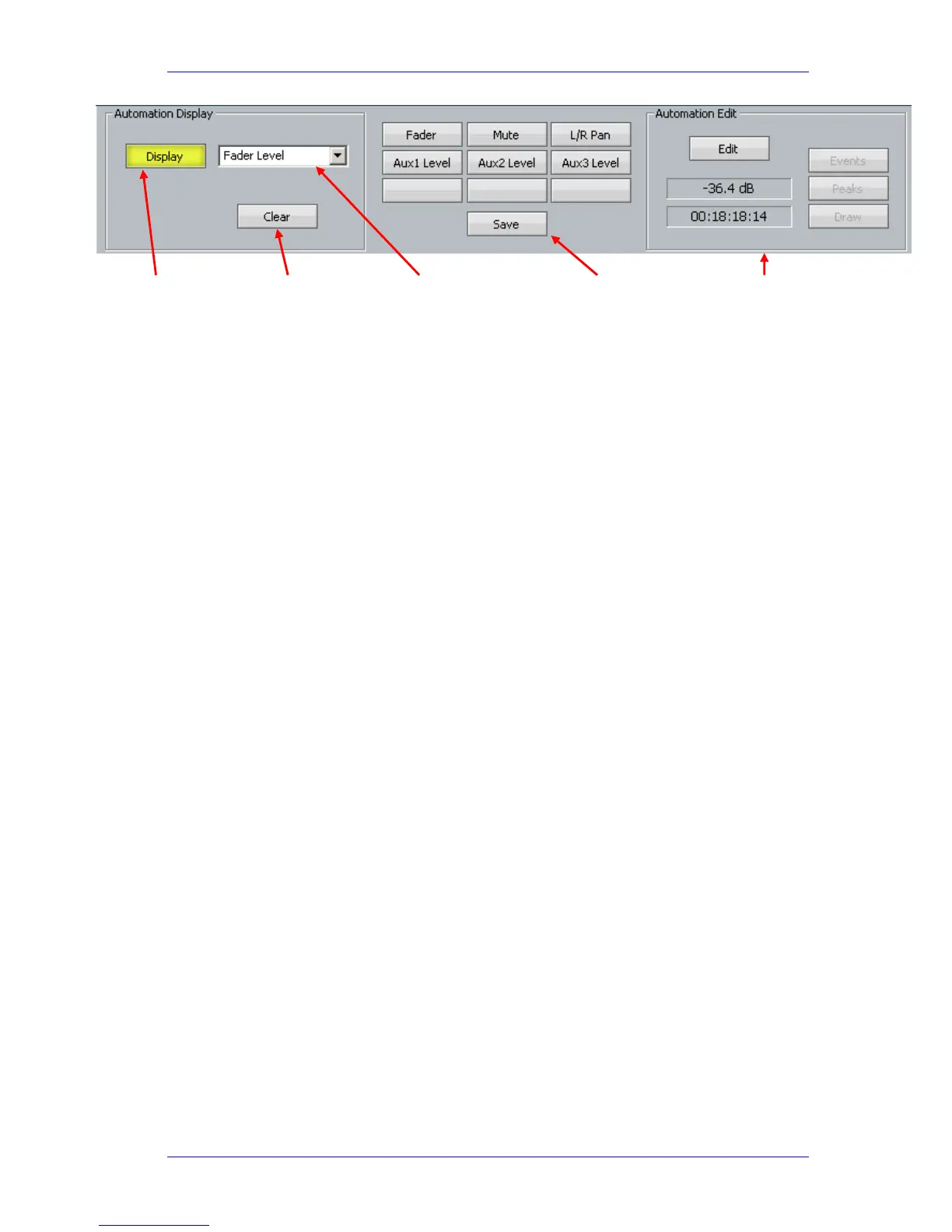
To display automation curves on one or more tracks:
Step 1 Select the tracks where the automation is to be displayed
Step 2 Click the
Display button
Step 3 Select the parameter to be displayed – use either the pull down menu or a preset
Note that each track may show its own selected parameter. The Display button is also used to
turn the curves off.
Presets
Presets are used to quickly access a particular parameter. The first six buttons are provided with
factory presets, but you can replace them with your own.
To apply a preset, simply click on it when the Display button is selected.
To create a preset:
Step 1 Turn the
Display button on if necessary
Step 2 Select a parameter to be displayed using either the pull down menu
Step 3 Click the Save button
Step 4 Click a preset button
Step 5 The system will request a name for the preset. You may use the suggested name or
choose your own.
Click to toggle
automation
graphs on or off
Click to remove
automation
display
parameter
Pull down menu
of automation
display
parameter
Preset controls Edit Controls



 To Next Page