2. Commissioning
2-25
Festo P.BE-CPX-PNIO-EN en 1407c English
2.5.4 Setting up the controller system (PL C/Master)
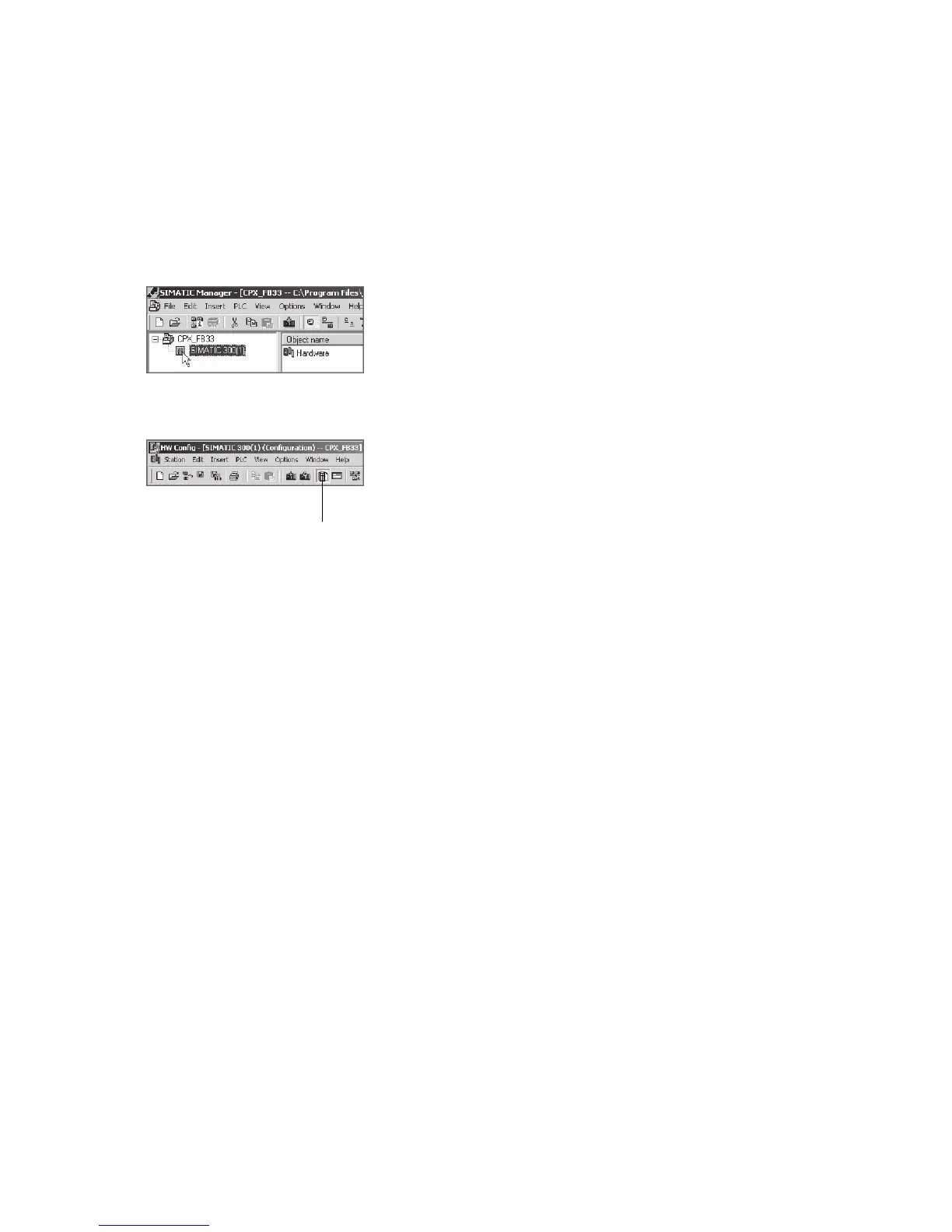
1. Click once on the station symbol (on the left next to the
station name) and afterwards double cli ck on the hard-
ware symbol in the “Object name” column.
The hardware configuration window HW Config (station
configuration) opens.
1
2. Open the Hardware Catal ogue (Catalogue Vi ew, 1 in the
adjacent figure).
3. Select your control system (PLC/Master) in the Hardware
Catalogue (e.g. “SIMATIC 300”, 1 in Fig. 2/1):
Click on the Plus symbol to expand the selection.
4. Open the rack folder (e.g. RACK-300, 2 in Fig. 2/1).
5. Double click on the rack rail symbol (e.g. RAIL, 2
in Fig. 2/1).
A sub-w i ndow (with rack rail symbol in the header) opens
in the left area of the HW Config window ( 3 or 4 in
Fig. 2/1).
The sub-window symbolises the rack rail (profile rail) of
your control system. Y ou compile the individual elements
of your controller in this child window and thus form the
basis for your PROFI NET automation system.


 To Next Page