The display will show the following
information fig. 99:
– compass representation indicating
the car position (in degrees) with ref-
erence to the North;
– longitude, latitude and height;
– visible satellites number;
– destination (available only with nav-
igation on);
– time of arrival and distance to des-
tination (available only with navigation
on).
Pressing “ESC” 14-fig. 1 or “NAV”
18-fig. 1 takes back to the main nav-
igation screen.
ATLAS: enables map drawing in at-
las mode (for further details see sec-
tion “ATLAS” on the following pages).
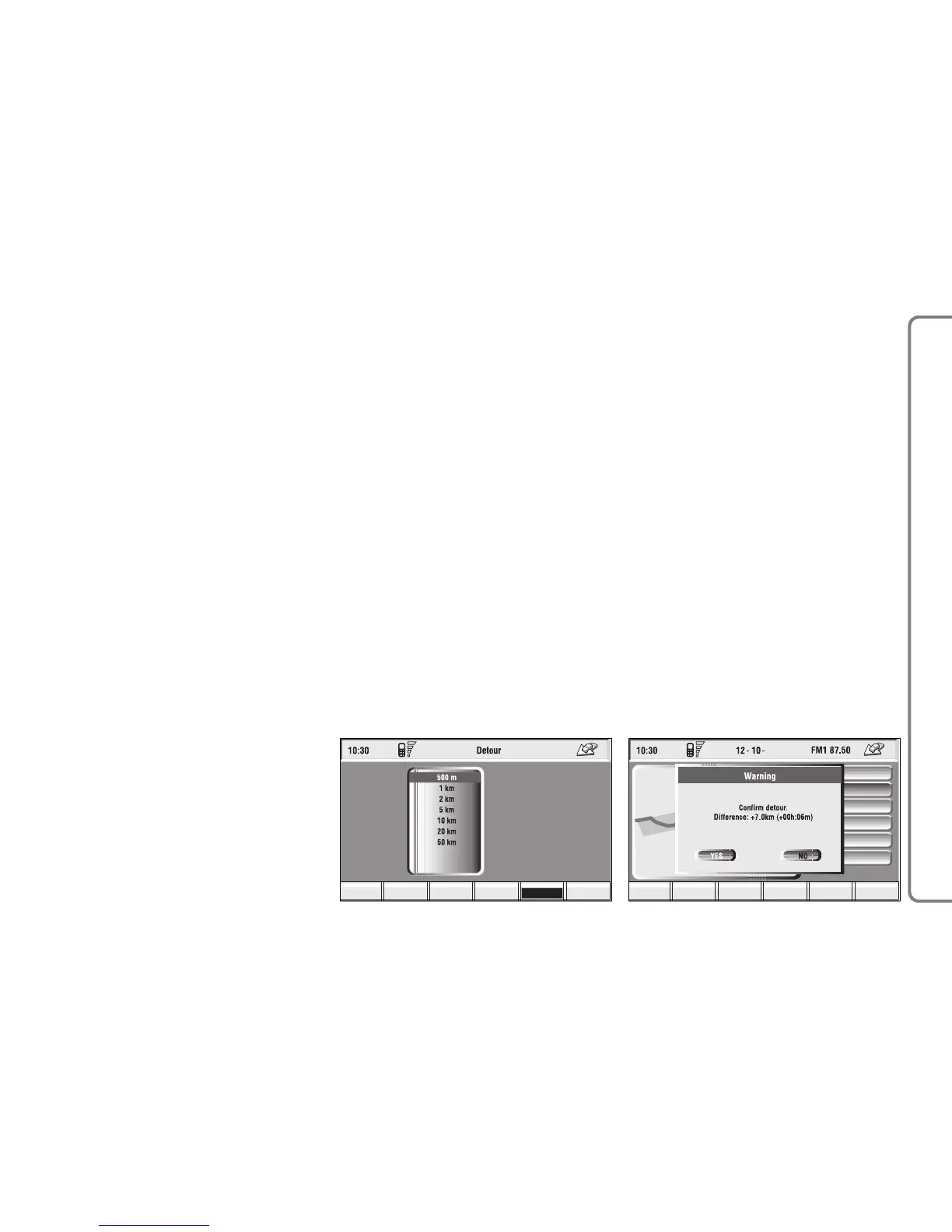
DETOUR: allows the user to
choose (if possible) an alternative
route to reach the selected destina-
tion, avoiding a specified portion of the
currently calculated route.
97
CONNECT NAV+
To activate this function, select the
route portion to be avoided fig. 100
by turning the knob 15-fig. 1 and
pressing it to confirm.
The display will then show the new
distance and the time necessary to
reach the destination fig. 101.
Selecting and confirming “YES” or
“NO” by turning and pressing the knob
15-fig. 1, the user can accept or reject
the new route.
If there is no alternative route, then
the display shows “No alternative
route” fig. 102.
MAP: activates the map mode. The
display shows map, route (if present),
car position (town and street names),
icons of next two crosses (only if
route is present) fig. 103.
To modify the map scale, proceed as
follows:
– turn the knob 15-fig. 1 and select
the required scale;
– press the knob 15-fig. 1 to con-
firm.
When you approach a crossroads,
the map will be replaced with an en-
largement of the surrounding area fig.
104 (crossroads zoom function, if ac-
tuated in “map preference”).



 To Next Page