PC PROGRAMMING
You can program this system from the Control panel or
from a computer, using the FireClass 500 Console ap
-
plication, inside the FireClass Suite.
This section describes how to program the system from
a computer. If you intend programming the system from
the Control panel refer to the “PROGRAMMING FROM
THE PANEL” section.
Introduction
The FC500 software console contains:
Ø
FC500 console : the application to manage and pro
-
gram the FC500 series control panels.
Installation
Work carefully through the following steps to install the
FC500 software applications.
Ø Run the Setup.exe application contained in the
CdRom "Fire Suite".
Ø Select a folder for the FC500 software applications.
Ø Run as Administrator.
Select language
You can select the language of the FC500 Software,
from the Languages provided.
To Select the application language:
Ø
Run the FC500 Software application;
Ø
Select Options from the Main window;
Ø
Select Language from the drop-down menu to open
a window with the language list;
Ø
Select a language from the Language list;
Ø
Click-on
3 OK,
The selected language will be immediately initialised.
+
At the first start up, FireClass Console software will
ask to choose the language.
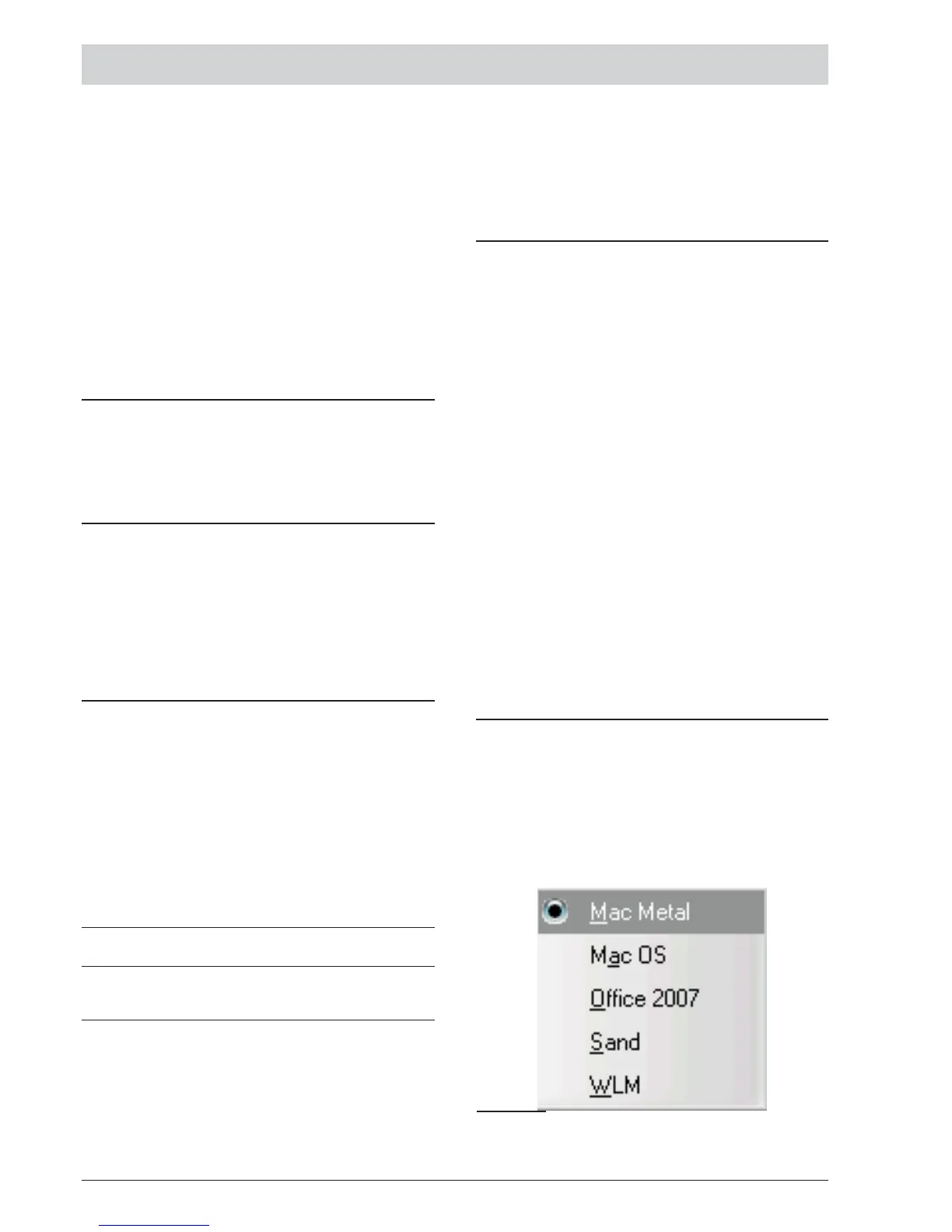
Software window Look
To modify the look of the FC500 software window, click-
on Key "Avalaible Skin" in the left bottom of the Main
window or click-on right key on the title bar. This option
allow you to modify the look of the window in the offer
range (see Figure 20).
Control panel connections
If you are using the Supervisory, Management, Downlo
-
ading and Log Management functions, the control panel
must be connected to your PC in local communication
or remote by PSTN line, GPRS or LAN.
To connect the control panel in local:
(see note page n. 16)
Using a CVSER/9F9F cable (accessory item) or similar
cable (see figure 18), connect the control panel serial
port (refer to “PARTS IDENTIFICATION”) to a serial
port on your PC.
Ø
Select the PC serial port from the Option menu
(Choose serial port ) and then Click-on
3 OK,.
For 25 pin serial ports, use an ADSER/9M25F adapter
(accessory item) or make a cable as per figure 18b.
If the control panel is not connected to your PC when
you start the communication, the following warning will
be shown: "Communication error! Check serial link"
If the serial port for the local communication is invalid,
the following warning will be shown: "Cannot open se-
rial port".
Main window
The FC500 Software opens on the Main window (see
fig. 20). The following section describes the File,Com-
PC PROGRAMMING 29
Figure 20 To modify the window look (Available
skins).



 To Next Page