15
Advanced edition mode
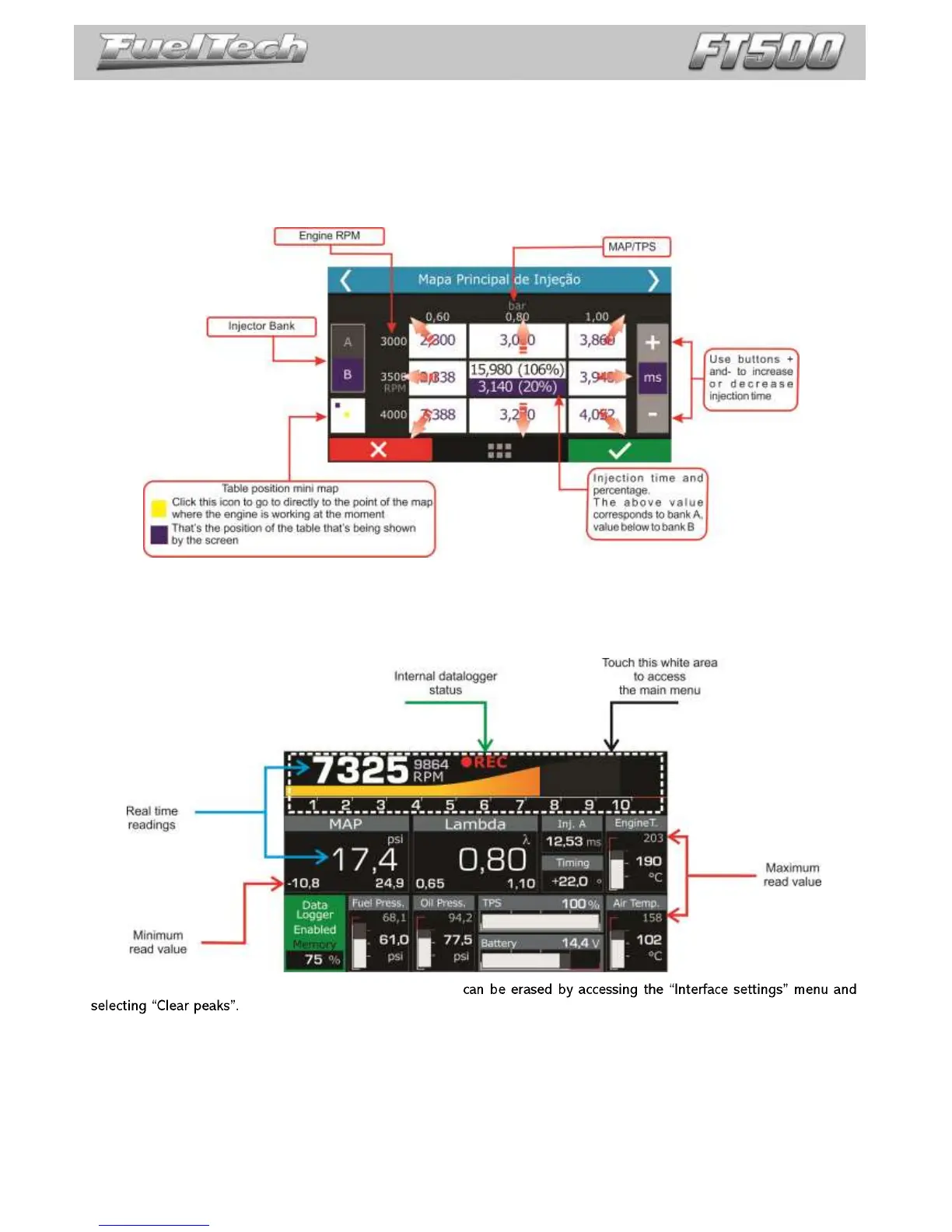
In this mode, fuel and ignition maps are shown in 3D tables, as well as individual fuel and ignition trims.
Navigation is pretty simple with useful features to help you:
On-screen mini map on the left corner a mini map shows the actual position on the table (yellow square
for primary bank, purple square for secondary bank) and the real time MAP and RPM conditions of the
motor (yellow square). Click on the mini map to be redirected to the real time condition.
The center cell is the parameter that is being set up at the moment. Click horizontally to navigate through
MAP/TPS cells. Click vertically to navigate through RPM cells.
6.2 Dashboard screen
When the engine is running, the dashboard screen shows real-time information of sensors that are being read by
the ECU. Chapter 24.3 has more information on how to change the instruments on this screen.
To access the dashboard screen, touch the icon located at the main menu.
All maximum and minimum values are saved, and
Minimum and maximum values reached are displayed on the bottom of each frame. Minimum values will be on
the left and maximum values, on the right.


 To Next Page