Hop
Fight by pre-seted route with a seted altitude. It is mainly used for passing around
point objects (i.e. high objects) and topographic inequality.
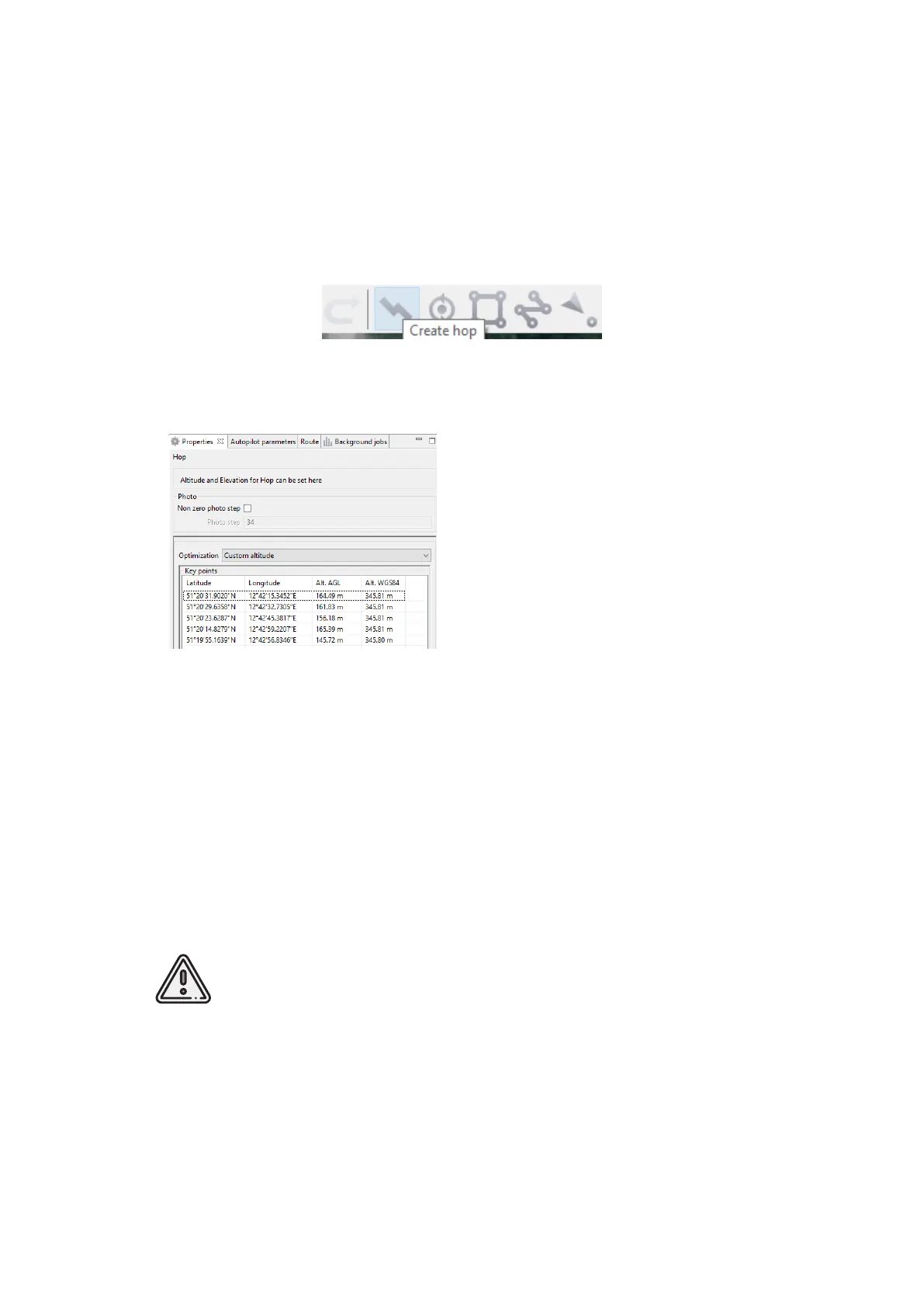
Click on the icon Create hop on the toolbar.
Create hop button
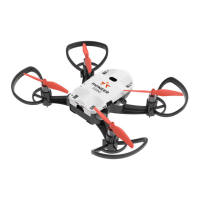
Hop options
2. Specify the ight route by single-
clicking. To build a hop at different al-
titudes, select Optimization - Custom al-
titude in properties window.
3. Non zero photo step function acti-
vates the camera.
You can change the step of photo in
meters is specied in the correspond-
ing eld. Values of the Alt. AGL column
are the differences between the absolute
height of the ight task point and the
relief below it. Thus, the height of the
relief must be taken into account. The
absolute heights of the points are also
available for editing through the column
Alt. WGS84. Besides, height can be changed by visual editing (drag mouse with Shift
key pressed).
Hop route between two ight elements is built according to the following rules:
If the ight task elements have the same height, then the ight will be performed at
the same height.
If the ght task elements have different heights, then the ight will be performed at
the highest of them.
If conditions do not allow to reach the height of the second point by a
straight trajectory (for example, due to small distance between points,
but a large difference in altitude), the aircraft will y with the maximum
allowable pitch by a straight trajectory in order to reach a point by the
coordinates, after which it will rise/descend in a spiral.
78


 To Next Page