Using The Handheld Tester
1
PAGE 11
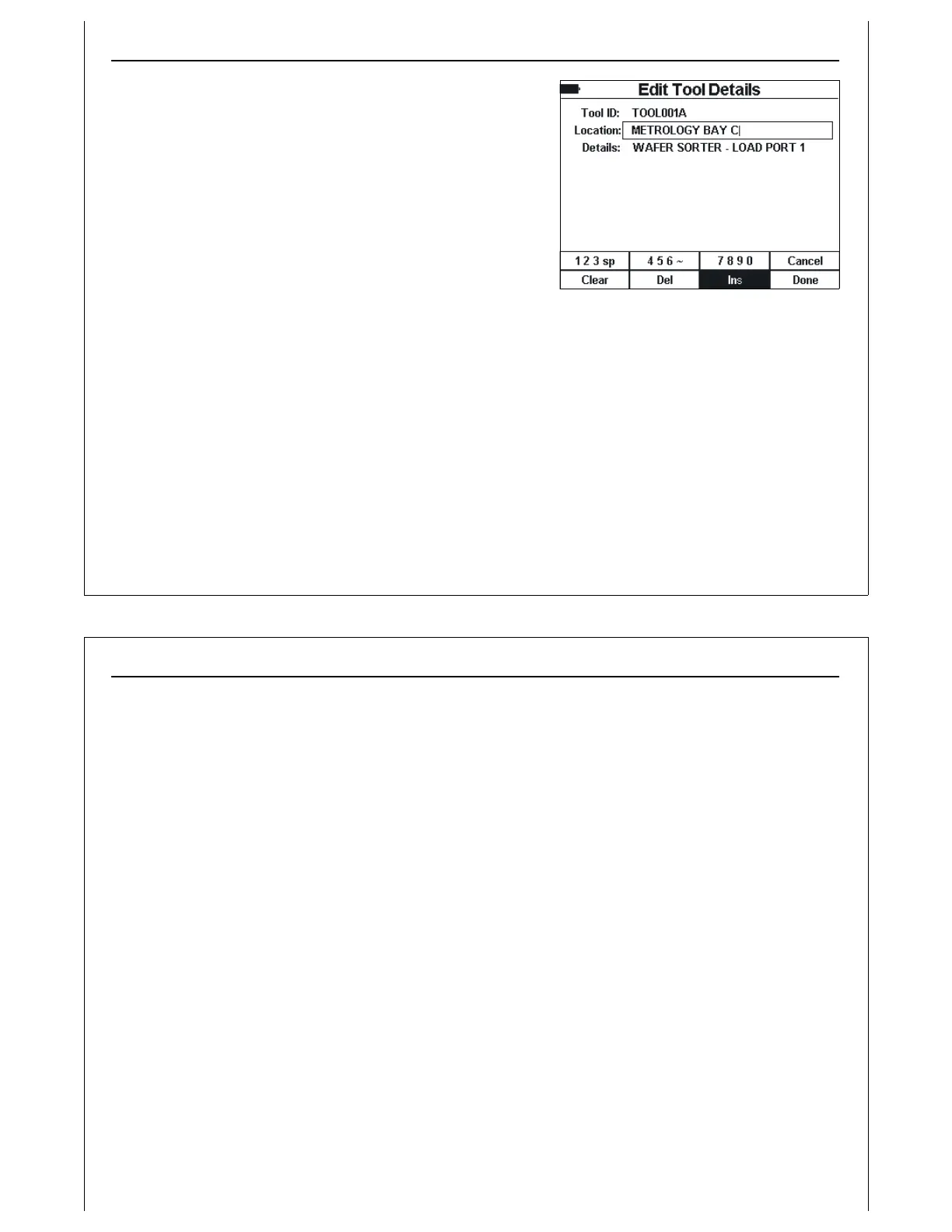
Figure 8 - Edit Tool Details Screen (2)
The soft keys are operated similar to the keys on a cellular
phone. Press the soft key once for the first displayed
character, twice for the second, etc.
A rectangle is drawn around the current field being modified.
A vertical bar is displayed at the location of the character
cursor.
Use the Enter key to select the desired field. Each time the
Enter key is pressed, the rectangle is advanced to the next
field.
Use the Ins soft key to switch between insert mode, and
overstrike mode. Insert mode is enabled by default. In
overstrike mode, characters to the right of the cursor are overwritten by new characters.
The Del soft key will delete the character to the left of the cursor. The cursor will back up one character.
If no characters have been entered, the Del soft key has no affect.
The Clear soft key will clear the current field, and place the cursor at the beginning of the field.
Use the Cancel soft key to cancel your Edit session, and return to the previous screen. Changes made
will be lost.
Use the Done soft key to end the editing session, and save all changes.
Using The Handheld Tester
1
PAGE 12
Press the Right Arrow key to move to the next character in the current field. If the cursor is at the end of
the field, the Right Arrow key will insert a space character.
Press the Left Arrow key to move the cursor to the left.


 To Next Page