Using The Handheld Tester
1
PAGE 33
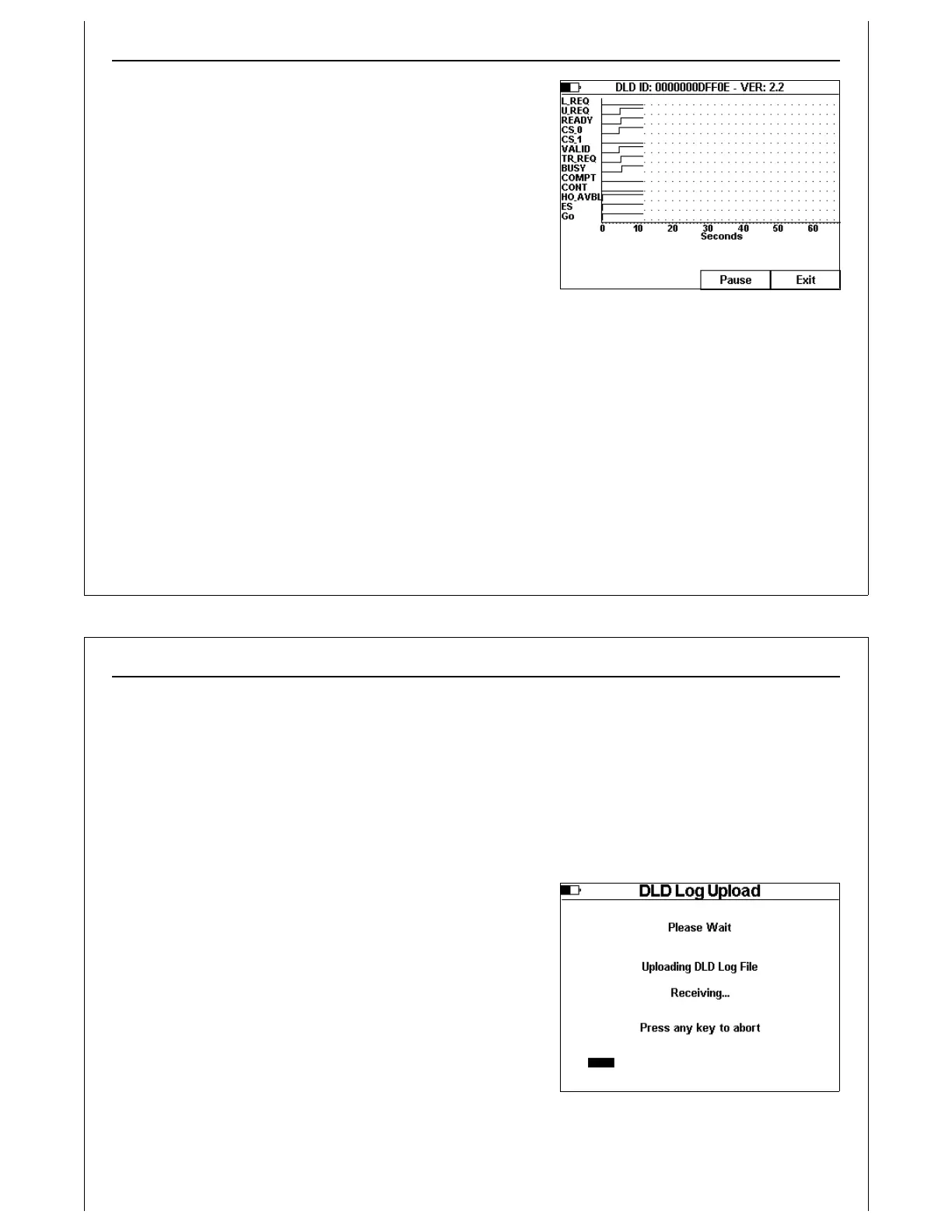
Figure 34 - DLD Live Mode Display
During DLD Live Mode, the HHT continuously updates a real-
time graph window with data received from the attached
DLD.
Press the Pause soft key to pause real-time graph updates.
The HHT continuously receives data from the DLD while
paused. Received data is not added to the real-time graph.
Press the Pause soft key again to re-enable real-time graph
updates.
Press the Exit soft key to terminate DLD Live Mode and return
to the Interface to DLD Screen. There is currently no Save
option during DLD Live mode.
Using The Handheld Tester
1
PAGE 34
Figure 35 - DLD Log File Upload Screen
DLD Log File
The HHT stores the DLD Log file in the PSS. Before starting the upload process, the HHT needs to know
where to store the Log file. The Save Test Results screen is displayed when the Log soft key is pressed.
Select a Tool ID to save the DLD Log file to (see Saving Test Results Files above for details on selecting the
Tool ID). DLD Logs transferred to a computer can be analyzed using the GCI E84 Analysis Application
(Version 2.70 or newer).
After selecting the Tool ID, the DLD Log Upload Screen will be displayed.
During the DLD Log Upload, the HHT displays a Please Wait
prompt, along with a status bar showing progress of the
upload.
Press any HHT key to abort the DLD Log Upload.


 To Next Page