Using The Handheld Tester
1
PAGE 51
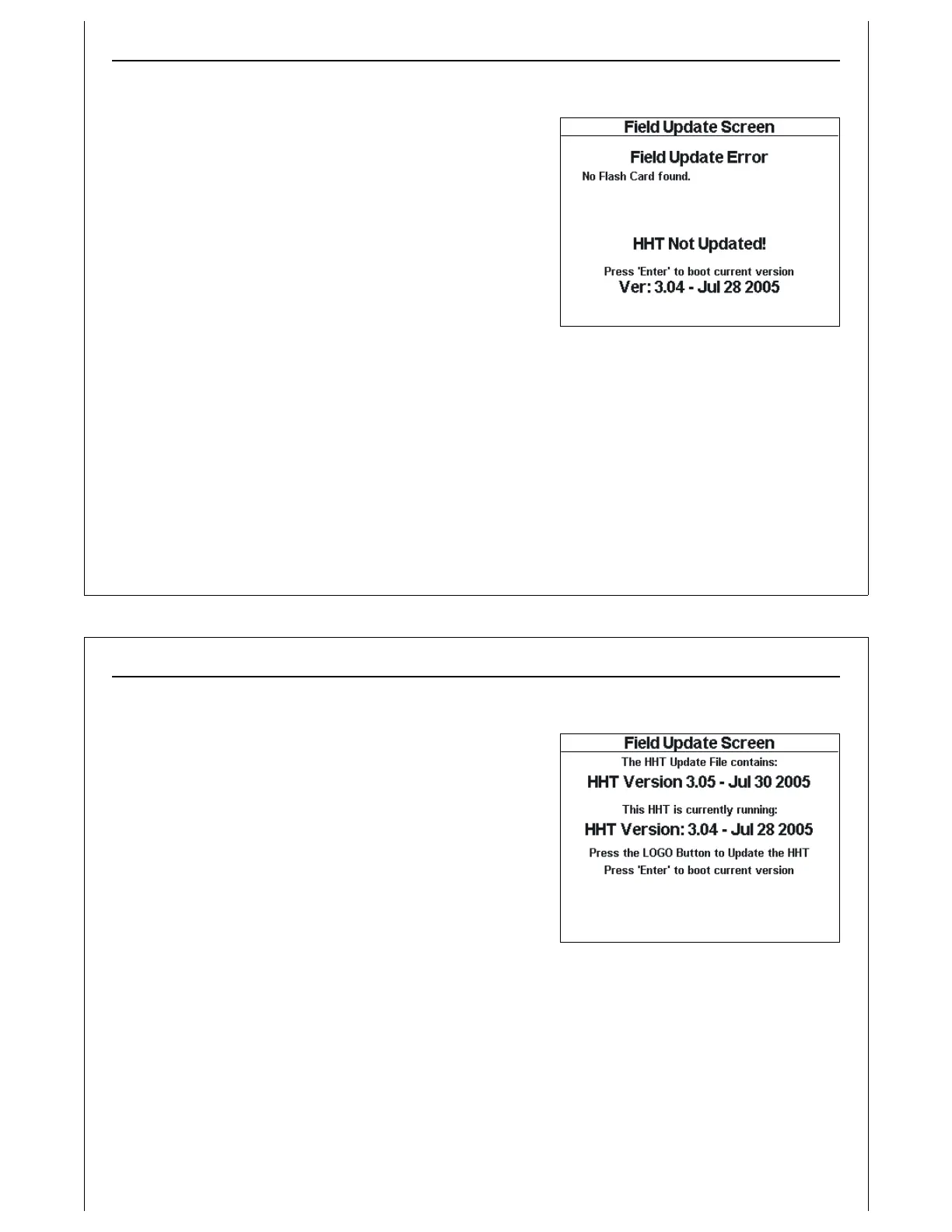
Figure 49 - Field Update Error Screen
Field Update Errors
If any errors occur during the Field Update process, an error
message is displayed. Figure 49 shows an example error
message. This message is displayed if the Field Update
Screen is entered with no SD Card inserted.
If an error occurs, the Field Update is terminated. Press the
Enter key to boot the currently installed HHT firmware.
Using The Handheld Tester
1
PAGE 52
Figure 50 - Field Update Detail Screen
Field Update Details
Figure 50 shows the Field Update Detail Screen. This screen is
displayed after the user releases the Logo key.
The HHT searches the installed SD Card for the file
HHTUPDAT.S19. If the file is found, the HHT opens it, and reads
in the version number and release date. This information is
displayed, along with the currently installed version number
and release date.
The user should carefully examine the two version numbers /
release dates to determine if the firmware should be
updated.
If the firmware version and release date on the SD Card is
older, or is not desired, press and release the Enter key to boot the current firmware. This will close the
Field Update Screen, and display the HHT’s Main Menu.
If the update is desired, press and release the Logo key to update the HHT’s firmware with the update file
located on the SD Card. The Confirm HHT Update Screen will be displayed.


 To Next Page