Using The Handheld Tester
1
PAGE 37
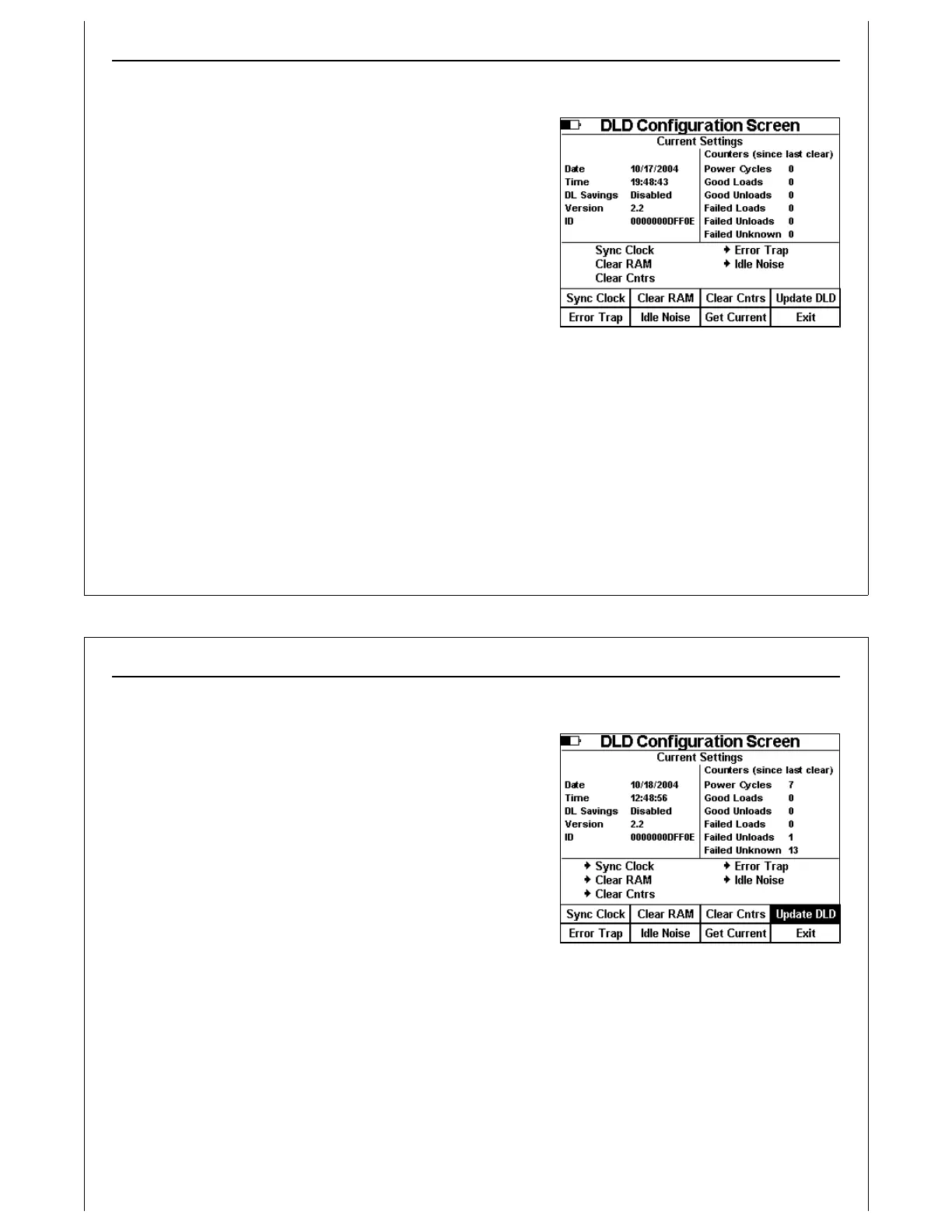
Figure 37 - DLD Configuration Screen
DLD Configuration Screen
The DLD Configuration Screen provides a method of viewing
and modifying current DLD settings.
Current DLD settings are displayed near the top of the screen.
Settings displayed include the DLD’s internal Date and Time,
it’s firmware Version Number and unique DLD ID.
If the DLD firmware supports statistics gathering, a series of
counters are also displayed.
Two configurable options are supported by the DLD; Error
Trapping and Idle Noise. Error Trapping limits the DLD to
record only failed E84 transactions. Idle Noise limits the
special Error Trapping mode to record only those errors that
occur during an E84 transaction.
The current state of the two configurable options are shown below the statistics counters. When the
option is enabled, an arrow is displayed to the left of the option text. In Figure 37, both Error Trapping
and Idle Noise options are enabled.
Using The Handheld Tester
1
PAGE 38
Figure 38 - Update DLD Configuration
Update DLD Configuration
There are five DLD configuration options that can be selected
using the soft keys. To select an option, press the associated
soft key. An arrow is displayed to the left of the selected
option text. To de-select an option, press the associated soft
key again. The arrow will be removed. Figure 38 shows all
five options selected, and the DLD update in progress.
GCI recommends synchronizing the DLD’s clock, and
clearing it’s RAM each time the DLD is installed on a new tool.
Press the Sync Clock soft key to synchronize the DLD’s clock
with the HHT’s clock.
Press the Clear RAM soft key to clear the DLD’s internal RAM
buffer.
Press the Clear Cntrs soft key to clear the statistics counters.
Press the Error Trap soft key to enable error trapping mode.
Press the Idle Noise soft key to enable Idle Noise mode.
Press the Update DLD soft key to send the selected options to the DLD. The Update DLD soft key will


 To Next Page