Using The Handheld Tester
1
PAGE 39
remain selected until the update is completed. The DLD settings display is refreshed following the DLD
update.
Press the Exit soft key to close the DLD Configuration Screen and return to the Interface to DLD Screen.
Using The Handheld Tester
1
PAGE 40
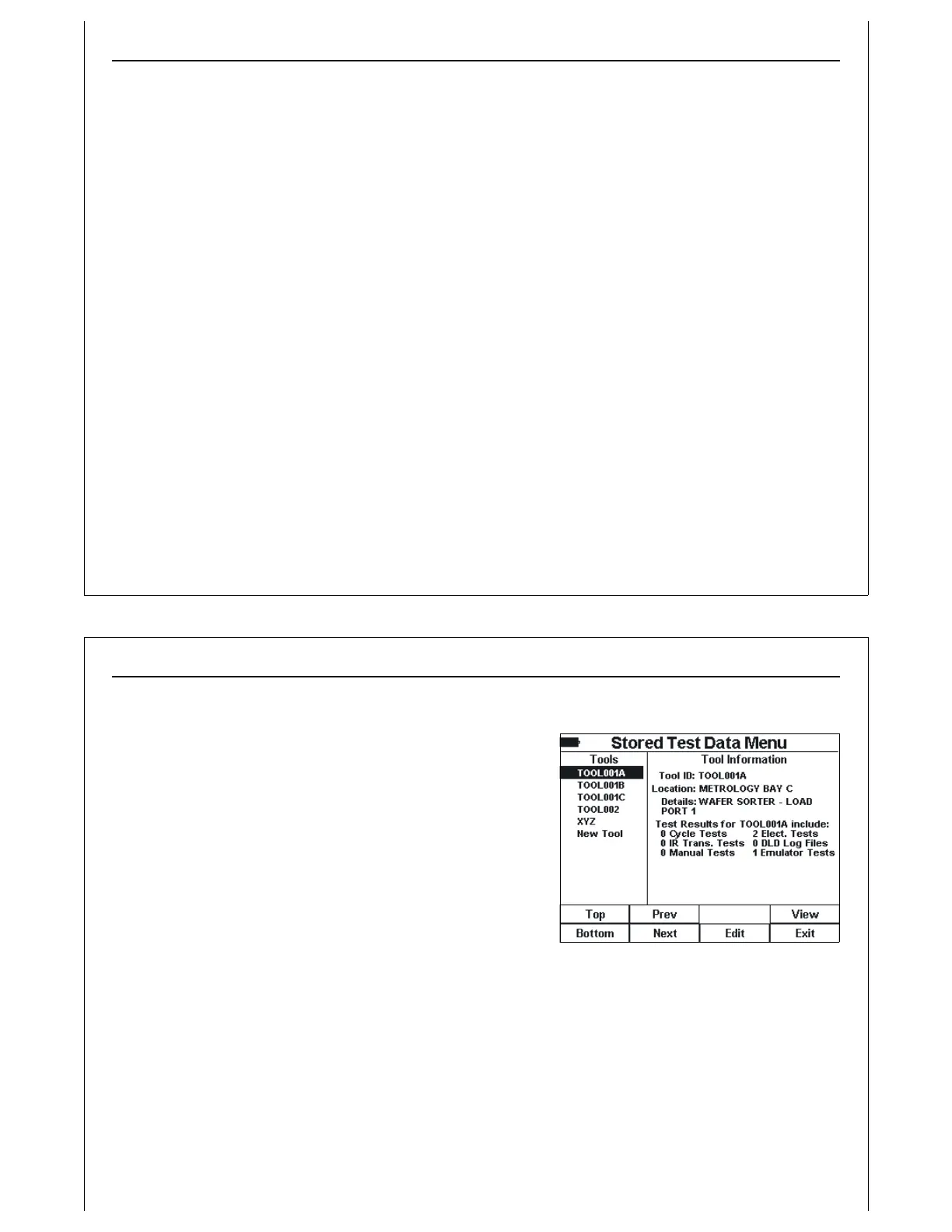
Figure 39 - Stored Test Data Menu
Stored Test Data
Data stored in the Paperless Storage System (PSS) can be
accessed using Test Menu Option 6.
The Stored Test Data Menu provides a list of available Tool ID’s,
along with details on the type and number of the Tools’ stored
data files.
The left side of the screen shows the list of Tool ID’s found on the
installed SD Card. Use the Up and Down Arrow keys, along with
the Top, Bottom, Prev, and Next soft keys to select the desired
Tool ID.
The right side of the screen shows details on the selected Tool
ID, along with the number of stored test results for each test type supported by the HHT.
Figure 39 shows an example of the Stored Test Data Menu. The currently selected Tool ID is TOOL001A.
There are three results files stored for TOOL001A, including two Electrical tests, and one Emulator Test
Suite test.
Use the Edit soft key to edit the Tool ID details (see Editing Tool Details above).
Use the View soft key to view the list of files saved for the selected Tool ID.


 To Next Page