Using The Handheld Tester
1
PAGE 35
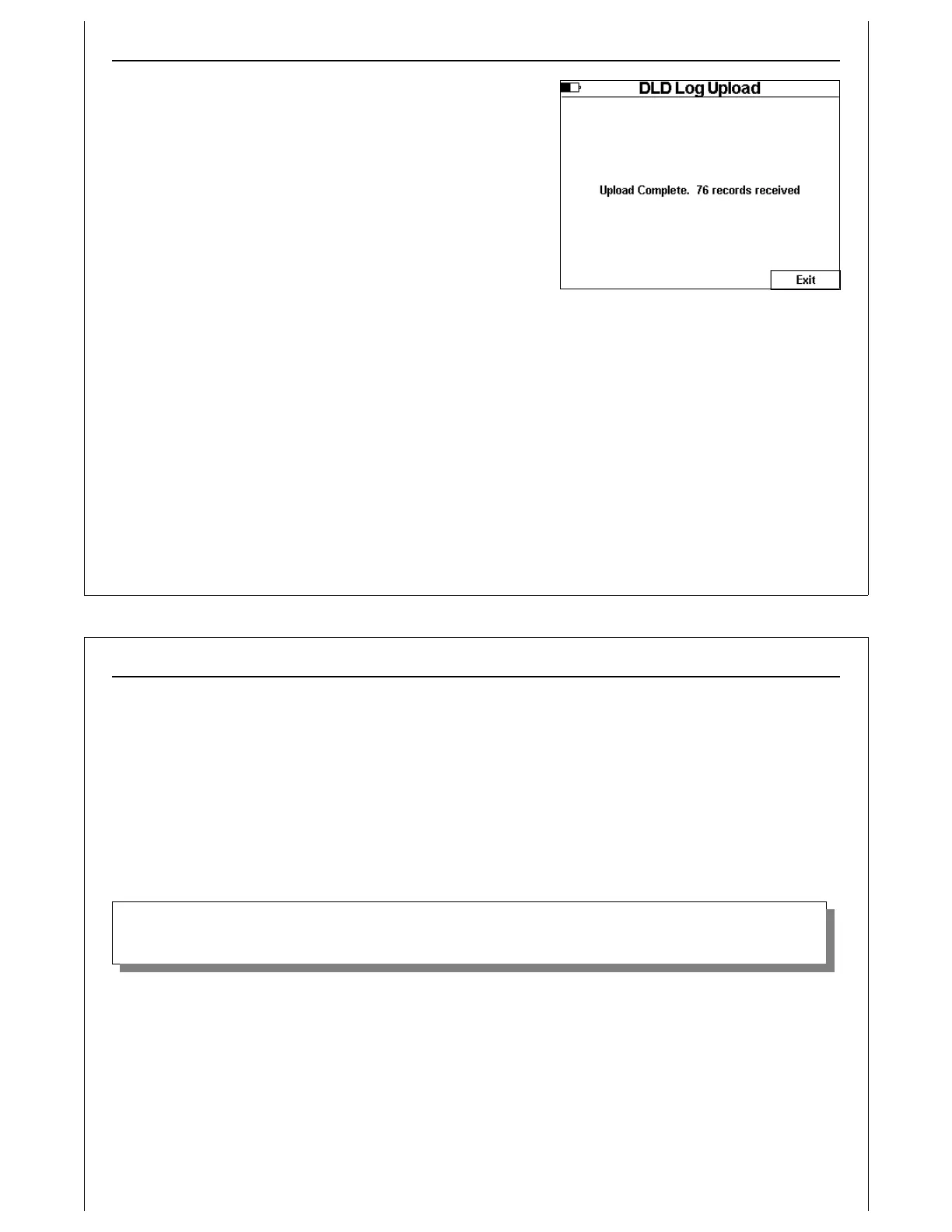
Figure 36 - DLD Log Upload Completed
When the upload is completed, a status message is displayed
showing the number of DLD records received.
Press the Exit soft key to return to the Interface to DLD Screen.
Using The Handheld Tester
1
PAGE 36
HOWTO: Download the DLD Log - Step by Step Instructions
1. If the DLD is not connected to a tool, plug the DLD's male DB25 connector into the HHT’s Passive
E84 Port. The HHT will supply power to the DLD through this interface. If the DLD is already
connected to a tool or other E84 interface, its DB25 connector does not need to be plugged
into the HHT.
2. Use the DLD Comm Cable, GCI P/N 9101-22-122 (or a male-to-female DB9 straight-through
cable) to connect the DLD to the HHT’s COM port.
3. Select Test Menu Option 5 (Interface to DLD) from the HHT’s main menu.
4. Press the Connect soft key to connect to the DLD.
If the HHT is unable to connect to the DLD, make sure that the DLD is firmly plugged into its power source. If it still can not
connect, and the HHT is not the DLD's power supplier, try disconnecting the DLD from the E84 interface to which it is connected,
and connect it to the HHT instead.
5. After a connection has been established, press the Log soft key.
6. Select the proper Tool ID, and press the Enter key to continue.
7. Monitor the download status displayed by the HHT.
8. When the download completes, press the Exit soft key to close the DLD Log Upload Screen and
return to the Interface to DLD Screen.


 To Next Page