Graphical Caregiver Interface (GCI)® Controls
Progressa™ Bed User Manual (171528 REV 1) 33
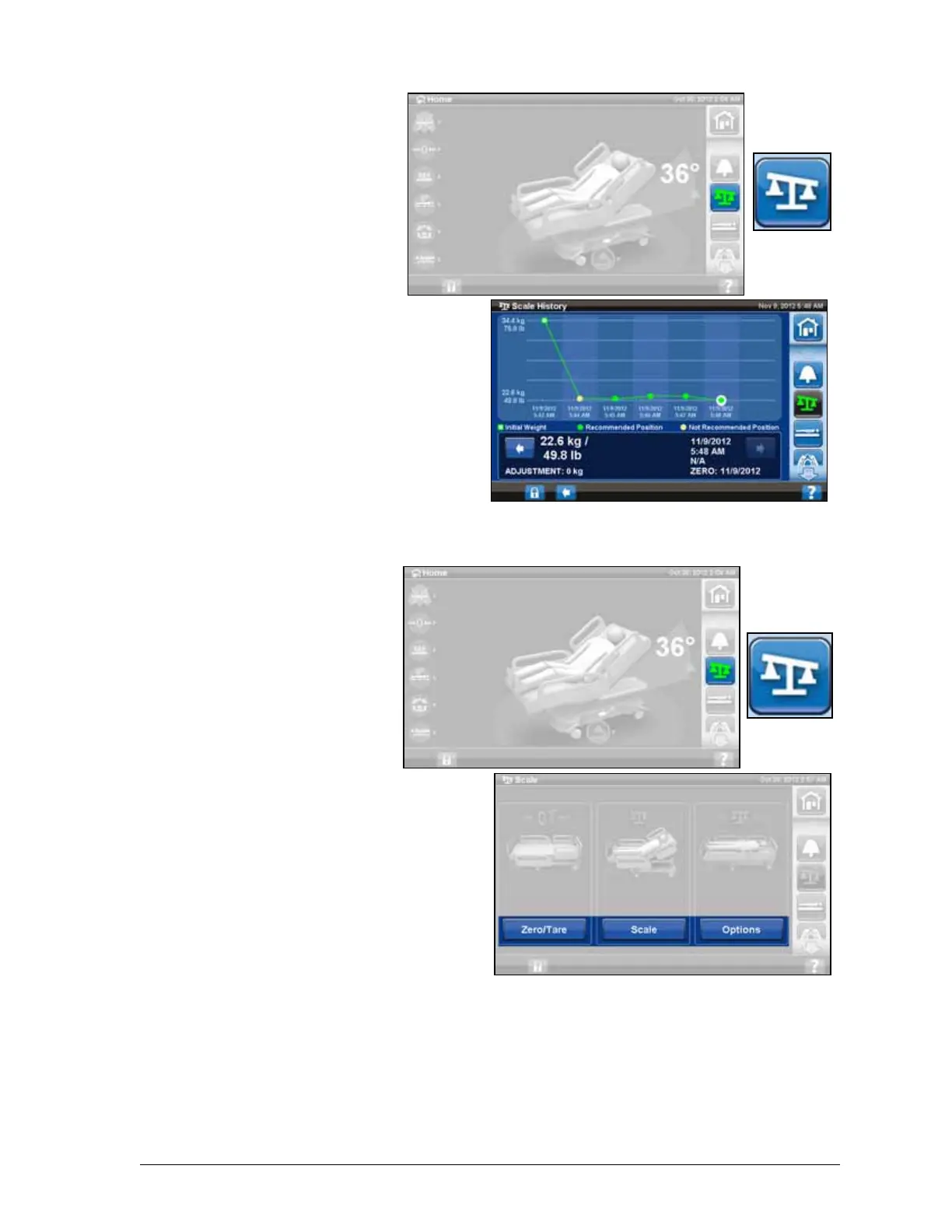
View weight history
The GCI will show the initial weight
of the patient and will allow you to
view at least 21 weights that were
taken. The screen will show the date
and time, last zero, the weight, and
how much weight was adjusted.
1. Press Scale control on the
GCI.
2. Press Scale.
3. Press History control.
If the weight was taken in a Not
Recommended Position, an icon will
appear, which shows the status of
the bed when the weight was taken.
Use the arrows or touch a dot to see
different weights.
Scale—NAWI Compliant
(EN 45501)
Some beds are equipped with the
NAWI Scale. You can tell if your
bed is equipped by observing the
"OT" on the left side of the home
screen. Or, on the scale screen
there will be a magnifying glass
icon on the weighing screen. The
weight is continuously updating.
The Scale control on the GCI
allows you to Zero the Scale (does
not clear history), New Patient
(clears history and zeroes scale),
Weigh Patient, adjust the weight,
add/ remove items, calculate BMI,
or view weight history.
Non-Verified Weight is a live weight
reading of the patient and all items
on the weighing area that are not
zeroed/tared out. To verify weight
remove items on the weigh area
that are not zeroed/ tared and press Save Weight.
If the weight reading shows as all dashes, the scale is unable to weigh the patient. This may occur if
the bed weight limit has been exceeded, or there is an internal error. Remove the patient from the bed.
If this does not fix the problem, contact facility maintenance for further troubleshooting.
If the bed has a pendant installed, make sure it is either on the siderail or footboard when you zero the
scale or weigh a patient.



 To Next Page