+$%&
1
HP
PrecisionScan Pro
User’s Guide
14
Using the HP ScanJet
scanner
Book Contents Index
➮
➮
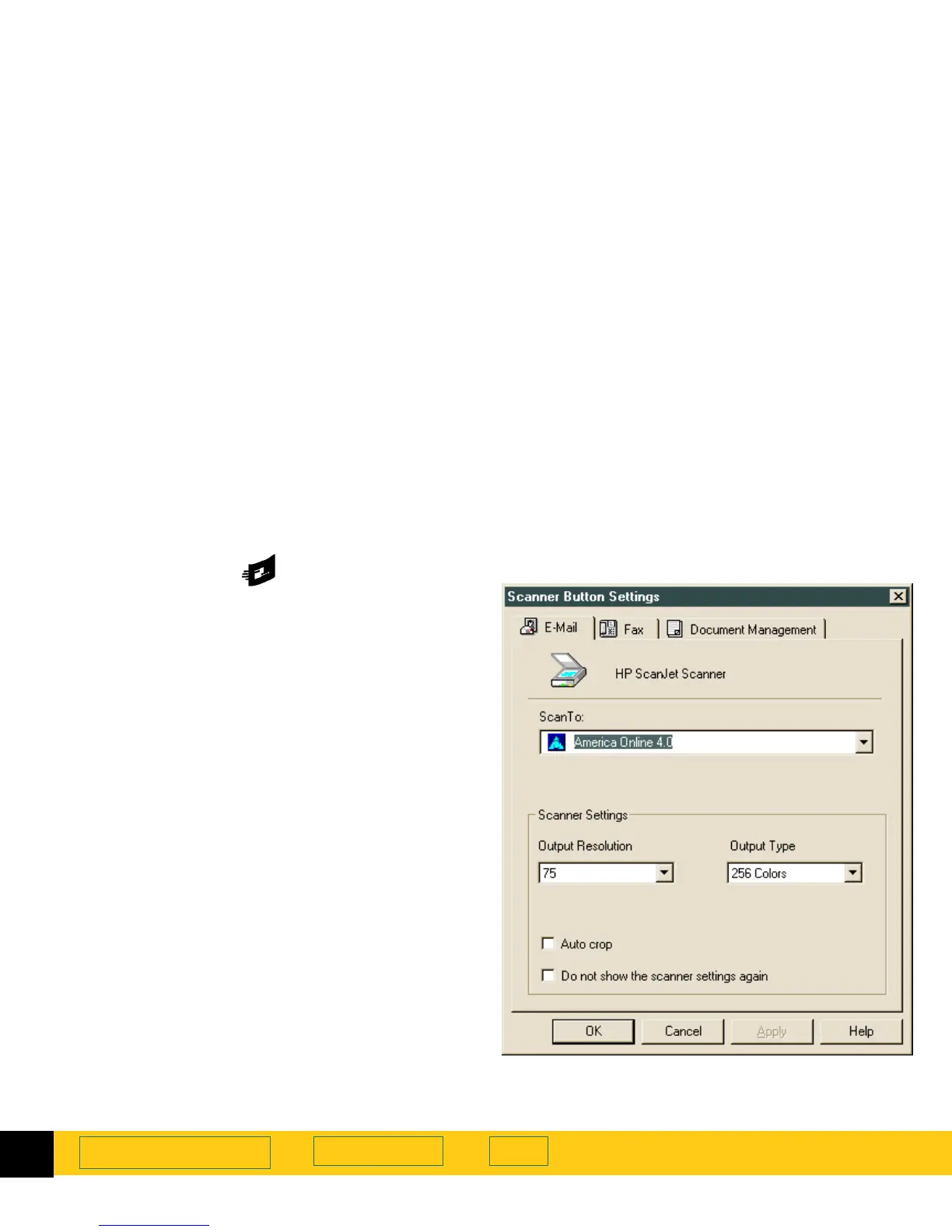
To scan to an e-mail application:
1
Push the
E-mail
button on the scanner.
2
The
Scanner Button Settings
dialog appears.
3
Select an E-mail application in the
Scan To
drop-down list. Only supported e-mail applications
installed on your PC appear in the list.
4
Adjust the
Scanner Settings
as necessary.
•
An
Output Resolution
of 75 dpi will produce a
smaller file size for an e-mail attachment and look
good on screen.
•
If
Auto crop
is checked, only the image placed on
the scanner bed will be sent to the e-mail
application. If
Auto crop
is unchecked, the entire
scanner bed will be sent as the image.
Note:
If you check the
Do not show the scanner settings
again
option, the
Scanner Button Settings
dialog will
not appear each time you push the
E-Mail
button on
the scanner. To re-open the
Scanner Button Settings
Dialog
, select the
Start
menu, choose
Programs
then
choose
HP ScanJet Software:HP ScanJet
Utilities:Scanner Button Settings
.
5
Click
OK.








 To Next Page