Step 2 Check the Enable PPPoE checkbox to enable this feature.
Step 3 Enter User Name, Password, and Confirm password for PPPoE access.
NOTE
The User Name and Password should be assigned by your ISP.
Step 4 Click
to save and exit the interface.
NOTE
It asks for a reboot for the settings to take effect.
----End
8.3.4 Configuring DDNS Settings
If your camera is set to use PPPoE as its default network connection, you can use the Dynamic
DNS (DDNS) for network access.
Before you start, registration on the DDNS server is required before configuring the DDNS
settings of the camera.
Step 1 Enter the DDNS Settings interface: Configuration > Advanced Configuration >Network >
DDNS.
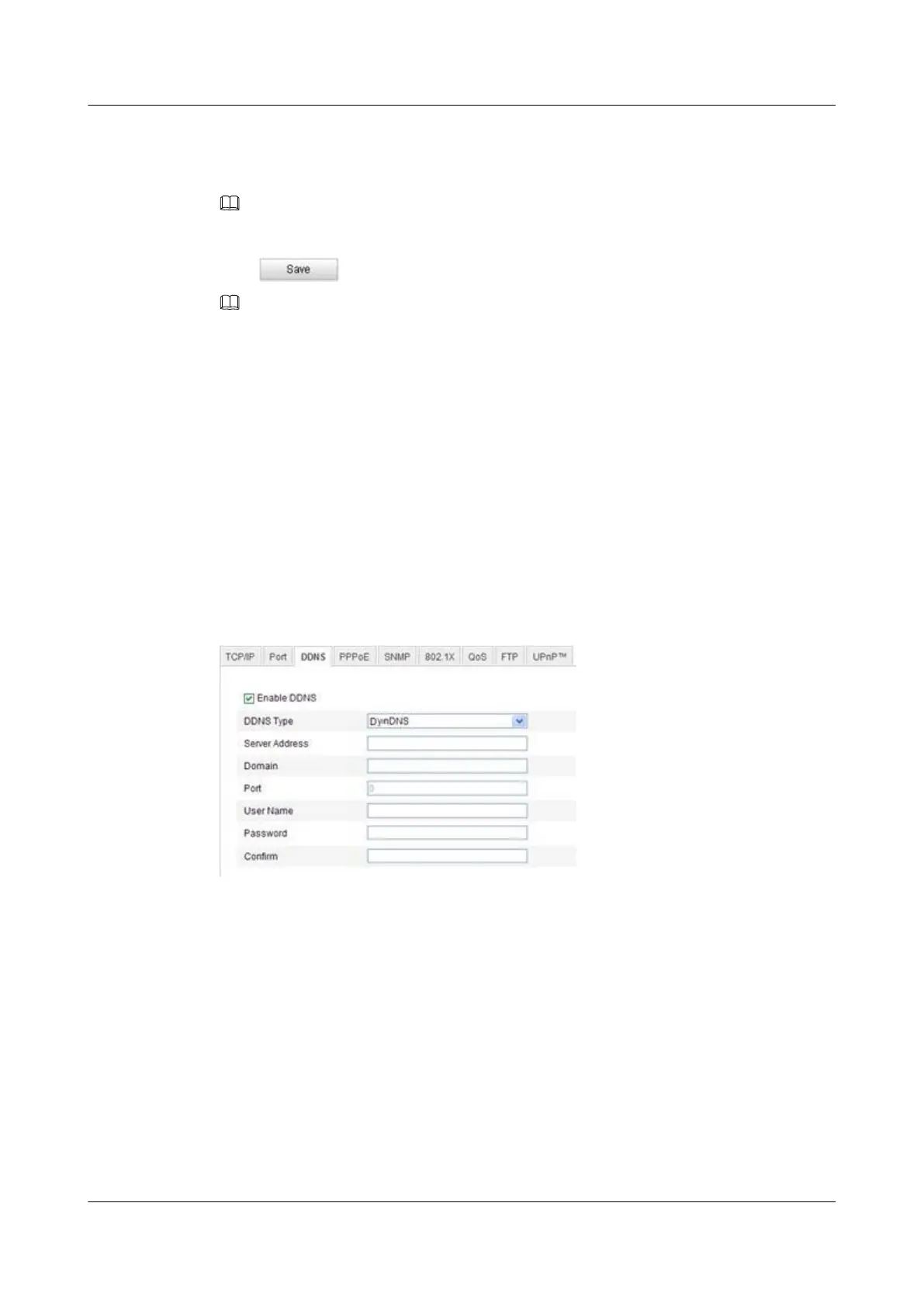
Figure 8-9 DDNS Settings
Step 2 Check the Enable DDNS checkbox to enable this feature.
Step 3 Select DDNS Type.
Four DDNS types are selectable: IPServer, DynDNS, and NO-IP.
----End
DynDNS
Step 1 Enter Server Address of DynDNS (e.g. members.dyndns.org).
Step 2 In the Domain text field, enter the domain name obtained from the DynDNS website.
Step 3 Enter the Port of DynDNS server.
IPC6131-WD-A&6123-WDL-A&6232-IR&6212-
IR&6231-WD-VRZ&6332-MIR&6311-IR&6331-IR
User Guide
8 Network Camera Configuration
Issue 02 (2014-12-25) Huawei Proprietary and Confidential
Copyright © Huawei Technologies Co., Ltd.
77


 To Next Page