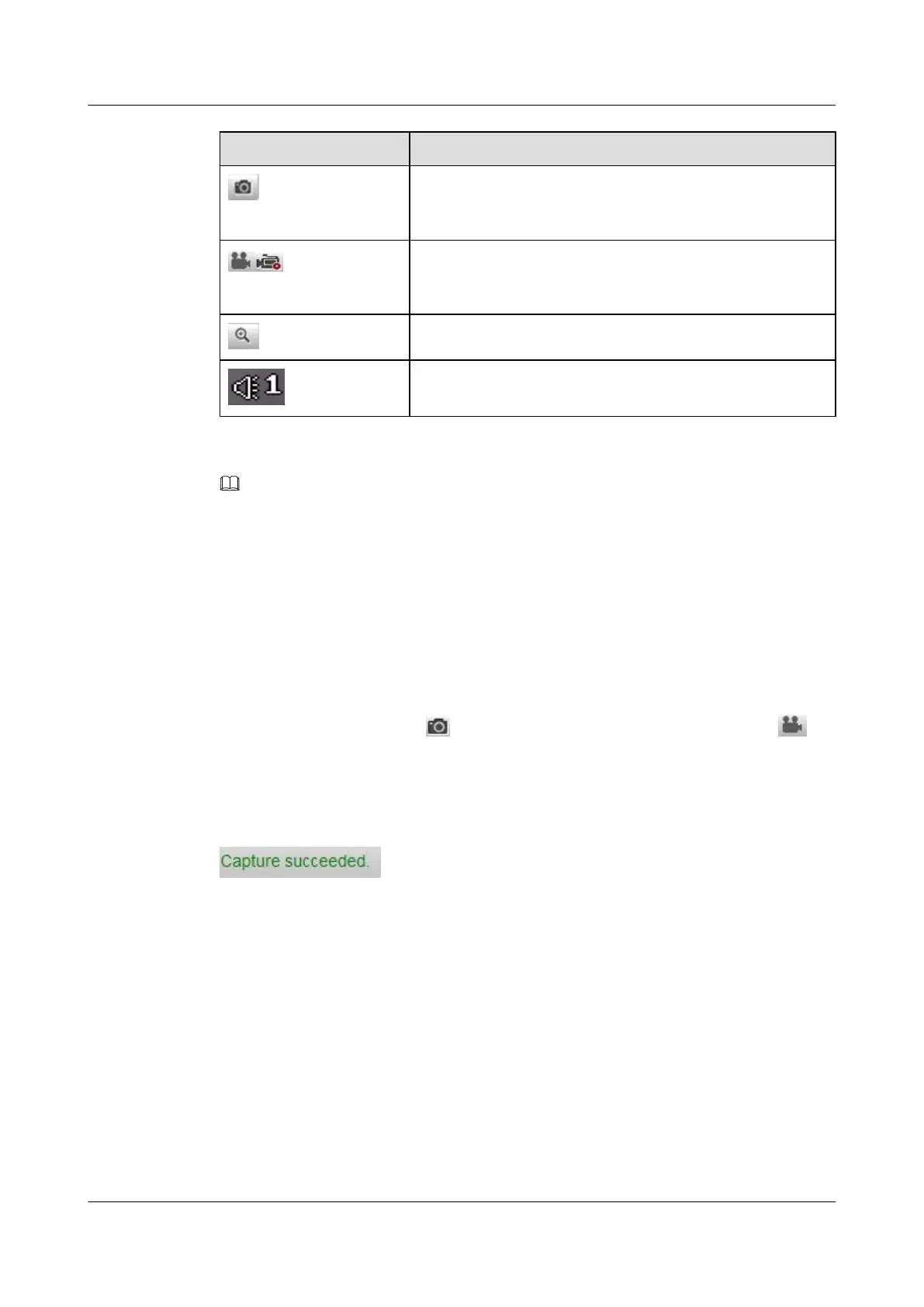
Icon Description
Manually capture an image and save it as a JPEG file. (You can
set the save path in Configuration > Local Configuration >
Save snapshots in live view to.)
Manually start or stop recording. (You can set the save path in
Configuration > Local Configuration > Save record files
to.)
Enable E-PTZ function
Icon that specifies the alarm input channel ID. The icon is
displayed on the live video image when alarm input exists.
NOTE
l Before enabling two-way audio function or recording with audio, please set Stream Type to Video &
Audio in 8.4.1 Configuring Video Settings.
l After you start recording or two-way audio manually, if you leave the live view page, the recording or
two-way audio will be stopped.
To play the live video in a full screen, double-click in the live video. To exit the full screen,
double-click in the live video again.
7.2 Recording and Capturing pictures Manually
In the live view interface, click on the toolbar to capture the live pictures or click to
record the live view.
When an image is captured, the following message box will pop up at the lower left corner.
Figure 7-3 Capture succeeded
IPC6131-WD-A&6123-WDL-A&6232-IR&6212-
IR&6231-WD-VRZ&6332-MIR&6311-IR&6331-IR
User Guide 7 Live View
Issue 02 (2014-12-25) Huawei Proprietary and Confidential
Copyright © Huawei Technologies Co., Ltd.
67


 To Next Page