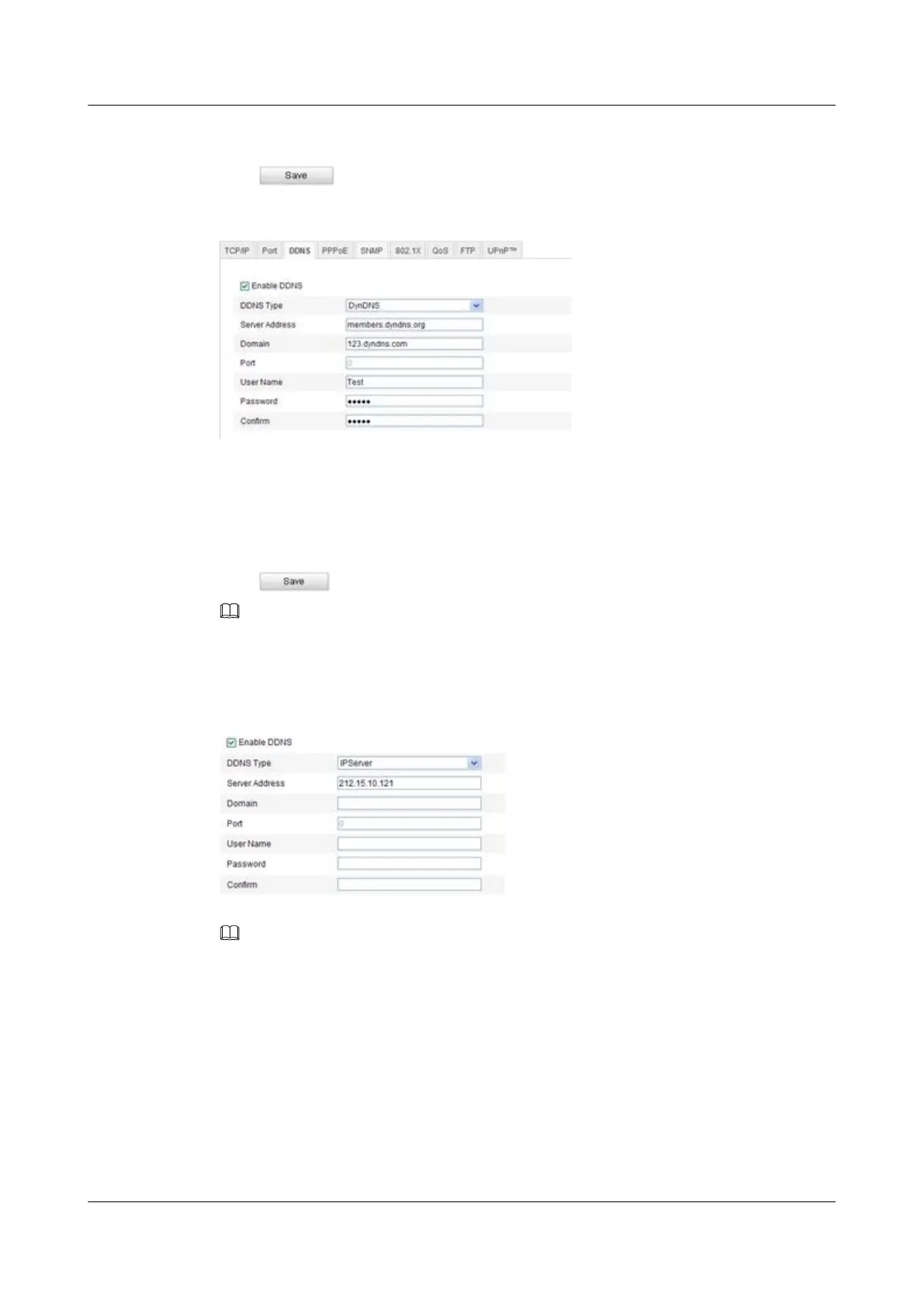
Step 4 Enter the User Name and Password registered on the DynDNS website.
Step 5 Click to save the settings.
Figure 8-10 DynDNS Settings
----End
IP Server
Step 1 Enter the Server Address of IP Server.
Step 2 Click to save the settings.
NOTE
For the IP Server, you have to apply a static IP, subnet mask, gateway and preferred DNS from the ISP.
The Server Address should be entered with the static IP address of the computer that runs the IP Server
software.
Figure 8-11 IPServer Settings
NOTE
For the US and Canada area, you can enter 173.200.91.74 as the server address.
----End
8.3.5 Configuring SNMP Settings
You can set the SNMP function to get camera status, parameters and alarm related information
and manage the camera remotely when it is connected to the network.
Before you start, please download the SNMP software and manage to receive the camera
information via SNMP port. By setting the Trap Address, the camera can send the alarm event
and exception messages to the surveillance center.
IPC6131-WD-A&6123-WDL-A&6232-IR&6212-
IR&6231-WD-VRZ&6332-MIR&6311-IR&6331-IR
User Guide
8 Network Camera Configuration
Issue 02 (2014-12-25) Huawei Proprietary and Confidential
Copyright © Huawei Technologies Co., Ltd.
78


 To Next Page