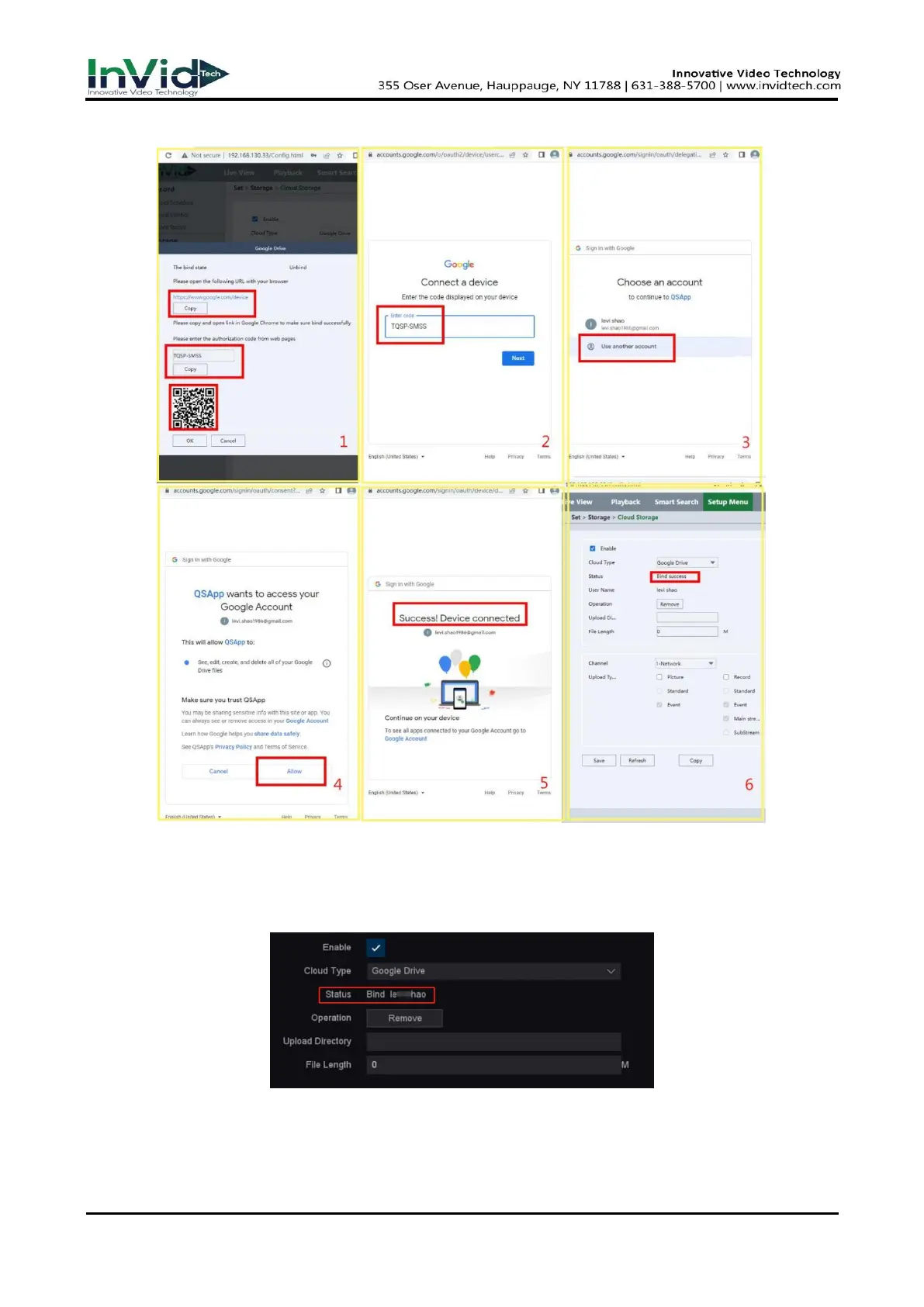
7. Follow steps of inputting the verification code, signing into your account, and “Allowing.”
Figure 10-6-2-4
8. Once you fill in/Allow your information to your Google Drive or Drop Box you will see a “Bind
Success”, at that point you can hit “Logout” to close window.
9. The Status line will then read “bind Your Login Name.”
Figure 10-6-2-5
10. Under “Upload Directory” you will make a file name of your choice. This file path will
automatically appear within the Google Drive or Drop Box directory.
11. Click Apply to save.



 To Next Page