3.2 Operations in Live View Mode
In live view mode, there are many functions provided. The functions are listed below.
● Single Screen: showing only one screen on the monitor.
● Multi-screen: showing multiple screens on the monitor simultaneously.
● Tour: the screen is auto switched to the next one. And you must set the dwell time for each
screen on the configuration menu before enabling the tour.
● Start Recording: continuous record and motion detection record are supported.
● Playback: playback the recorded videos for current day.
3.3 Quick Setting Toolbar in Live View Mod
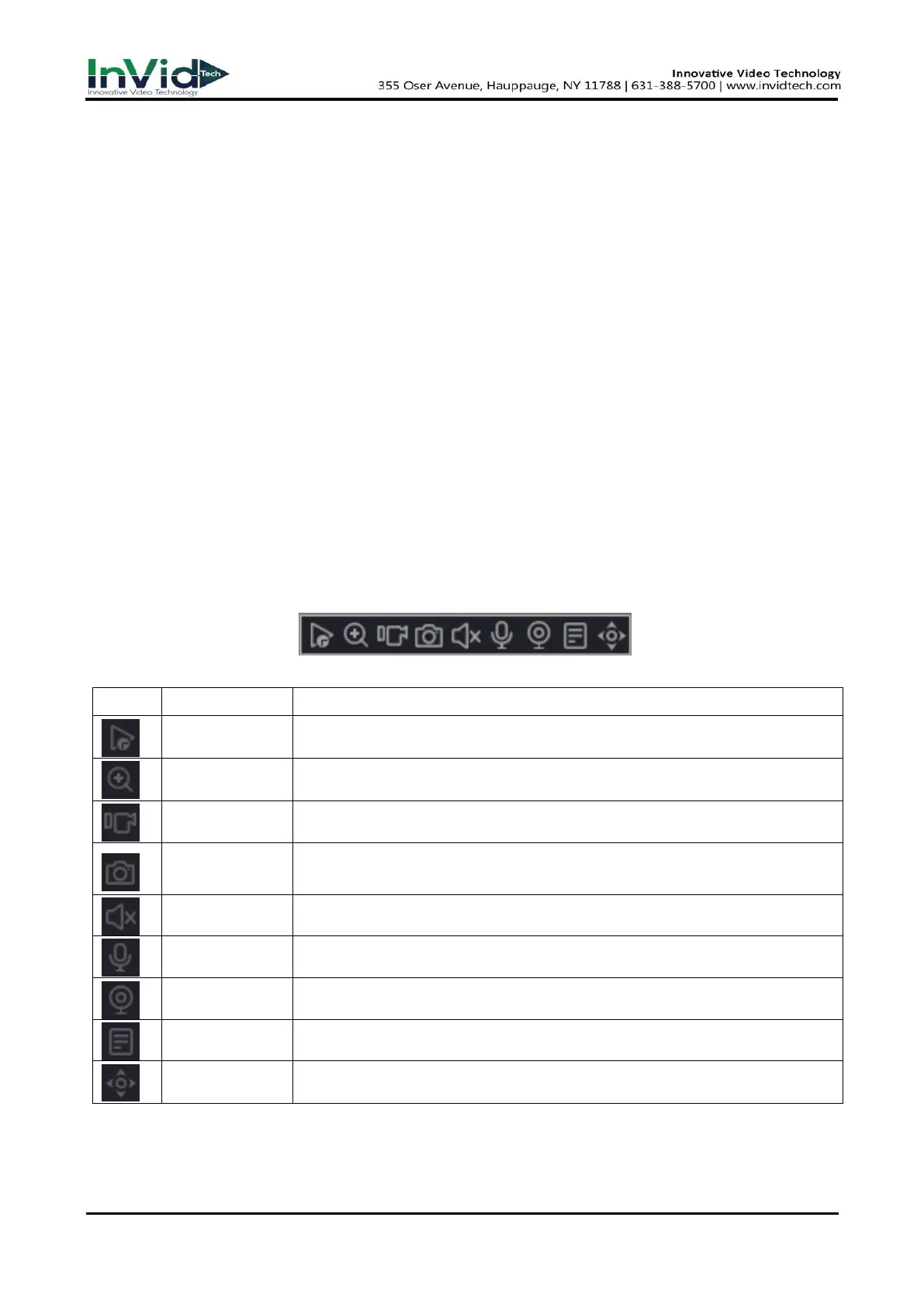
On the screen of each channel, there is a quick setting toolbar which shows when you move the
arrow of mouse to the top of image.
Figure 3-3-1 Quick Setting Toolbar in channel image
Table 3-3-1 Quick Setting Toolbar
In the preview channel window interface within ten minutes of video
for playback.
Displays the selected channel in full screen, Scroll the mouse wheel to zoom
in on the area where the mouse is clicked.
Quick switch video mode for this channel (only in manual and stop
mode switching).
This channel the display resolution of the images that are captured in real
time.
To listen Open channel monitor.
Open-channel intercom functions, support and IPC, web and mobile
client to talk.
Quickly enter and locate a channel is channel management interface.
Quickly check the bitrate of this channel when the mouse move to it.
Quickly enter PTZ control interface.



 To Next Page