10.8.3
Smart Play
Select the “Smart Play” enters the Smart playback mode.
Before You Start
Please make sure that your device has enabled Perimeter Protection such as Motion Detection,
Line Crossing, Area Intrusion, Region Entrance, Region Exiting, etc., and the alarm videos has been
generated.
Table 10-8-3-1
Draw Line
Steps:
1. Go to Playback.
2. Select the Smart Play.
3. Select the channel and the record time as your desire.
4. Click Play button or Click the blue timeline.
5. Click the icon of “Draw Line” to draw a line on the video interface.
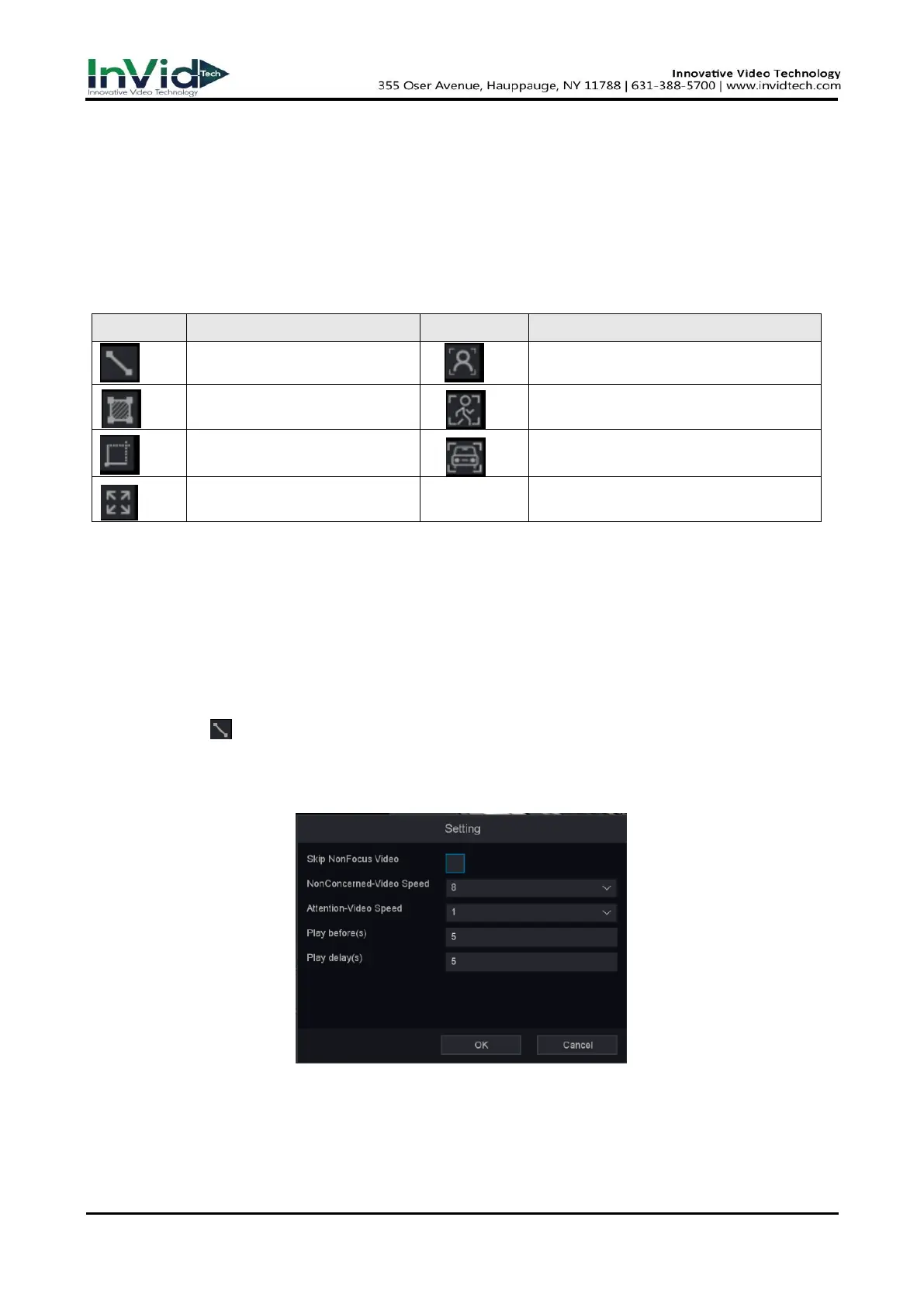
6. Click “Setting” button you can specify some setting for playback like “Skip Non-Focus Video” and
specify the playback speed for Non-Concerned Video and Attention-Video, also you can specify
the time before and after the events from 0 to 600 seconds, as shown below.
Figure 10-8-3-1
7. Click “Search” button then the result will be shown below, video with line crossing will be
marked color “green”, and the video will be played by the setting as you made at step 6.



 To Next Page