4.2 Normal Playback
Play back normal videos.
Steps:
1. Go to Playback.
2. Select a camera from the camera list.
3. Select a date on the calendar.
● The blue square at the calendar date indicates there are available videos. For example,
means video is available. means no video.
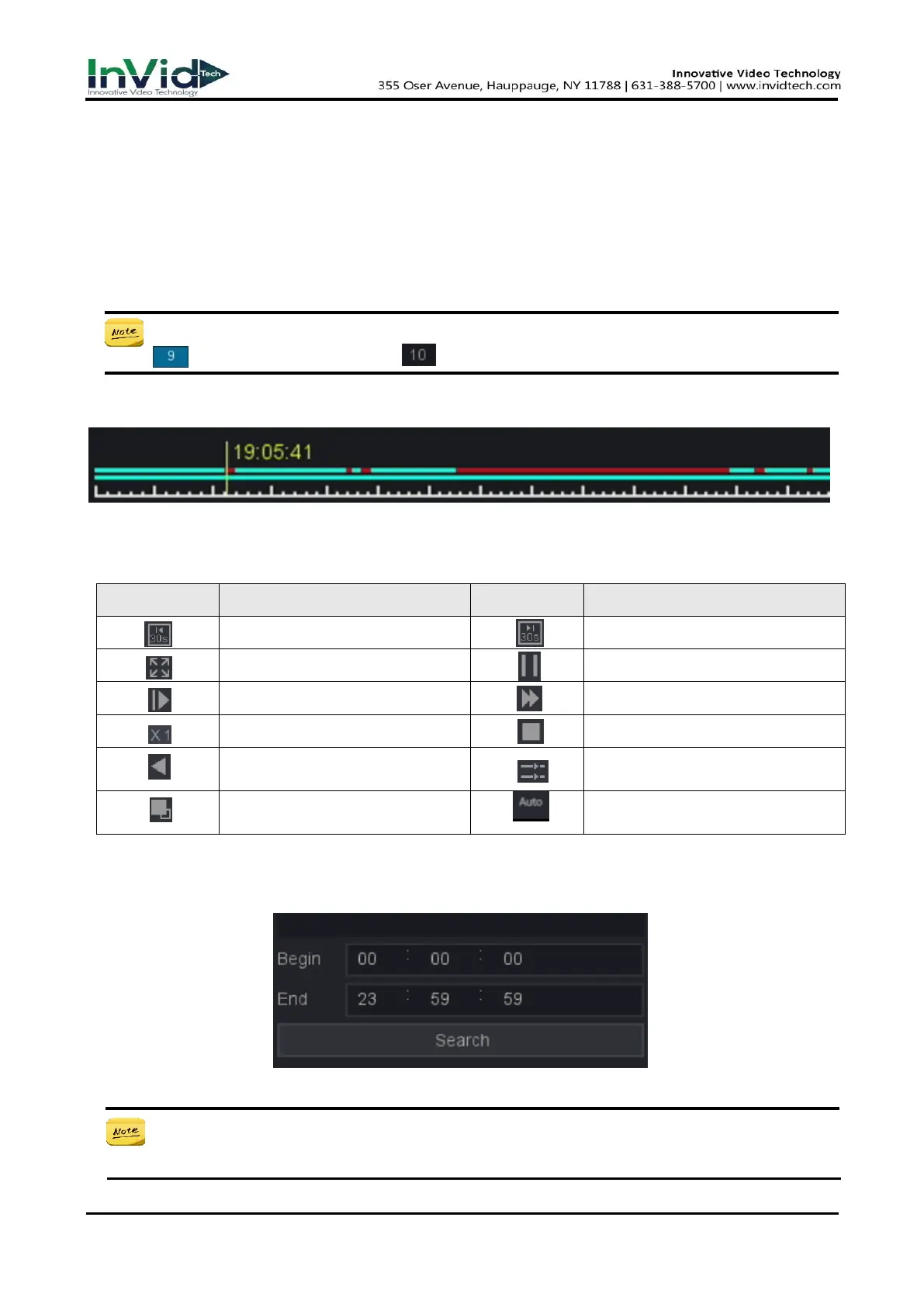
4. Click the timeline for Playback.
Figure 4-2-1
5. Video playback is controlled by the following buttons. The Description of common buttons for
playback video as the Table 4-2-1 shows.
Synchronous playback or
asynchronous playback switching
Main and sub stream switching
Main and sub-stream automatic
switching
Table 4-2-1 Playback Interface Description
6. For a recording of a time period, select the recording start time and recording end time you want
under the calendar, as shown below.
Figure 4-2-2
● If you want to find a recording of a time period, you can select the recording start time
and recording end time you want under the calendar, as shown below.



 To Next Page