● If the division windows number you choose is too large, your device will not be able to
play back all the windows due to the limitation of the decoding capability of the device.
Please try reducing the division windows number.
10.8.5
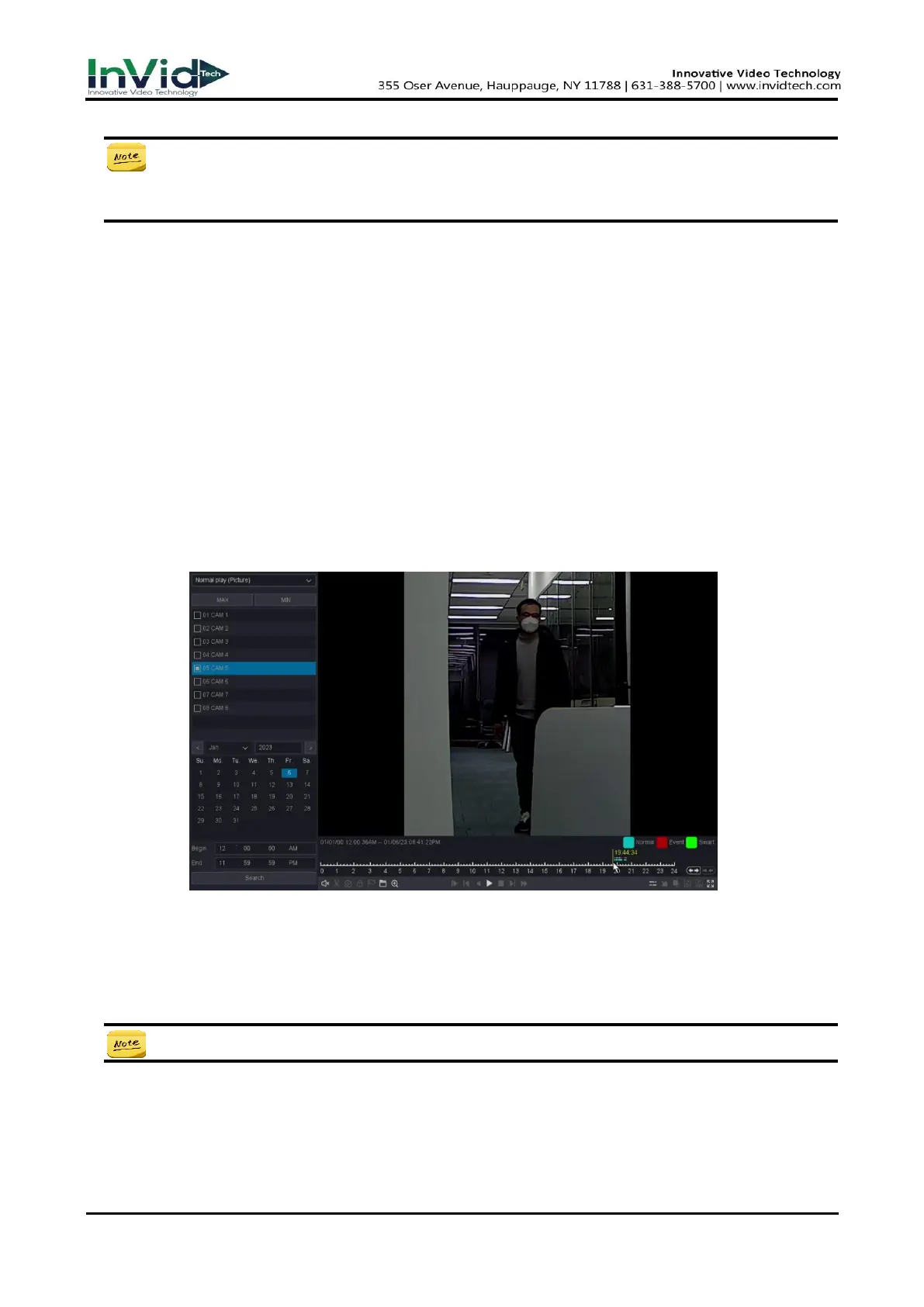
Normal Play (Picture)
On this page, you can play back the video as picture.
Before You Start
Please make sure that the channel you choose already has pictures generated by manual capture
or Perimeter Protection alarm.
1. Go to Playback.
2. Select Normal Play (Picture).
3. Select the channel as your desire.
4. Select the time period you want to play back.
5. Click Search.
Figure 10-8-5-1
6. As for the button of control playback including “File Manage”, “Sync/Async”, “Start/Pause”,
“Backward play”, “Stop Playing”, “Slow down”, “Speed up”, and “Time-line Stretch”, “Time-line
Shorten”.
● You can stop playback by right click and exit the playback interface by keep right click.



 To Next Page