6.3 Camera Management
6.3.1
Network Camera
Add Network Camera by Quick Set
Add InVid Protect IP camera with default password or the package camera for this device;
Before You Start
● Ensure your network camera is on the same network segment with your video recorder.
● Ensure the network connection is valid and correct. Refer to 6.2.1 General - TCP/IP for details.
● Make sure that the IP camera password has not been manually changed.
Steps:
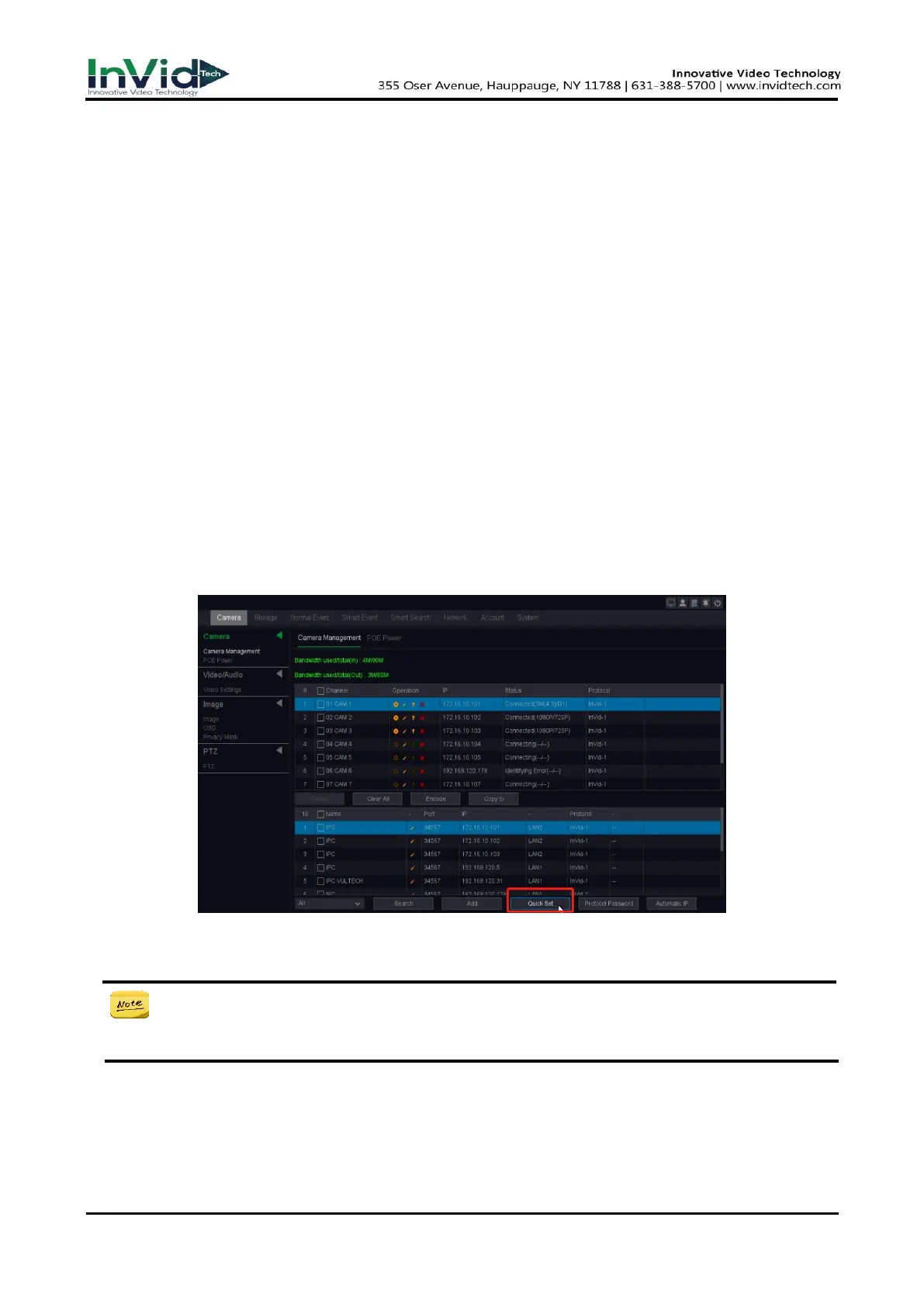
1. Go to Seven Grid Menu →Camera → Camera Management.
2. Click ‘Search’ button.
3. The online cameras on the same network segment with your video recorder are
displayed in Online Device List.
4. Select multiple desired cameras you want to add, or select all cameras.
5. Click the ‘Quick Set’ button to add the cameras (with the default login password) from the list.
Figure 6-3-1-1 Camera Management Interface
6. The device you selected will be added quickly.
● If the camera is not added successfully, you can manually modify the user name,
password, port, protocol or other.



 To Next Page