Add Network Camera Manually
Before You Start
● Ensure your network camera is on the same network segment with your video recorder.
● Ensure the network connection is valid and correct.
● Ensure the network camera is activated.
Steps:
1. Go to Seven Grid Menu →Camera → Camera Management.
2. Select the channel you want to add manually.
3. Click for that channel.
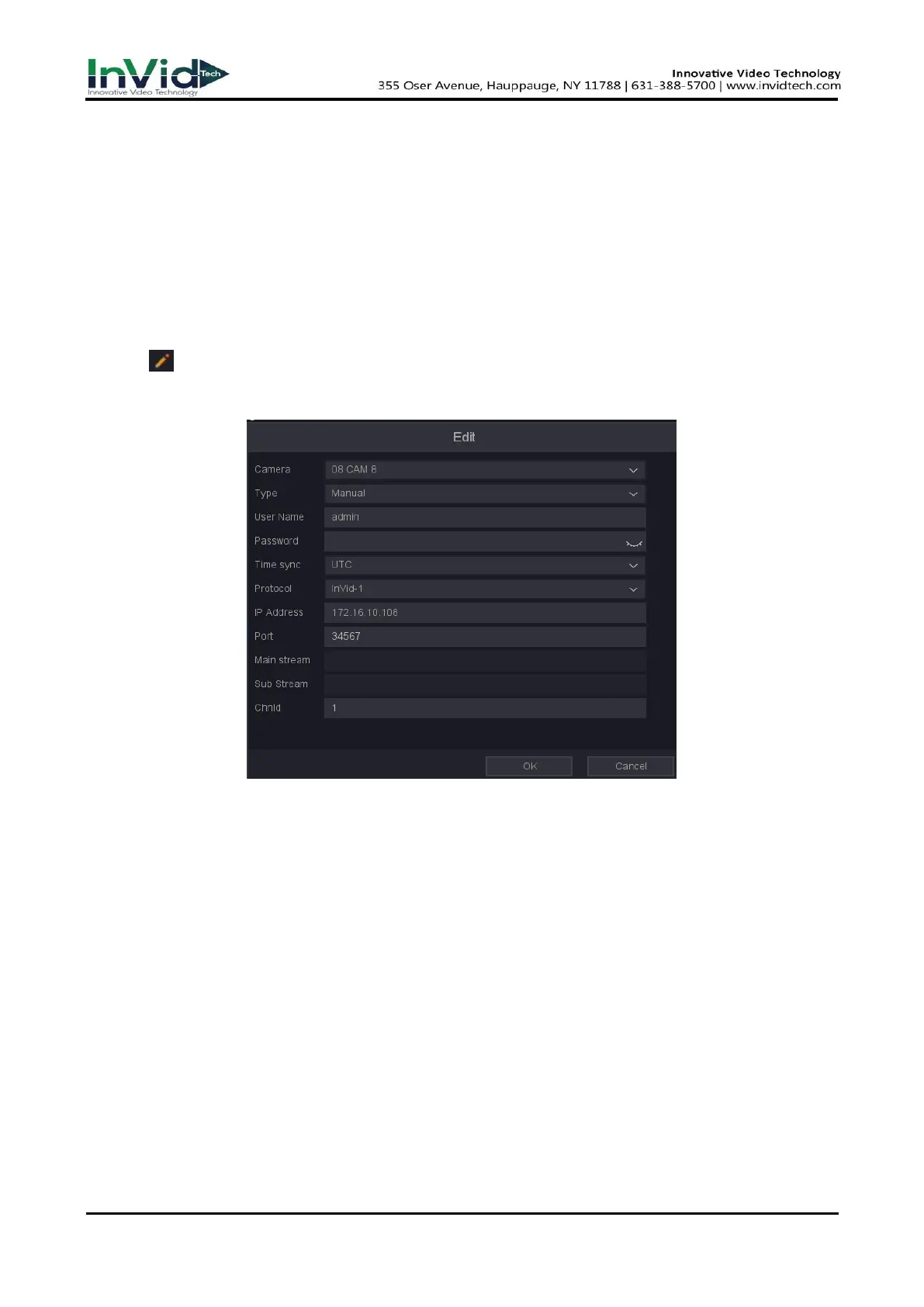
4. You can edit the IP address, User name, Password, Port and other parameters.
Figure 6-3-1-2 Edit the Parameters
5. Click the drop down box of Protocol, You can choose three protocols: InVid-1, ONVIF-1, ONVIF-2,
RTSP; InVid-1 is a private protocol, ONVIF and RTSP protocols are mainly connected to third-
party cameras.
6. Edit the ChnId, Default is 1.
7. Click ‘OK’ to save and exit the editing interface.
8. Optional: Click Add More to add another network camera.
Time sync
Time synchronization, the default is UTC synchronization, you can also choose to disable.
Port
Device connection port, ONVIF is 34567, ONVIF is 80, RTSP is 554, and other ports are
provided by the equipment manufacturer.
ChnId
Device channel number, if the device you connect has multiple channels, please fill in the
channel number you want to connect.



 To Next Page