Chapter 3 Live View
3.1 Introduction of Live View
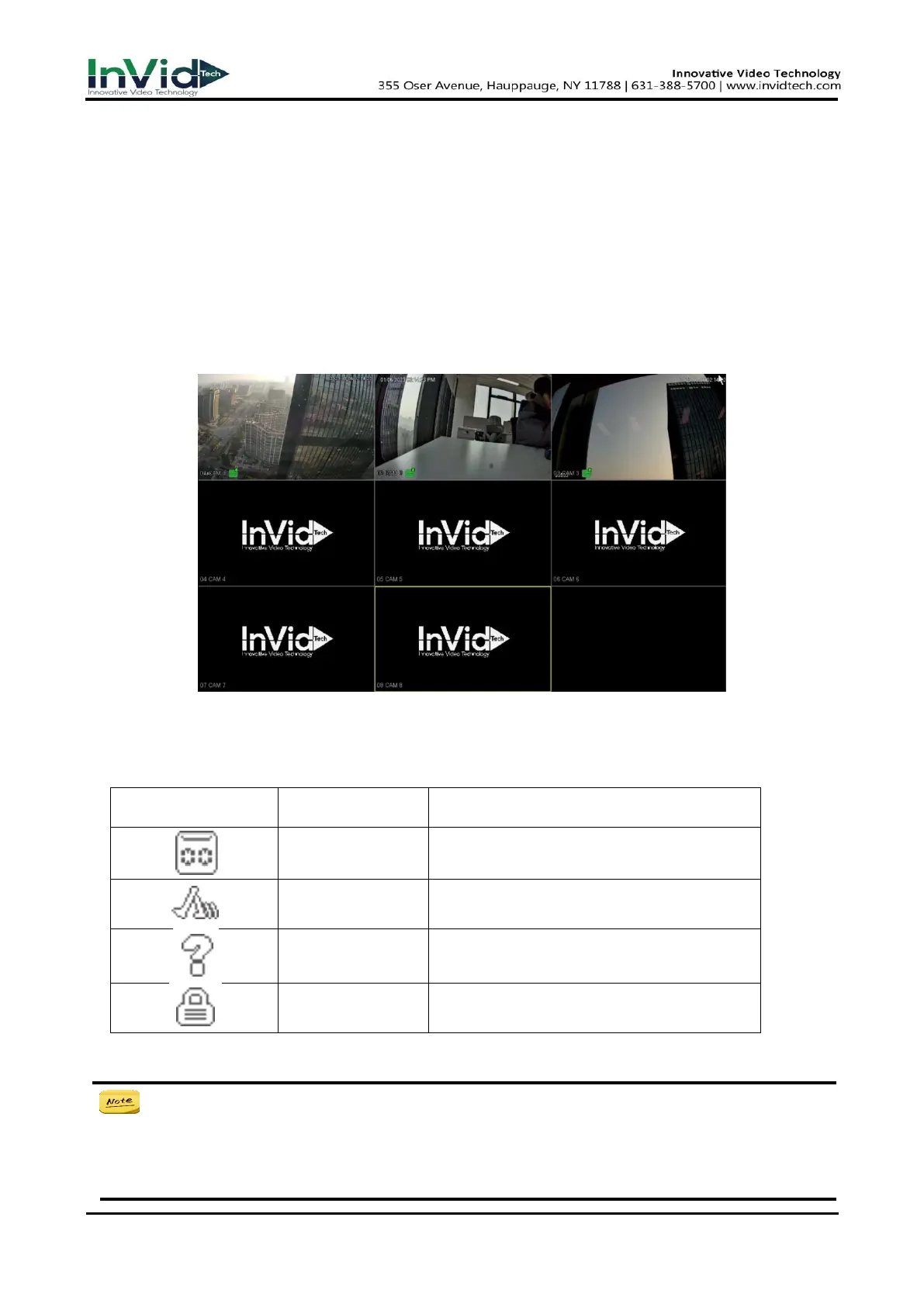
Live view shows you the video image getting from each camera in real time. The NVR
automatically enters Live View mode when powered on. It is also at the very top of the menu
hierarchy, thus pressing the right click many times (depending on which menu you’re on) brings
you to the Live View mode, as shown in figure 3-1-1.
Figure 3-1-1
In the live view mode, there are icons at the upper-right of the screen for each channel, showing
the status of the record and alarm in the channel, so that you can know whether the channel is
recorded, or whether there are alarms occur as soon as possible.
Table 3-1-1 Live view Icons
● On live view screen, Right click to Seven Grid Menu to enter the camera management
interface NVR Automatically search for network segment IPC, and then select the IPC Click
Add to. You can refer to 2.5 Adding the Online IP Cameras.
● The number for IP cameras channels may differ by its type;
Shown on channel preview when
recording.
Shown on channel preview when alarm
triggered.
Shown on channel preview when video
lost.



 To Next Page