Chapter 9 Web Operation
9.1 Introduction
You can get access to the video recorder via web browser.
You may use one of the following listed web browsers: Internet Explorer 6.0 to 11.0, Apple Safari,
Mozilla Firefox, and Google Chrome. The supported resolutions include 1024×768 and above.
9.2 Login
You shall acknowledge that the use of the product with Internet access might be under network
security risks. For avoidance of any network attacks and information leakage, please strengthen
your own protection. If the product does not work properly, please contact with your dealer or the
nearest service center.
Steps:
1. Open web browser, input the IP address of the video recorder and then press Enter.
● If you have changed HTTP port, enter http://IP address:HTTP port in address bar. E.g.,
http:// 192.168.1.10:81.
2. The first time you log in, you will be prompted to install the plugin.
3. Allow the prompt and download the plugin to complete the installation.
4. Close the browser and reopen.
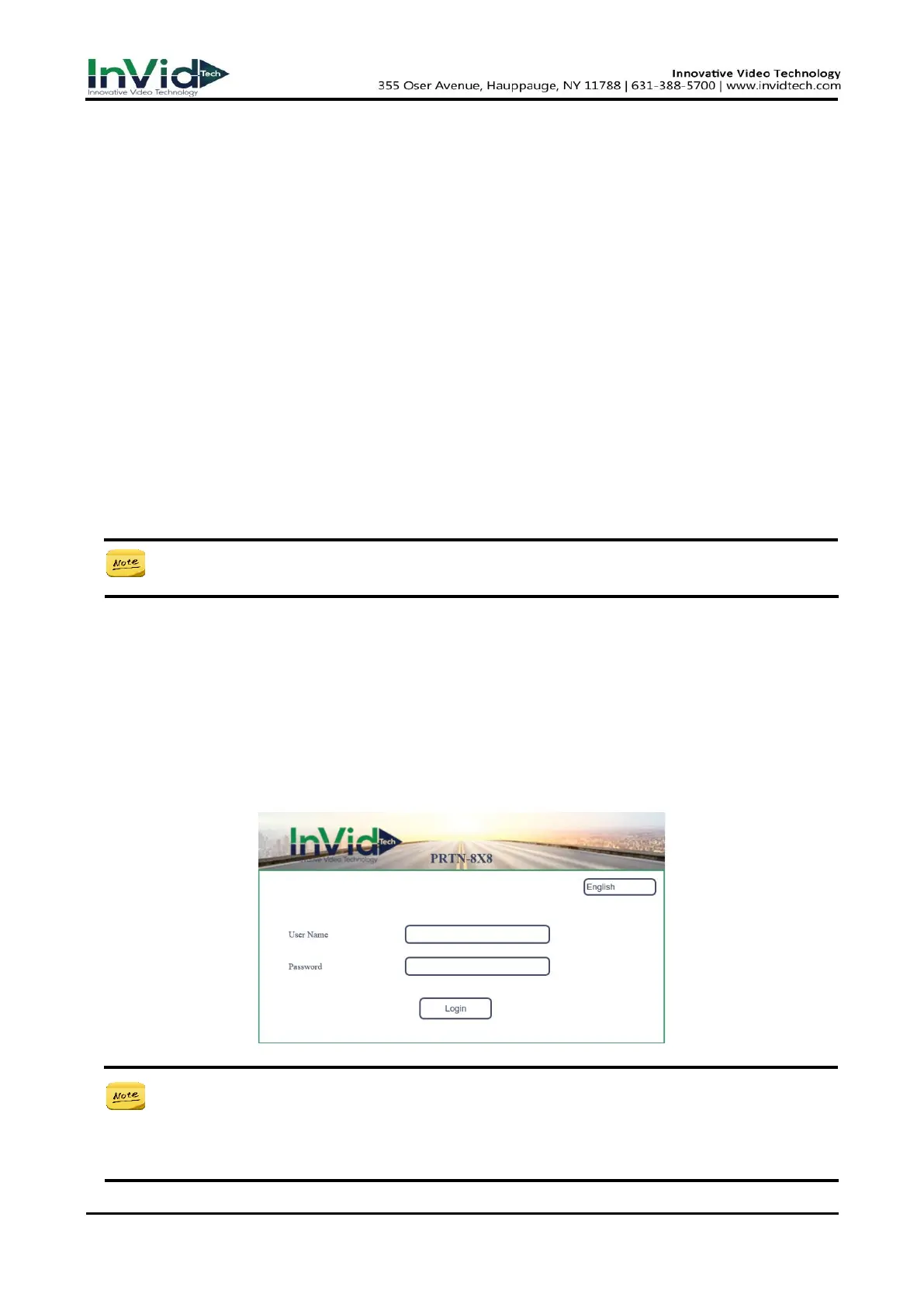
5. Select language in the interface.
6. Enter user name and password in the login interface (The first time you log in to the device, you
need to activate it, you can also activate it on the local GUI first).
7. Click Login.
Figure 9-2-1 Login
● If you log in without installing the plugin, you will still be prompted to install the plugin,
Please Follow the installation prompts to install the plug-in. Otherwise you will not be
able to use it normally.
● You may have to close the web browser to finish the installation of the plug-in.



 To Next Page