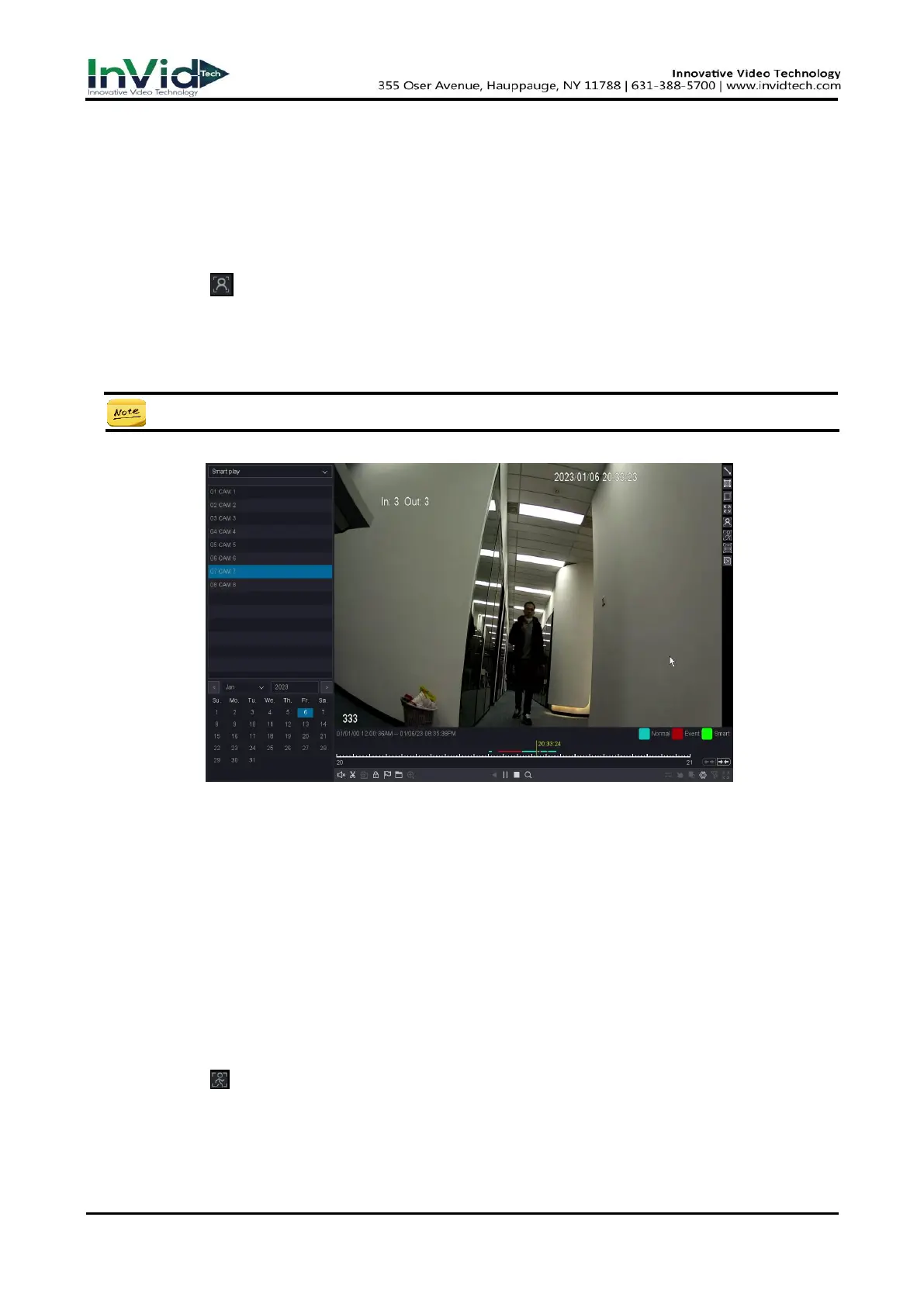
Face search
Steps:
1. Go to Playback.
2. Select the Smart Play.
3. Select the channel and the record time as your desire.
4. Click Play button or Click the blue timeline.
5. Click the icon of “Face search”, then the full video interface will be detected by default.
6. Click “Setting” button to Configure the parameters as your desire.
7. Click the “Search” button then the result will be shown below, video with people’s face will be
marked color “green”, and the video will be played by the setting as you made at step 6.
● Smart Play only work with InVid IPCs which support these features.
Figure 10-8-3-6
Human Shape search
Steps:
1. Go to Playback.
2. Select the Smart Play.
3. Select the channel and the record time as your desire.
4. Click Play button or Click the blue timeline.
5. Click the icon of “Human Body search”, then the full video interface will be detected by default.
6. Click “Setting” button to Configure the parameters as your desire.
7. Click the “Search” button then the result will be shown below, video with Human Shape Motion
will be marked color “green”, and the video will be played by the setting as you made at step.



 To Next Page