Configure Alarm Trigger process
Alarm Trigger process will be activated when an alarm or exception occurs.
Steps:
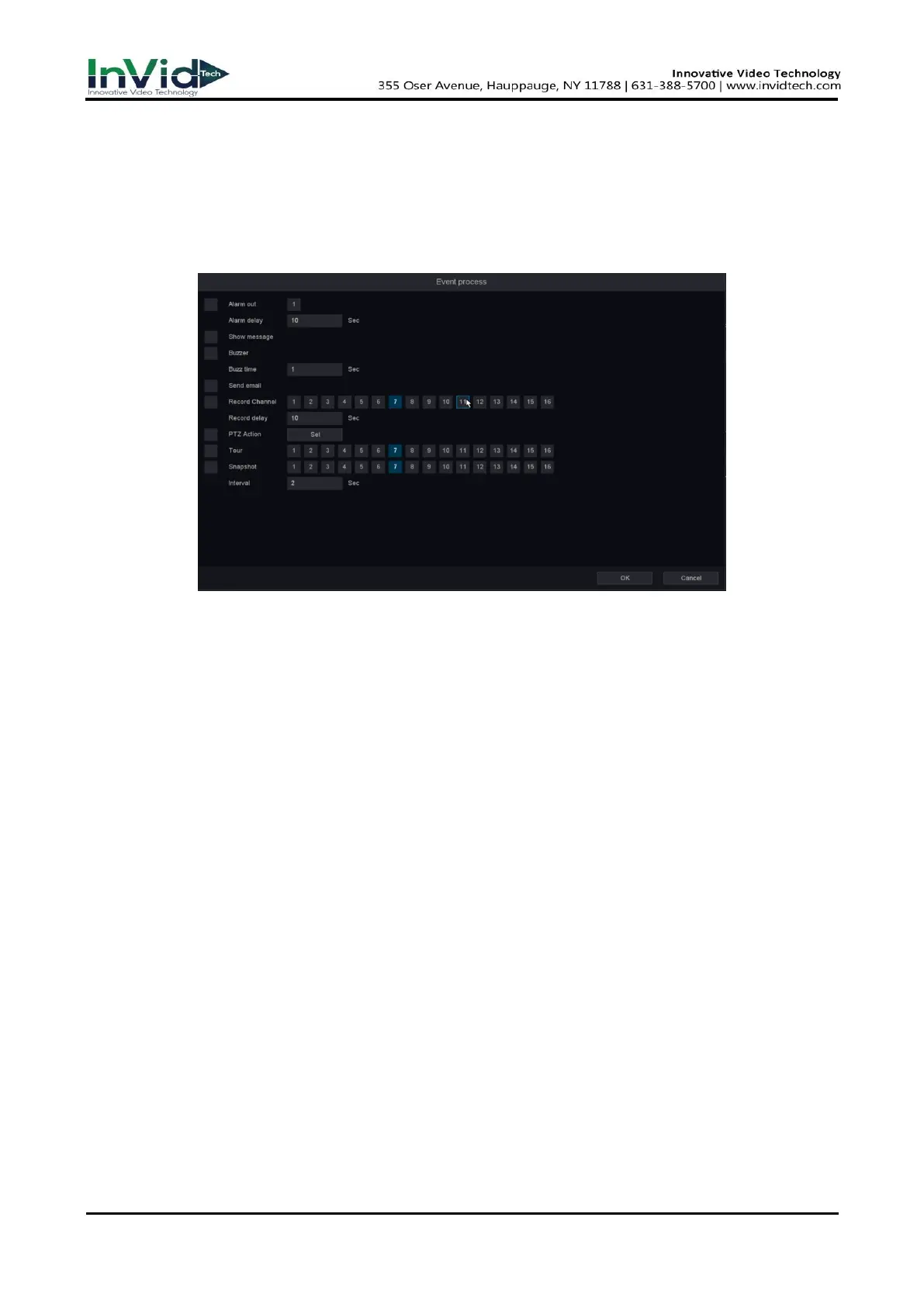
1. Click Trigger Process.
Figure 6-3-3-7 Trigger process
2. Set normal Trigger process, alarm output Trigger process, trigger channel, etc.
Alarm out
The local monitor will pop up the alarming channel image when an alarm is triggered. It
requires to select the alarming channel(s) in Trigger Channel.
Show message
The local monitor will pop up the alarming channel image when an alarm is triggered. It
requires to select the alarming channel(s) in Trigger Channel.
Buzzer & Buzz time
It will trigger a buzzer beep when an alarm is triggered.
Send Email
It will send an email with alarm information when an alarm is triggered.
Record Channel
It triggers the alarm recording for that channel when an alarm is triggered, and associate the
recording for viewing
Record delay
The alarm is over and the time to continue recording
Send Email
It will send an email with alarm information when an alarm is triggered.
PTZ Action
It will trigger PTZ actions (e.g., call preset/patrol/pattern) when smart events occur.



 To Next Page