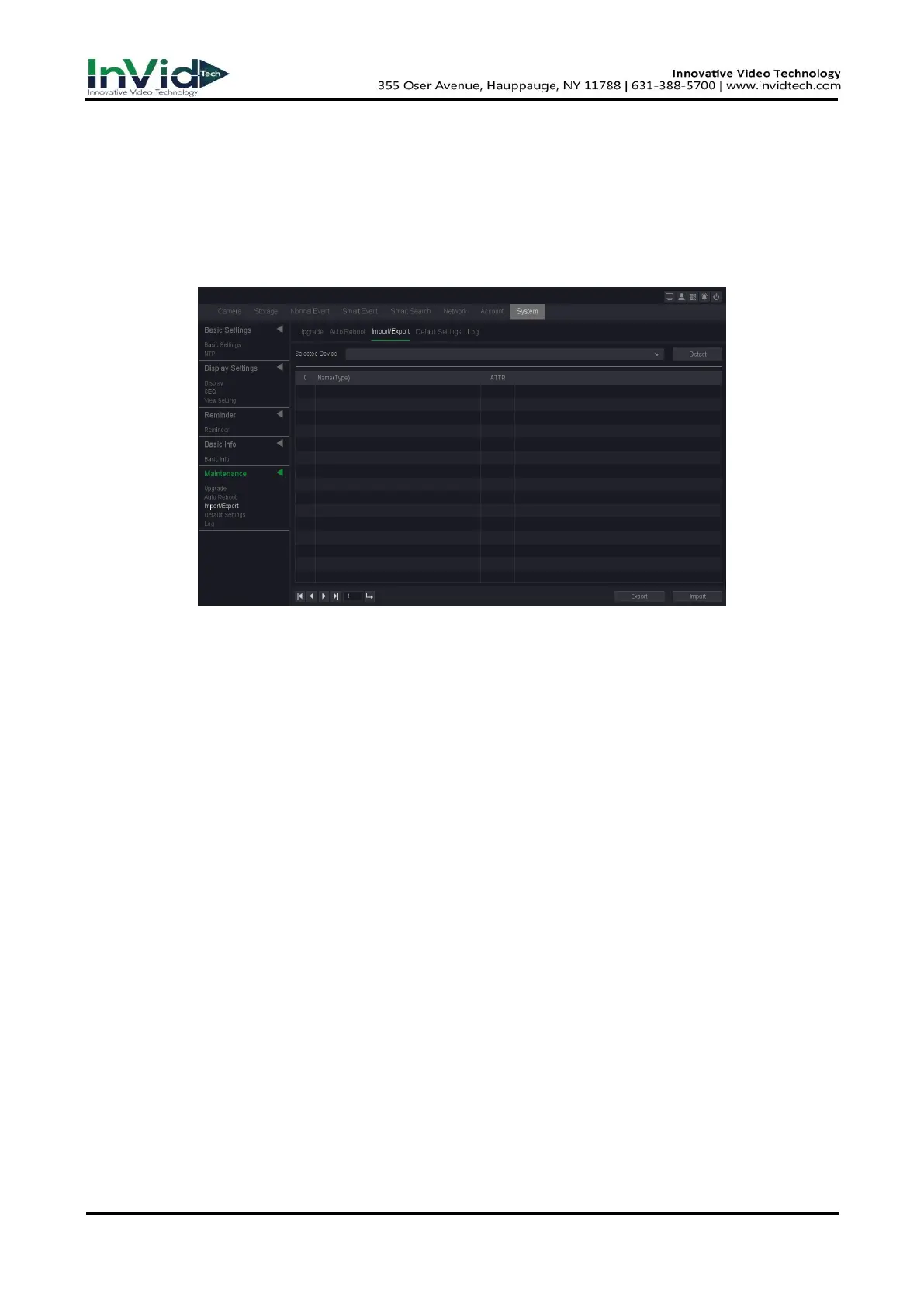
Import/Export
On this page you can backup device parameters into USB flash disk, Of course, you can also import
the device parameters you backed up before.
1. Go to Seven Grid Menu → System →Maintenance→ Import/Export.
2. Click Detect.
3. Click Import or Export.
Figure 10-1-6-2
Detect
Detect the USB device.
Name (type)
File name and file type, and the backup file is “.coi” type.
ATTR
Shows the file type.
Export
Export the parameters backup file into USB disk.
Import
Choose the backup file and click import button, your device parameters will change into the
new one.
Default Settings
On this page you can choose the function item, General/Channel name/Control/Network/Motion
Detect/Alarm/Abnormality/PTZ/Display/IP Channel/Smart settings/Cloud Authentication Code,
and after click Execute button, the item what you chosen restore defaults. And you can also select
the “select all” button, all the items restore default.
1. Go to Seven Grid Menu → System → Maintenance→ Default Settings.
2. Select the function item you want to restore the default parameters or Select all.



 To Next Page