Kavo 3D eXam ® Operators’ Manual
K990400 16 April 2008
7-10
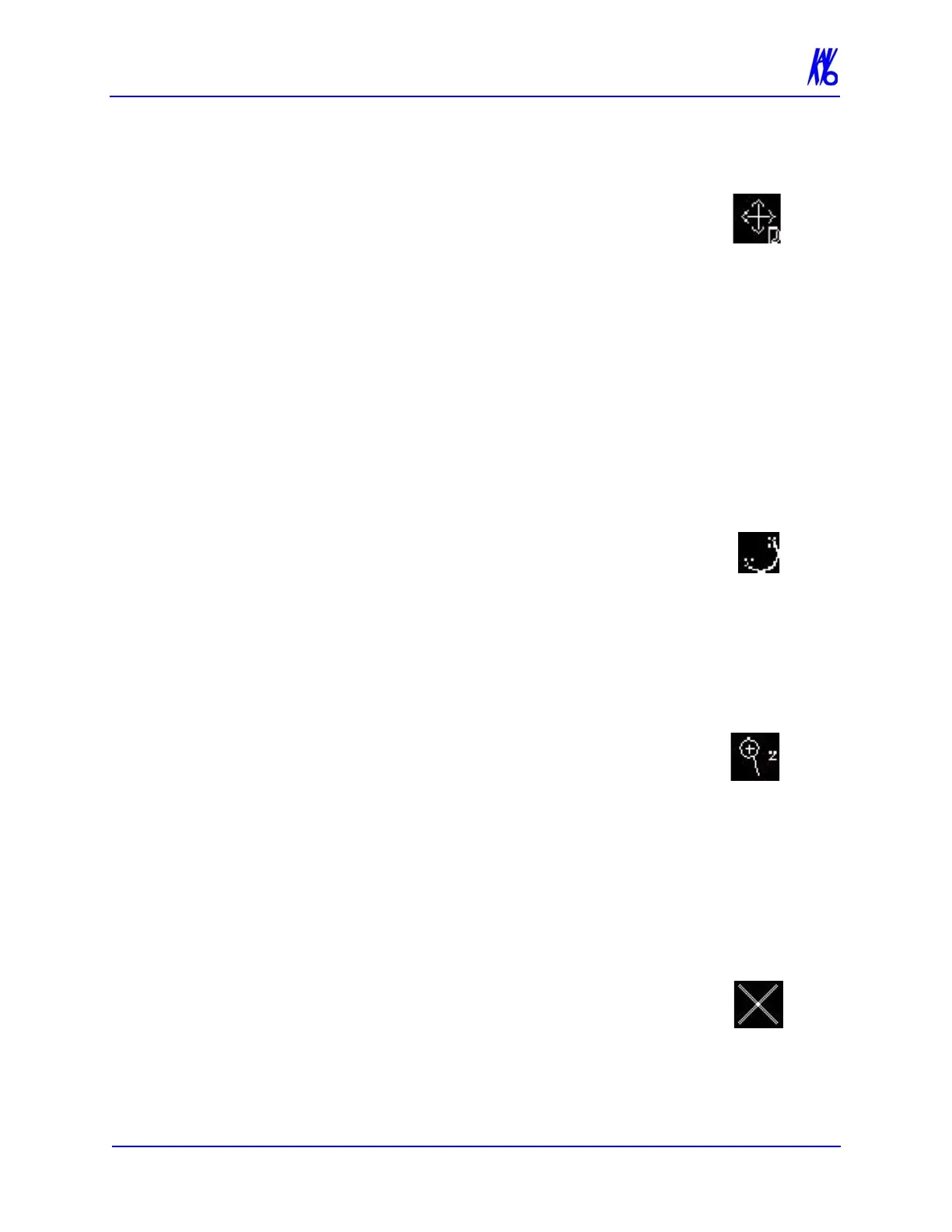
Pan Feature
Most views allow panning left, right, up, or down in order
to view a desired portion of the displayed image.
To use the pan feature:
1. Move the cursor to the bottom left of the image where the pan
function is to be used. The pan cursor tool appears.
2. Click and drag up/down and left/right to pan to the desired
portion of the displayed image.
Rotation Feature
The Sagittal, Coronal and/or Axial views can be rotated.
To use rotate feature:
1. Hover the cursor over the lower right corner of the
desired view. The cursor changes to the rotation tool.
2. Using the rotation tool, click and drag to rotate the
selected image. A grid appears over the selected image to
provide a reference for rotation.
Zoom Feature
Most views allow zooming in and out to view more or less
detail for the displayed image.
To use the zoom feature:
1. Move the cursor to the bottom right of the image where the zoom
function is to be used. The zoom cursor tool appears.
2. Click and drag up and down to zoom in and out, respectively.
Back Tool
When viewing one of the detail screens, the X cursor can
be used to return to the preview screen.
To exit the detail screen and return to the preview screen:
1. Move cursor to the top left corner of the screen until the cursor
becomes an X.



 To Next Page