K990400 16 April 2008
Detail Screens
8-5
.
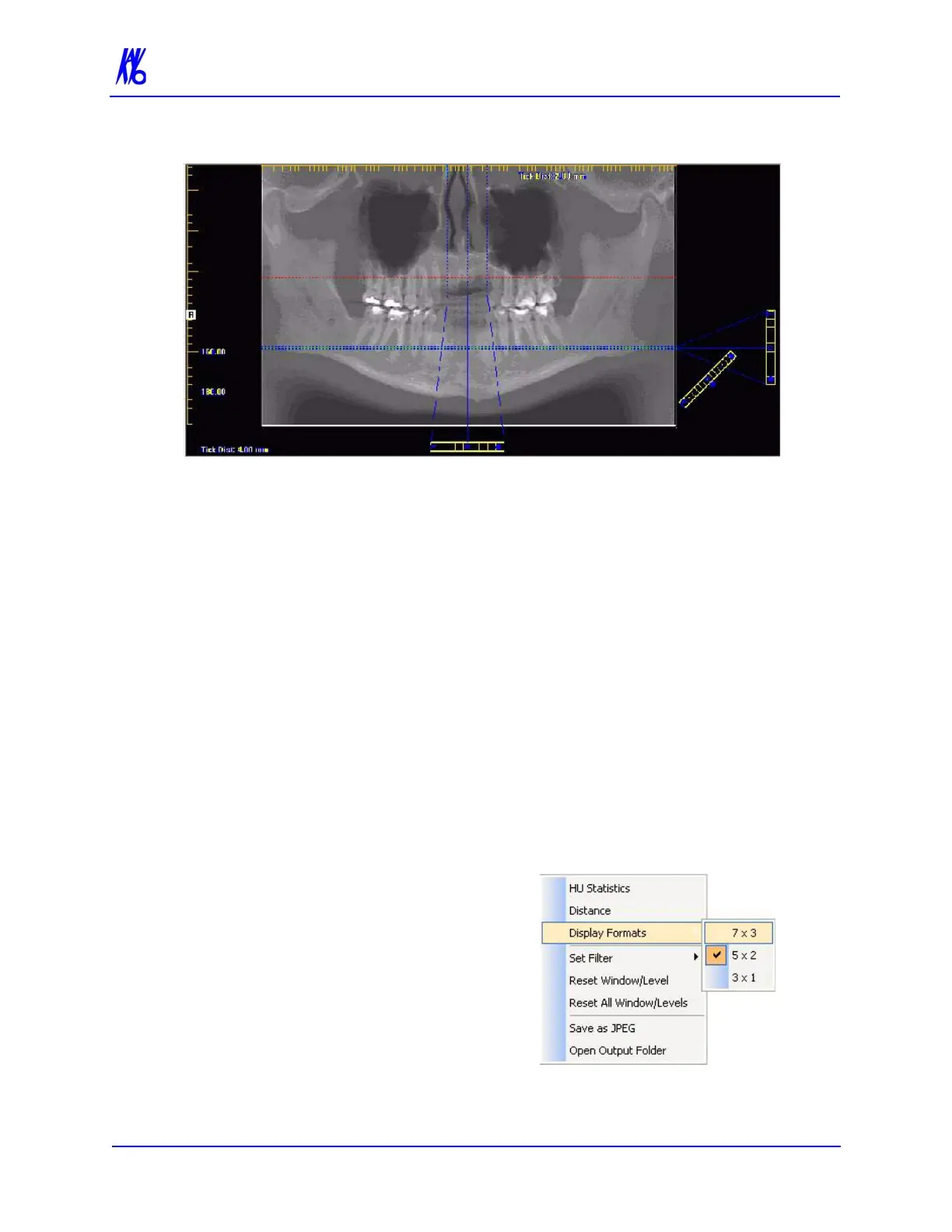
b. Drag the solid dot on the right side of the diagonal toolbar
(bottom right) to adjust the slice thickness displayed on the
panoramic map view.
c. Drag the O in the center of the diagonal toolbar to adjust the
pan focal trough.
d. Drag the O in the center of the vertical toolbar (right side of
view) up or down to change the height of anatomy viewed
in the cross section views. Changes made here are reflected
on the axial slice position view and the cross section views.
e. Drag the solid dot on the right side of the vertical toolbar to
adjust the slice thickness displayed on the cross section
views. Changes made here are reflected on the cross section
views.
3. Individual cross section images can be zoomed in by double-
clicking them. Double-clicking again returns the image to
normal zoom.
4. Right-clicking on a cross
section brings up a popup
menu. Selecting one of the
submenu items from the
Display Formats menu item
changes the number of
displayed cross sections to
correspond to the selected
submenu item. For example,
selecting the 3 x 1 menu item



 To Next Page