95
KMHA 500-000099
Revision D
KDR
TM
AU-DDR Advanced U-Arm System with
Dynamic Digital Radiography (KDR AU DDR)
IV. SOFTWARE
21.0 STORING AND SHARING IMAGES
21.1 Manually Send Images to a PACS Destination
You can congure the system to automatically send images to a PACS destination, after accepting the image(s) and exiting
the exam, or you can manually send them after you complete an exam. The following steps provide details on how to man-
ually send images.
1. Select a patient exam from the Completed tab in the Ultra UAI Window.
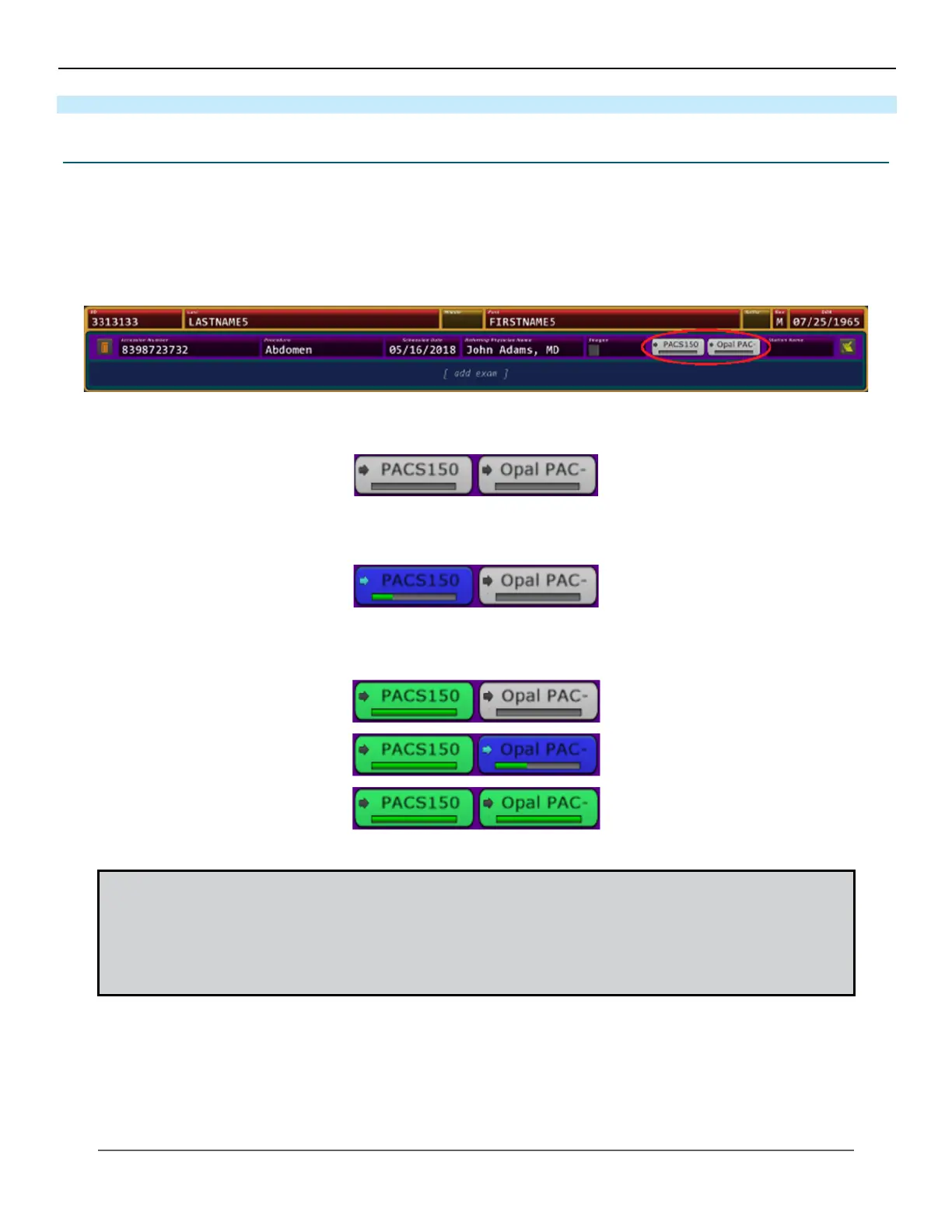
2. In the expanded exam view, the Send Destination icon(s) display to the right of the list of exams.
For systems with multiple send destinations congured, multiple icons are displayed.
3. Click on the destination PACS icon(s) you want to send a study to. The icon will change to blue and a green prog-
ress bar will display on the icon while the transfer is in progress.
4. The destination icon(s) will turn green once the image(s) have successfully been sent to their destination PACS
server(s).
NOTE: Destination Icons have the following status colors:
Gray – not sent to PACS
Blue – sending in progress
Green – successfully sent
Red – failed to send


 To Next Page
 Loading...