Maintenance & Supplies 8-3
Maintenance & Supplies
Loading Paper (continued)
Loading Paper in Tray 1 and 2
When Thick or Thin is displayed on the tray key of the Basic Screen, be sure to load the
specified paper; otherwise mishandled paper may occur.
When TAB is displayed on the tray key of the Basic Screen, see p. 8-7.
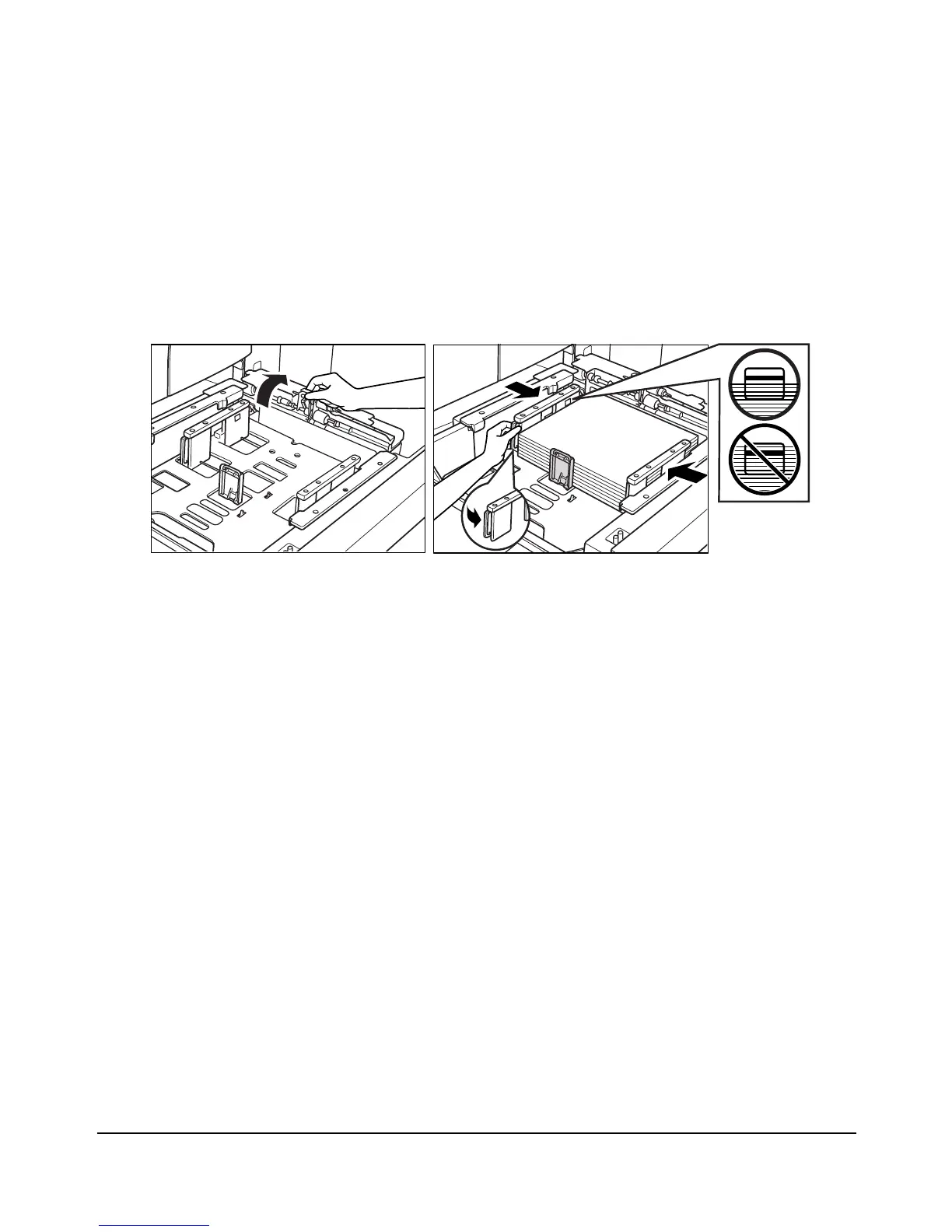
1Withdraw tray 1 or 2, and open the paper feed roller.
2 Place paper on the tray with the curl side turning up.
Load size 11"x17", 8.5"x14", 8.5"x11", 8.5"x11"R or 5.5"x8.5" (user-adjustable)
Do not stack paper above the thick red line.
3Move the green lever (located at the left side) of the rear paper guide to the edge of the
paper.
NOTE: Be sure that the paper guides are securely aligned to the paper; otherwise the machine cannot detect the
correct paper size, or prints may not be punched in position.
4When paper is seated properly, close the paper feed roller.
5 Push the tray back fully into the printer.
NOTE: Do not bump the tray into the main body; otherwise machine trouble may be caused.





 To Next Page