Key Operator Mode 9-25
Key Operator Mode
Weekly Timer [9] (continued)
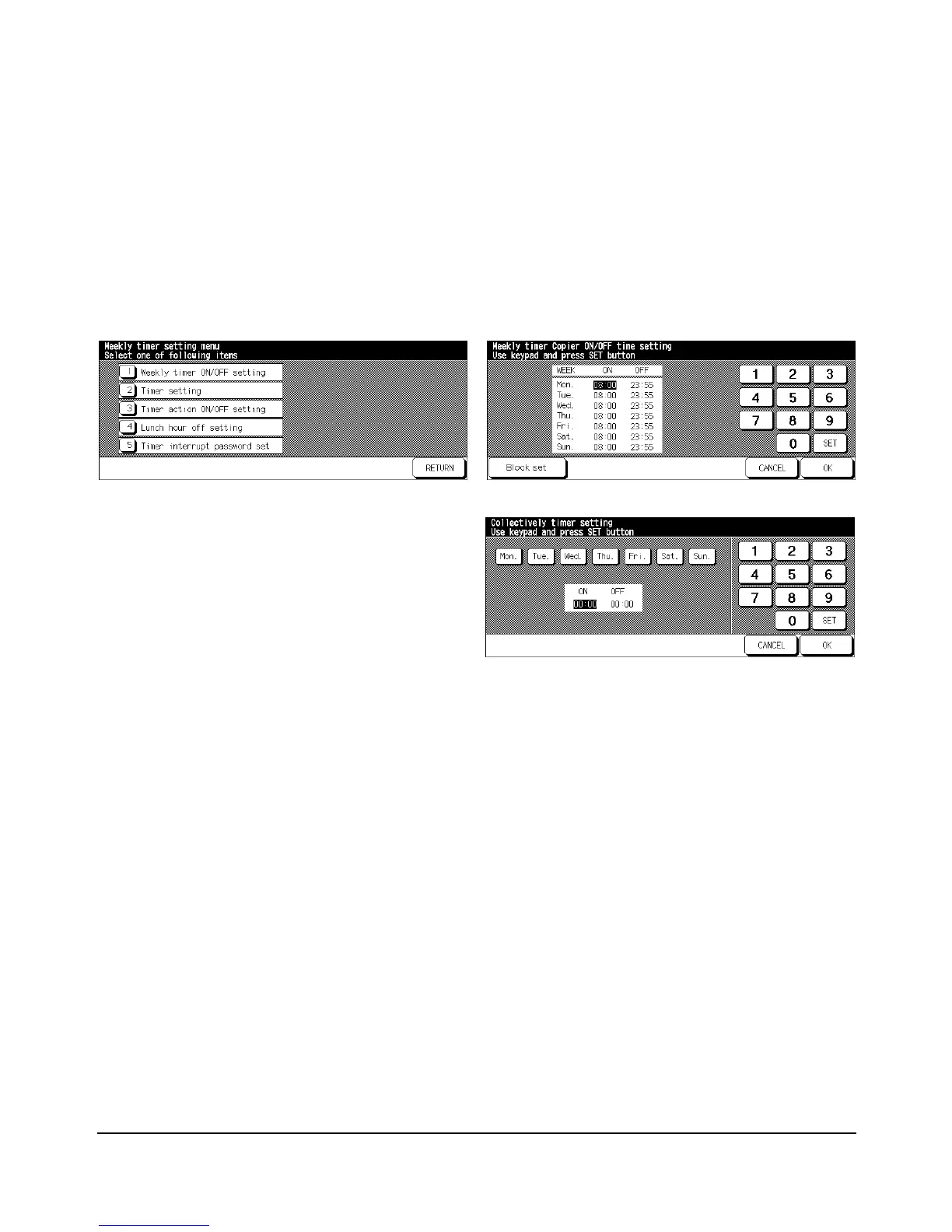
Timer Setting [2]
Use this function to set the On/Off times in hours and minutes for each day of the week or
set the collective time for the entire week, i.e., the same On/Off time for each day.
Weekly Timer Setting Menu Screen Weekly Timer On/Off Time Setting Screen
Weekly Timer On/Off Time Collective Setting Screen
1 Press [HELP] to display the Help Screen, then touch Key Operator Mode.
Enter the 4-digit Key Operator password, then touch OK to display the Key Operator
Mode Screen. (See note 1.)
2Touch [9] Weekly timer. Enter your 4-digit Weekly Timer master key code, then touch OK
to display the Weekly Timer Setting Menu Screen. (See note 2.)
NOTES: 1 If an invalid password is entered, enter the valid 4-digit password.
2 If an invalid Weekly Timer master key code is entered, continue by entering the valid 4-digit code.
3Touch [2] Timer setting to display the Weekly Timer On/Off Time Setting Screen.
4When the screen is displayed, the ON-time of Monday is always highlighted.
Enter a 2-digit ON-hour (ex. 8 a.m. is 08) and a 2-digit ON-minute (ex. 7 min. is 07)
using the touch screen keypad, and then touch SET.
Touching SET repeatedly will shift the input section from Monday ON, Monday OFF,
Tuesday ON, Tuesday OFF.
NOTES: • If ON-time and OFF-time are the same, power will not go on.
• If the setting is 00:00~00:00, you will not be able to set the printers off/on condition for specific days.
When setting Sunday OFF-time, Monday ON-time is highlighted again. Proceed to step
7.
5To set the ON/OFF time collectively for more than one day of the week, touch Block set
to display the Weekly Timer On/Off Time Collective Setting Screen.






 To Next Page