Interface
1-75
6
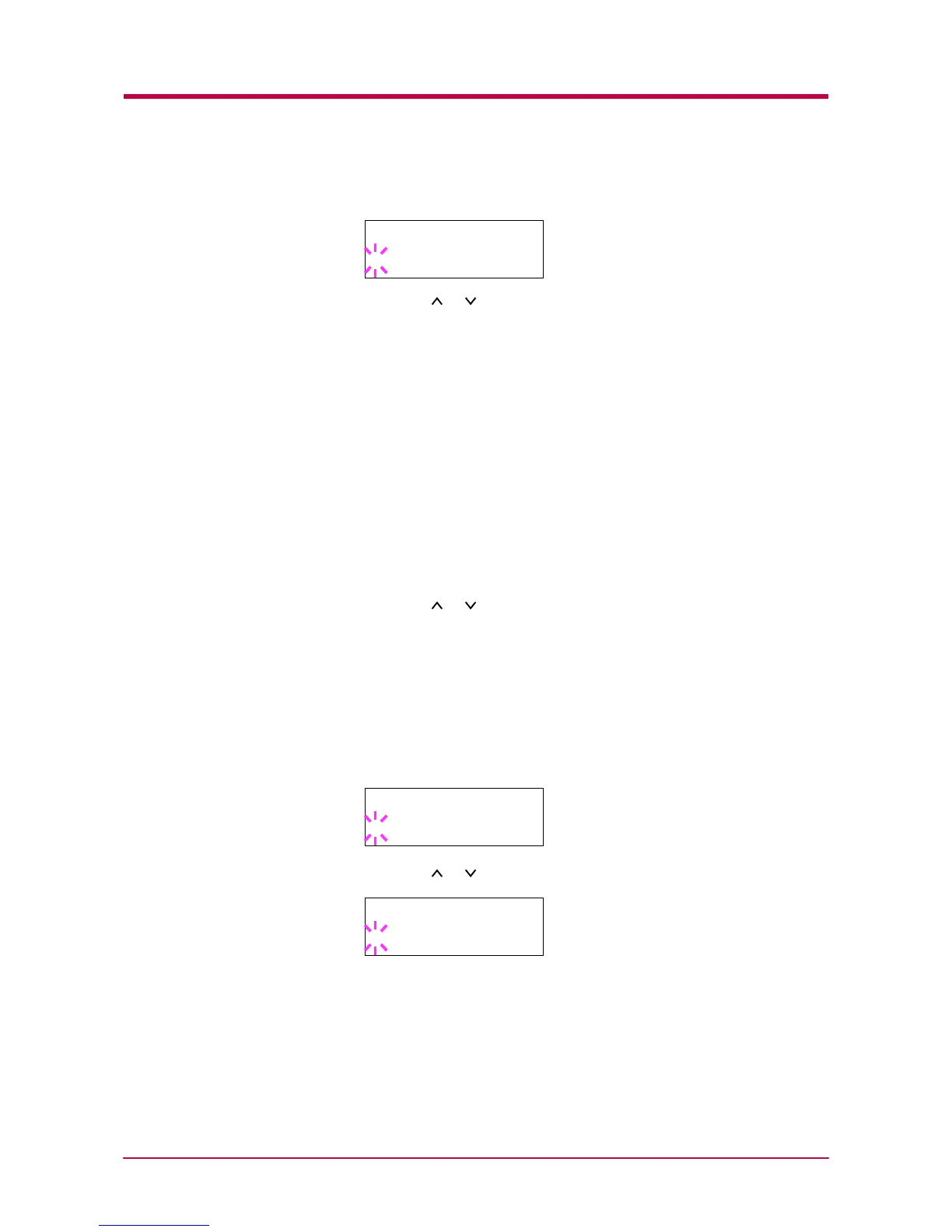
Press the ENTER key. A blinking question mark (?) appears.
7
Press the or key to display the desired mode. The display
changes as shown below. Press the ENTER key.
Auto (default)
Normal
High Speed
Nibble (high)
8
Press the MENU key. The message display returns to Ready.
USB Interface Mode
About USB interface, for details, see Appendix C.
1
Press the MENU key.
2
Press the or key until Interface > appears. One of the
interface names shown below appears, indicating the current
interface.
Parallel (default)
USB
Serial (when a serial interface board kit is installed)
Option (when a network interface card is installed)
3
Press the ENTER key. A blinking question mark (?) appears.
4
Press the or key until USB appears.
5
Press the ENTER key.
6
Press the MENU key. The message display returns to Ready.
>Parallel I/F
? Auto
Interface
? Parallel
Interface
? USB


 To Next Page
 Loading...